Kling VIDEO 4.0

Kling VIDEO 4.0 is a unified video model that generates 1080p clips of up to 30 seconds from text, images, reference videos, and reusable elements. It follows up to 10 keyframes per clip, including first, middle, and last frames, and combines reference images, reference videos, and elements in a single request to hold subjects, style, and motion. It also edits an existing video from a prompt, which suits long narrative shots, storyboard-driven sequences, and reference-driven production work.
Keyframes
How to anchor Kling VIDEO 4.0 to still images: animate a first frame, bridge a first and last frame, place up to ten keyframes on a timeline, and choose the output shape.
Introduction
Keyframes pin still images to moments in the clip. Kling VIDEO 4.0 takes up to ten of them: a first frame, a last frame, and intermediate keyframes in between, and it generates the motion that connects them. Use them when you already know what certain moments must look like, from a storyboard or a product shot.
Use <<<image_1>>> as the first frame, <<<image_2>>> as a middle keyframe, and <<<image_3>>> as the last frame. 0–4 s: the camera glides down the corridor and through the half-open door of room 512. 4–8 s: it moves across the bright room past the bed toward the balcony door as the sheer curtains drift. 8–12 s: it passes out onto the balcony and settles on the two chairs facing the sunset over the sea. One continuous gimbal shot, no cuts. Audio: soft footsteps on carpet, a door swinging open, waves growing louder on the balcony, no music, no subtitles.
- First frame
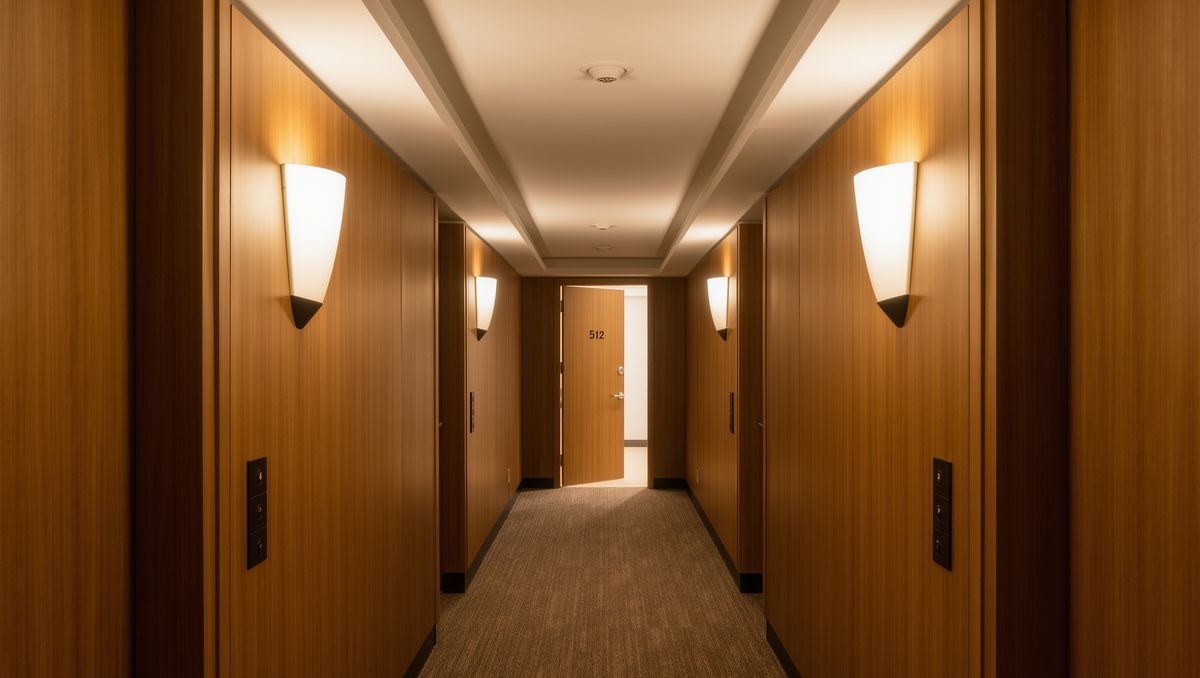
A hotel corridor with warm wood paneling and soft wall sconces, the door of room 512 half open at the end, revealing a bright room beyond. Eye-level, symmetrical framing. Photoreal interior photography, no people.
- Middle keyframe
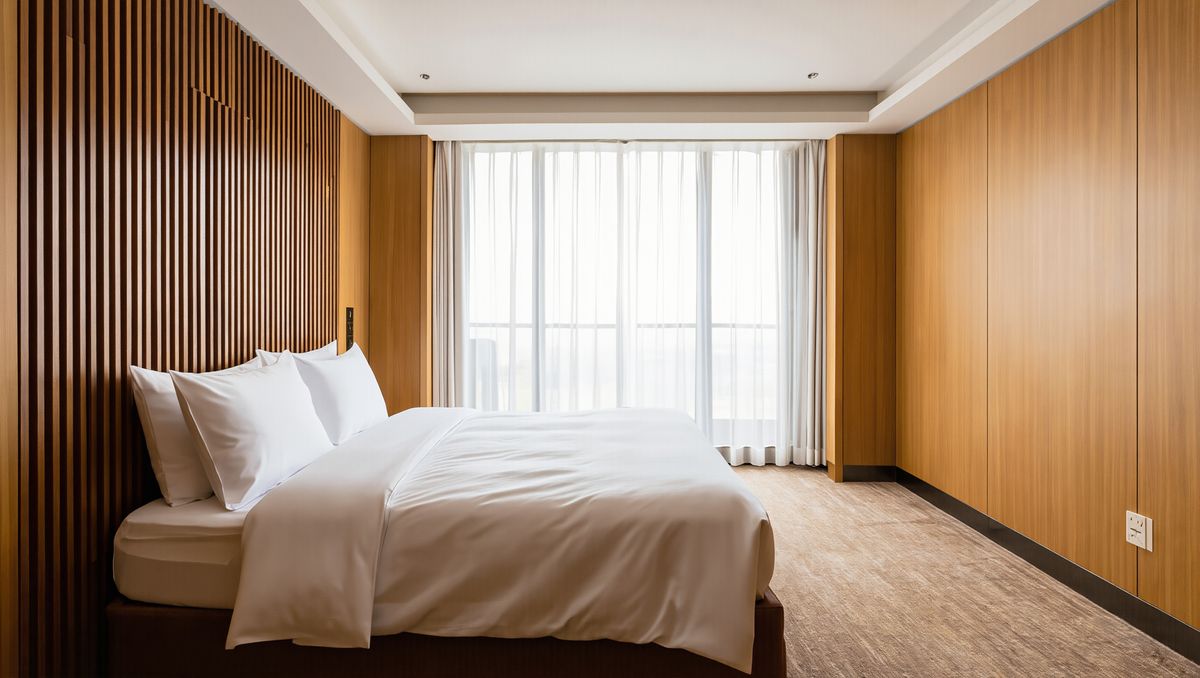
Inside the same hotel: a bright modern room with a king bed in white linen, a warm wood headboard matching the corridor paneling, and a large balcony door with sheer curtains. Eye-level, photoreal interior photography, no people.
- Last frame
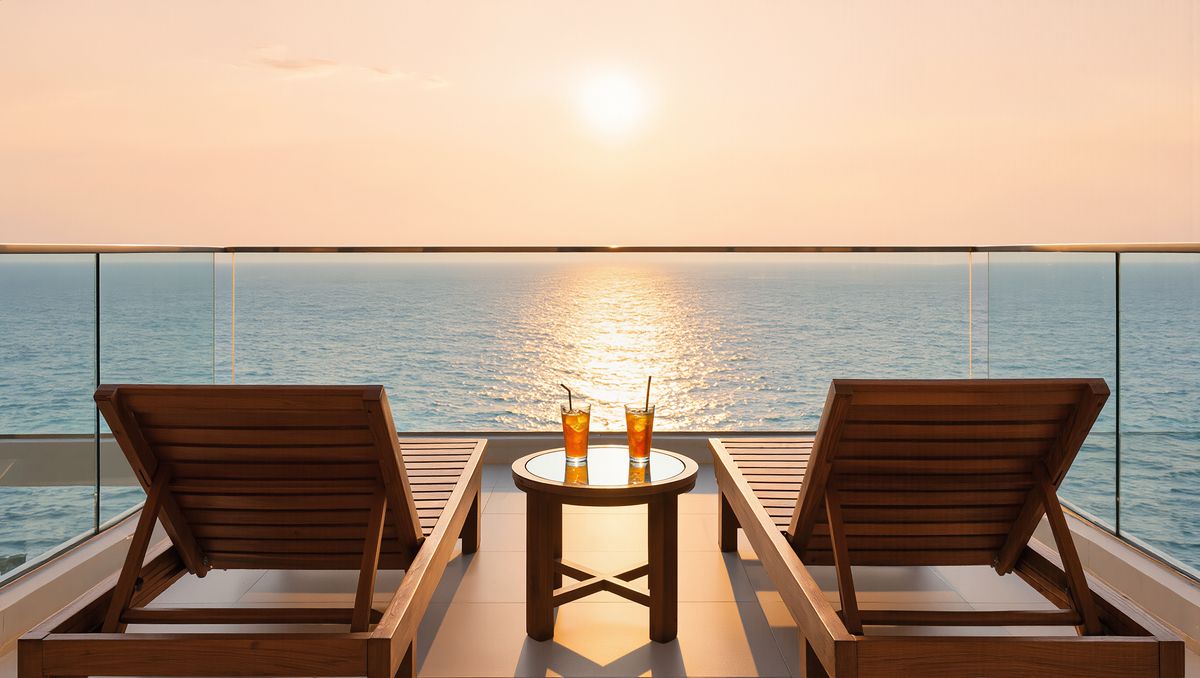
The balcony of the same hotel at sunset: two wooden lounge chairs and a small table with two glasses, the sea and a pale orange sky beyond a glass railing, warm wood details matching the hotel interior. Photoreal, warm light, no people.


The stills fix three moments, and the prompt describes the movement between them: here, one gimbal move from the corridor to the balcony.
Request shape
Keyframes go in inputs.frameImages, each an image with an optional frame position. Only the two ends can be pinned: first (or 0) and last (or -1). Place intermediate keyframes between them in the order they should appear, without a frame:
import { createClient } from '@runware/sdk'

const client = await createClient({ apiKey: process.env.RUNWARE_API_KEY })
await client.connect()

const [result] = await client.run({
  model: 'klingai:kling-video@4.0',
  positivePrompt: 'Use <<<image_1>>> as the first frame, <<<image_2>>> as a middle keyframe, and <<<image_3>>> as the last frame. 0–4 s: the camera glides down the corridor and through the half-open door. 4–8 s: it moves across the bright room toward the balcony door. 8–12 s: it passes out onto the balcony and settles on the two chairs facing the sunset. One continuous gimbal shot, no cuts. Audio: soft footsteps, a door swinging open, waves, no music, no subtitles.',
  resolution: '1080p',
  duration: 12,
  inputs: {
    frameImages: [
      {
        image: 'https://im.runware.ai/image/os/a14d18/ws/2/ii/1b2c3d4e-5f6a-4b7c-8d9e-0f1a2b3c4d5e.jpg',
        frame: 'first'
      },
      {
        image: 'https://im.runware.ai/image/os/a14d18/ws/2/ii/2c3d4e5f-6a7b-4c8d-9e0f-1a2b3c4d5e6f.jpg'
      },
      {
        image: 'https://im.runware.ai/image/os/a14d18/ws/2/ii/3d4e5f6a-7b8c-4d9e-8f0a-2b3c4d5e6f7a.jpg',
        frame: 'last'
      }
    ]
  }
})
import asyncio
import os
from runware import Runware
async def main():
async with Runware(api_key=os.environ["RUNWARE_API_KEY"]) as client:
results = await client.run({
"model": "klingai:kling-video@4.0",
"positivePrompt": "Use <<<image_1>>> as the first frame, <<<image_2>>> as a middle keyframe, and <<<image_3>>> as the last frame. 0–4 s: the camera glides down the corridor and through the half-open door. 4–8 s: it moves across the bright room toward the balcony door. 8–12 s: it passes out onto the balcony and settles on the two chairs facing the sunset. One continuous gimbal shot, no cuts. Audio: soft footsteps, a door swinging open, waves, no music, no subtitles.",
"resolution": "1080p",
"duration": 12,
"inputs": {
"frameImages": [
{
"image": "https://im.runware.ai/image/os/a14d18/ws/2/ii/1b2c3d4e-5f6a-4b7c-8d9e-0f1a2b3c4d5e.jpg",
"frame": "first"
},
{
"image": "https://im.runware.ai/image/os/a14d18/ws/2/ii/2c3d4e5f-6a7b-4c8d-9e0f-1a2b3c4d5e6f.jpg"
},
{
"image": "https://im.runware.ai/image/os/a14d18/ws/2/ii/3d4e5f6a-7b8c-4d9e-8f0a-2b3c4d5e6f7a.jpg",
"frame": "last"
}
]
}
})
asyncio.run(main())curl https://api.runware.ai/v1 \
-H "Authorization: Bearer $RUNWARE_API_KEY" \
-H "Content-Type: application/json" \
-d '[
{
  "taskType": "videoInference",
  "taskUUID": "4a5b6c7d-8e9f-4a0b-9c1d-2e3f4a5b6c7d",
  "model": "klingai:kling-video@4.0",
  "positivePrompt": "Use <<<image_1>>> as the first frame, <<<image_2>>> as a middle keyframe, and <<<image_3>>> as the last frame. 0–4 s: the camera glides down the corridor and through the half-open door. 4–8 s: it moves across the bright room toward the balcony door. 8–12 s: it passes out onto the balcony and settles on the two chairs facing the sunset. One continuous gimbal shot, no cuts. Audio: soft footsteps, a door swinging open, waves, no music, no subtitles.",
  "resolution": "1080p",
  "duration": 12,
  "inputs": {
    "frameImages": [
      {
        "image": "https://im.runware.ai/image/os/a14d18/ws/2/ii/1b2c3d4e-5f6a-4b7c-8d9e-0f1a2b3c4d5e.jpg",
        "frame": "first"
      },
      {
        "image": "https://im.runware.ai/image/os/a14d18/ws/2/ii/2c3d4e5f-6a7b-4c8d-9e0f-1a2b3c4d5e6f.jpg"
      },
      {
        "image": "https://im.runware.ai/image/os/a14d18/ws/2/ii/3d4e5f6a-7b8c-4d9e-8f0a-2b3c4d5e6f7a.jpg",
        "frame": "last"
      }
    ]
  }
}
]'runware run klingai:kling-video@4.0 \
positivePrompt="Use <<<image_1>>> as the first frame, <<<image_2>>> as a middle keyframe, and <<<image_3>>> as the last frame. 0–4 s: the camera glides down the corridor and through the half-open door. 4–8 s: it moves across the bright room toward the balcony door. 8–12 s: it passes out onto the balcony and settles on the two chairs facing the sunset. One continuous gimbal shot, no cuts. Audio: soft footsteps, a door swinging open, waves, no music, no subtitles." \
resolution=1080p \
duration=12 \
inputs.frameImages.0.image=https://im.runware.ai/image/os/a14d18/ws/2/ii/1b2c3d4e-5f6a-4b7c-8d9e-0f1a2b3c4d5e.jpg \
inputs.frameImages.0.frame=first \
inputs.frameImages.1.image=https://im.runware.ai/image/os/a14d18/ws/2/ii/2c3d4e5f-6a7b-4c8d-9e0f-1a2b3c4d5e6f.jpg \
inputs.frameImages.2.image=https://im.runware.ai/image/os/a14d18/ws/2/ii/3d4e5f6a-7b8c-4d9e-8f0a-2b3c4d5e6f7a.jpg \
inputs.frameImages.2.frame=last{
"taskType": "videoInference",
"taskUUID": "4a5b6c7d-8e9f-4a0b-9c1d-2e3f4a5b6c7d",
"model": "klingai:kling-video@4.0",
"positivePrompt": "Use <<<image_1>>> as the first frame, <<<image_2>>> as a middle keyframe, and <<<image_3>>> as the last frame. 0–4 s: the camera glides down the corridor and through the half-open door. 4–8 s: it moves across the bright room toward the balcony door. 8–12 s: it passes out onto the balcony and settles on the two chairs facing the sunset. One continuous gimbal shot, no cuts. Audio: soft footsteps, a door swinging open, waves, no music, no subtitles.",
"resolution": "1080p",
"duration": 12,
"inputs": {
"frameImages": [
{
"image": "https://im.runware.ai/image/os/a14d18/ws/2/ii/1b2c3d4e-5f6a-4b7c-8d9e-0f1a2b3c4d5e.jpg",
"frame": "first"
},
{
"image": "https://im.runware.ai/image/os/a14d18/ws/2/ii/2c3d4e5f-6a7b-4c8d-9e0f-1a2b3c4d5e6f.jpg"
},
{
"image": "https://im.runware.ai/image/os/a14d18/ws/2/ii/3d4e5f6a-7b8c-4d9e-8f0a-2b3c4d5e6f7a.jpg",
"frame": "last"
}
]
}
}Response
[
  {
    "taskType": "videoInference",
    "taskUUID": "4a5b6c7d-8e9f-4a0b-9c1d-2e3f4a5b6c7d",
    "videoUUID": "5e6f7a8b-9c0d-4e1f-8a2b-3c4d5e6f7a8b",
    "videoURL": "https://vm.runware.ai/video/os/a14d18/ws/2/vi/5e6f7a8b-9c0d-4e1f-8a2b-3c4d5e6f7a8b.mp4"
  }
]
In the prompt, the images are <<<image_1>>>, <<<image_2>>> and so on, numbered in array order. This request sets resolution rather than a size: it picks 720p or 1080p, and the clip takes the aspect ratio of the first frame.
Always set frame on the first and last image. Pinning both ends explicitly is what tells the model which images are the ends and which are the keyframes in between.
Animating a first frame
A single image pinned as first sets the opening frame, and the prompt says what happens next. The still fixes the composition and the lighting, and the prompt only has to describe motion and sound:
Use <<<image_1>>> as the first frame. A hand enters from the right, lifts the headphones off the desk, and the camera follows them upward as the morning light slides across the ear cups. Audio: the soft tap of the headband, fabric rustle, quiet room tone, no music, no subtitles.
- First frame
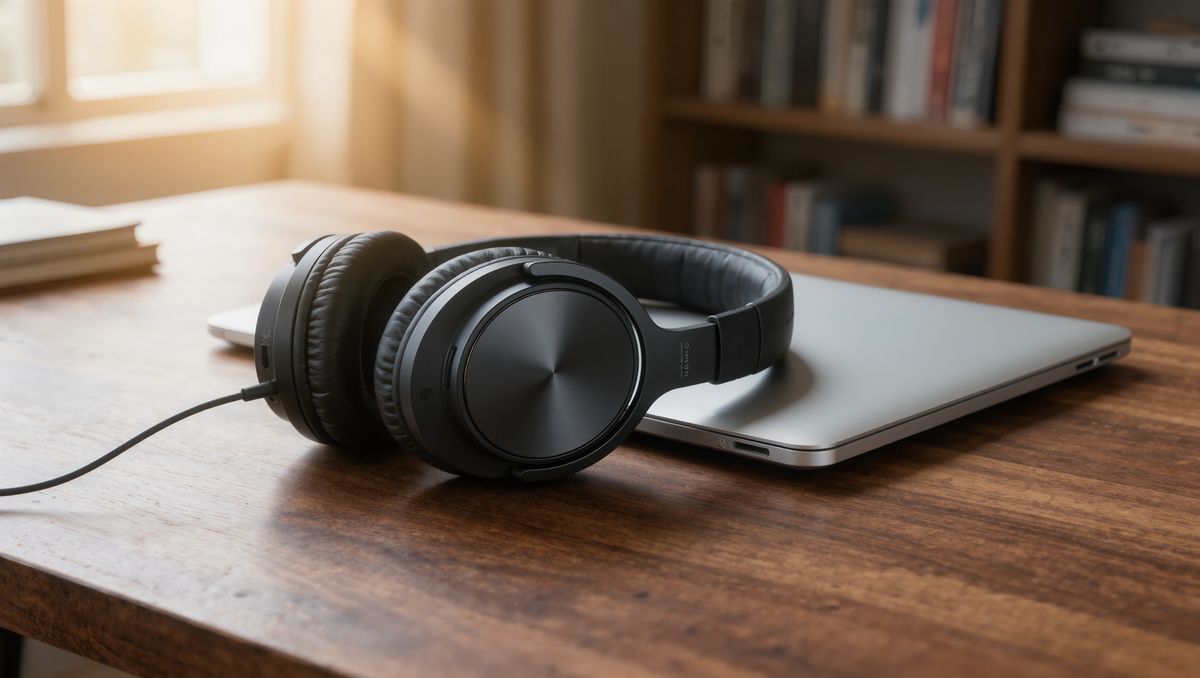
A pair of matte black over-ear headphones resting on a walnut desk next to a closed laptop, soft morning light from a window on the left, a blurred bookshelf behind. Photoreal product photography, no text, no logos.

This is the route for turning existing product photography into motion. Ask for movement the still can support, like a hand lifting the product or light shifting across it, rather than an action that would require a different scene.
Bridging a first and last frame
Pin a second image as last and the model generates the change between the two. It works best when both frames share the same composition and differ only in what you want to see happen. An empty room and the same room furnished:
Use <<<image_1>>> as the first frame and <<<image_2>>> as the last frame. The room is furnished piece by piece in a smooth time-lapse: the rug unrolls, the sofa slides into place, the coffee table and the plant arrive, and the prints settle on the wall. The camera stays locked in the same position. Audio: quick soft thuds and fabric sounds, no music, no subtitles.
- First frame
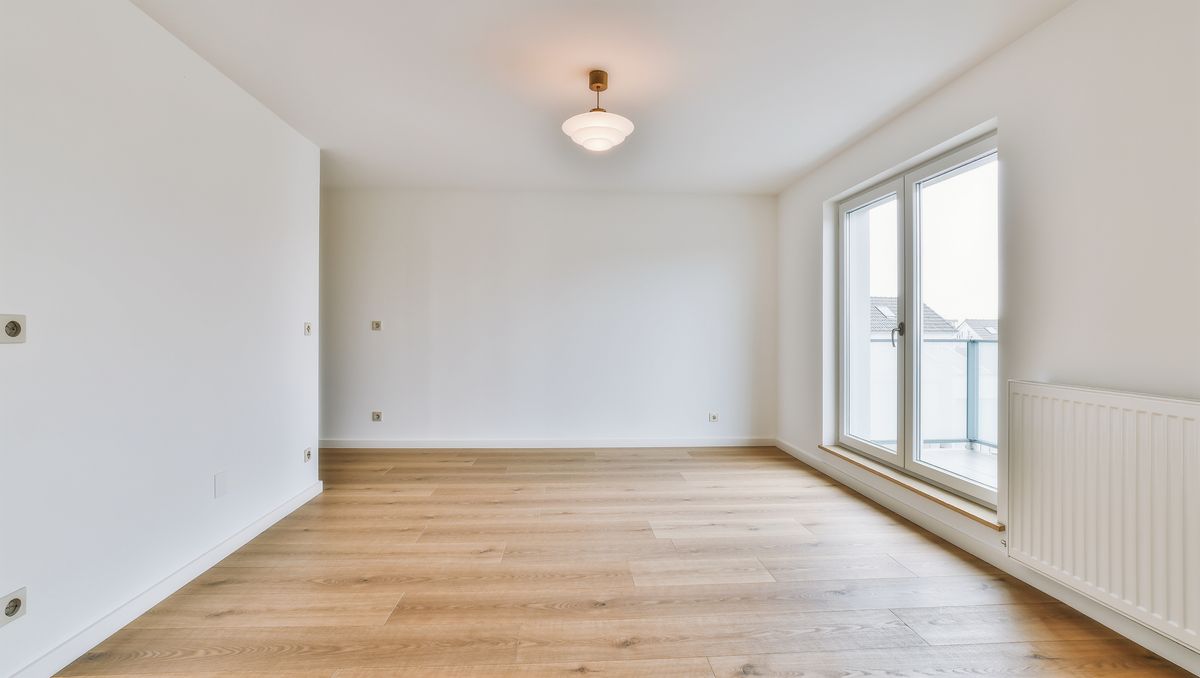
An empty living room in a newly renovated apartment: white walls, a light oak floor, a large window with daylight, a single ceiling light, no furniture. Eye-level real estate photography, photoreal.
- Last frame
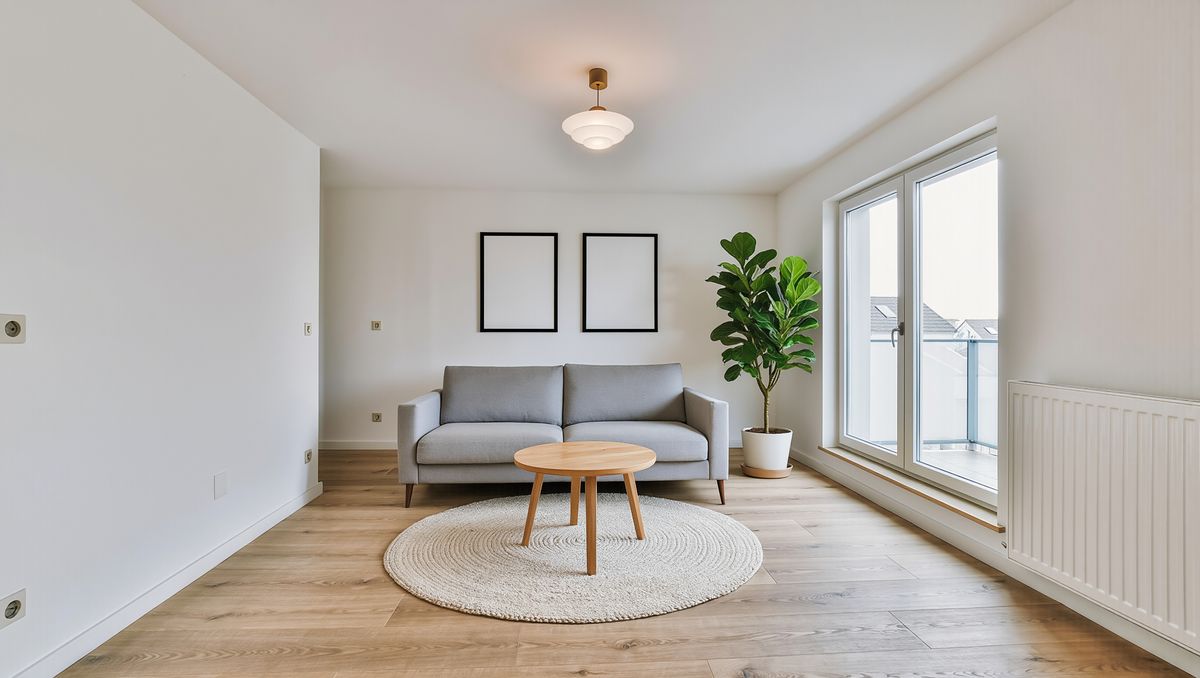
The same living room in the exact same framing and light, now staged: a light gray sofa against the wall, a round oak coffee table on a cream wool rug, two framed prints, and a tall plant by the window. Photoreal real estate photography.


Both stills share the framing and the light, so the only thing left to animate is the furniture arriving. Make the last frame an edit of the first: generate the opening image, then produce the closing one from it with an image model, changing only what the clip should change.
Keyframes on a timeline
Between the two ends, add intermediate keyframes for the turning points of the story. Write the prompt as a timeline that says which keyframe each segment travels from and to:
<<<image_1>>> is the first frame and <<<image_4>>> is the last frame, with <<<image_2>>> and <<<image_3>>> as keyframes in between. 0–4 s | Keyframe 1 to 2: close on her untied sneakers, then the camera pulls back as she leans in and ties the laces. 4–8 s | Keyframe 2 to 3: hard cut to the riverside path, a side tracking shot as she runs along the railing. 8–12 s | Keyframe 3 to 4: she slows to a stop with her hands on her hips, the skyline behind her. Audio: city morning ambience, laces tightening, rhythmic footsteps on the path, a short exhale at the end, no music, no subtitles.
- Keyframe 1
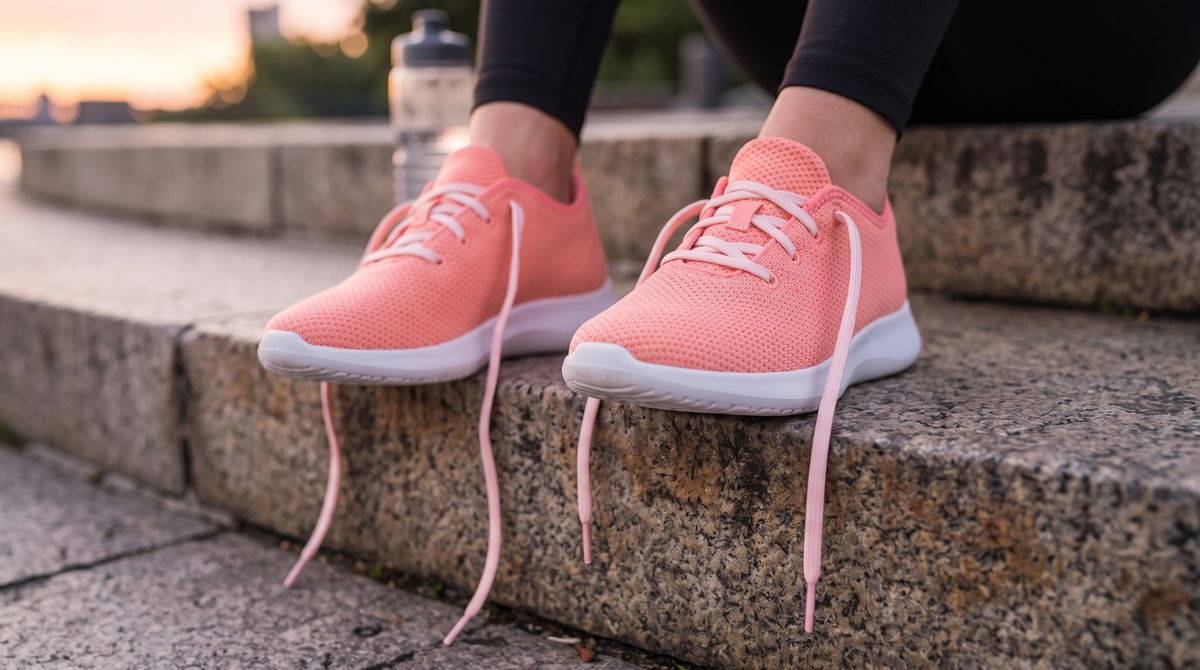
A tight close-up of the same woman's feet in the same coral sneakers as she sits on the same concrete step, just before she ties them: the laces hang loose and her hands are not in the frame. Same light, photoreal. The sneakers keep their plain design with no stripes, no logos, and no text.
- Keyframe 2
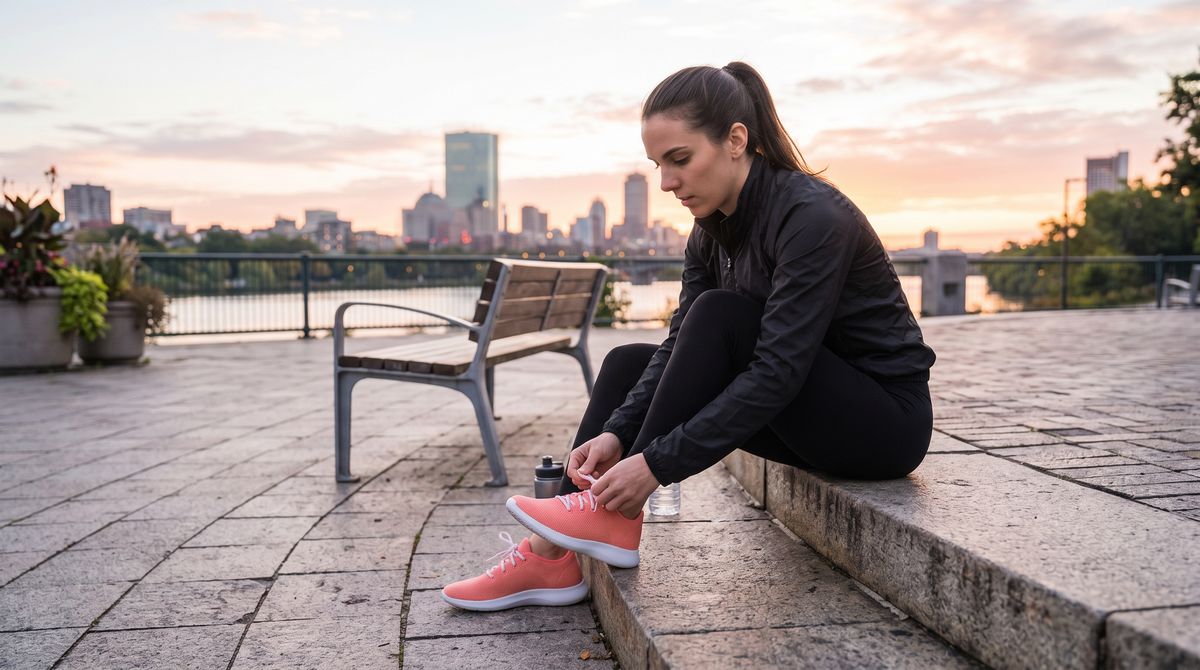
The same woman sits on a low concrete step in a city plaza in the morning and ties the laces of the same coral sneakers. Medium shot, photoreal. The sneakers keep their plain design with no stripes, no logos, and no text.
- Keyframe 3
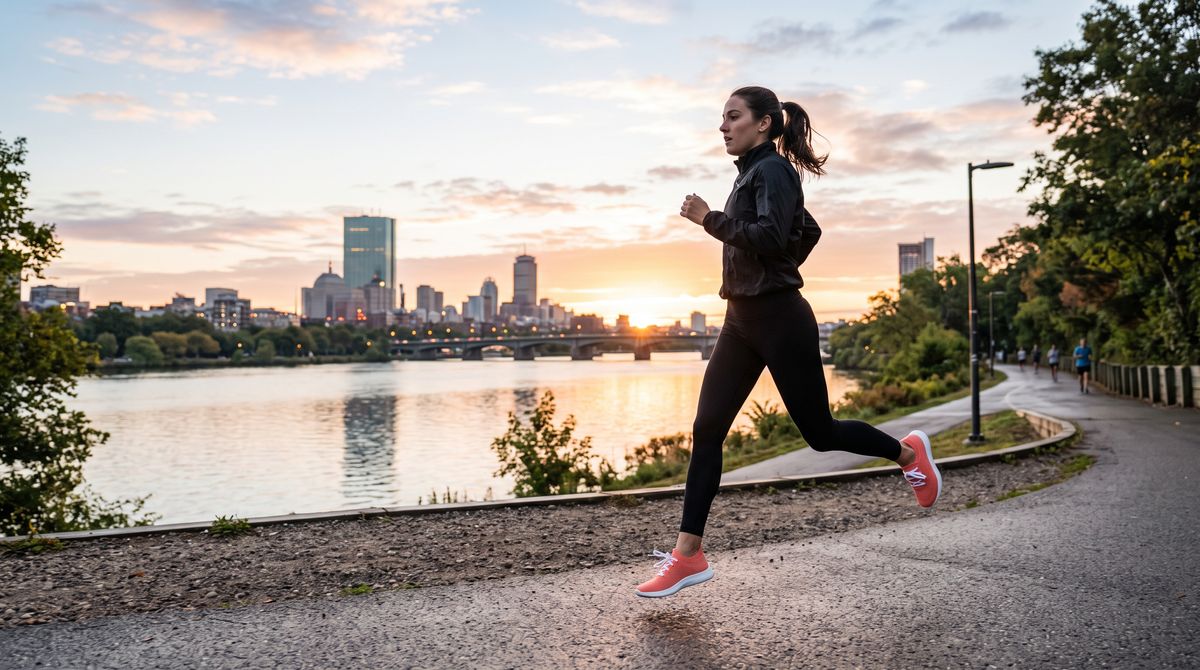
A young woman in a black running jacket and black leggings runs along a riverside path at sunrise in coral knit running sneakers with seamless one-piece uppers, flat white laces, and smooth white foam midsoles, caught mid-stride. Full-length side view, the camera tracking alongside her, a city skyline across the water, photoreal. A plain design with no stripes, no logos, and no text.
- Keyframe 4
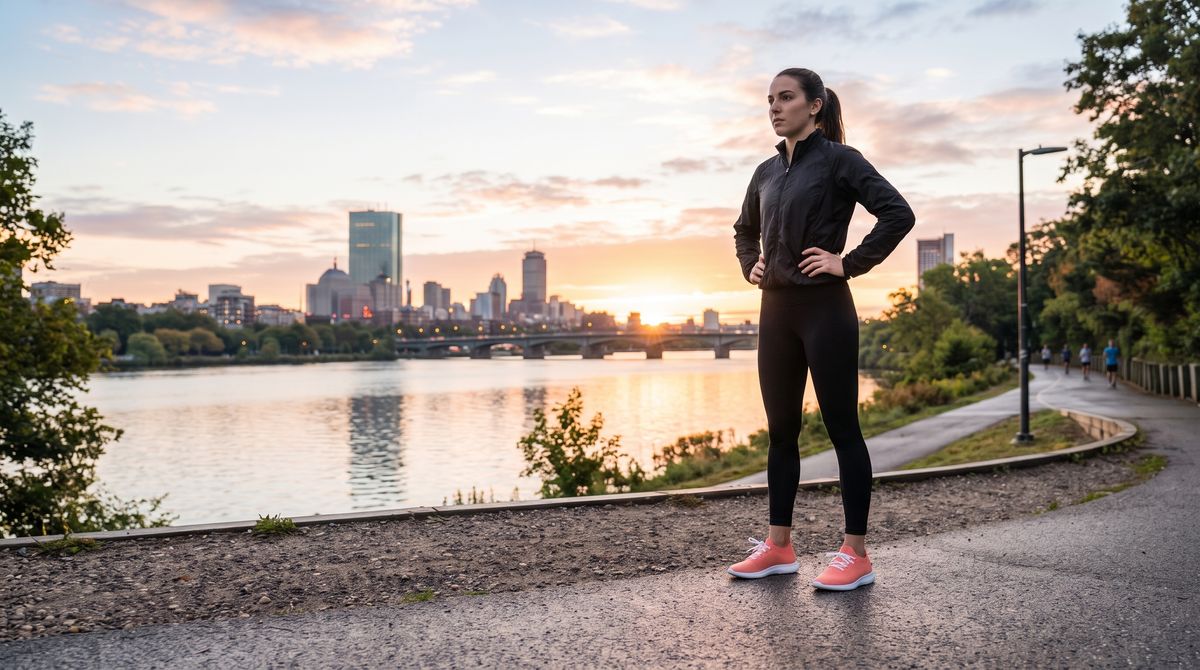
The same young woman has stopped at the end of the riverside path with her hands on her hips, wearing the same coral sneakers. Full-length shot from a low angle, a city skyline behind her. Morning light, photoreal. The sneakers keep their plain design with no stripes, no logos, and no text.


Each segment has a time range and a pair of keyframes, the same format a storyboard uses. Keyframes can sit across a cut (keyframes 2 and 3 are different locations joined by "hard cut") or inside one continuous move, as in the hotel clip above.
Choosing the output shape
By default the clip matches the aspect ratio of the first frame. To get a different shape, set an explicit size: send width and height instead of resolution, using any of the model's sizes. A landscape terrace shot as the first frame, rendered as a vertical clip:
Use <<<image_1>>> as the first frame. She flows slowly from warrior two into a deep side stretch and back, breathing calmly, as the sunrise warms the terrace. Audio: calm breathing, light wind, a distant city hum, no music, no subtitles.
- Landscape first frame
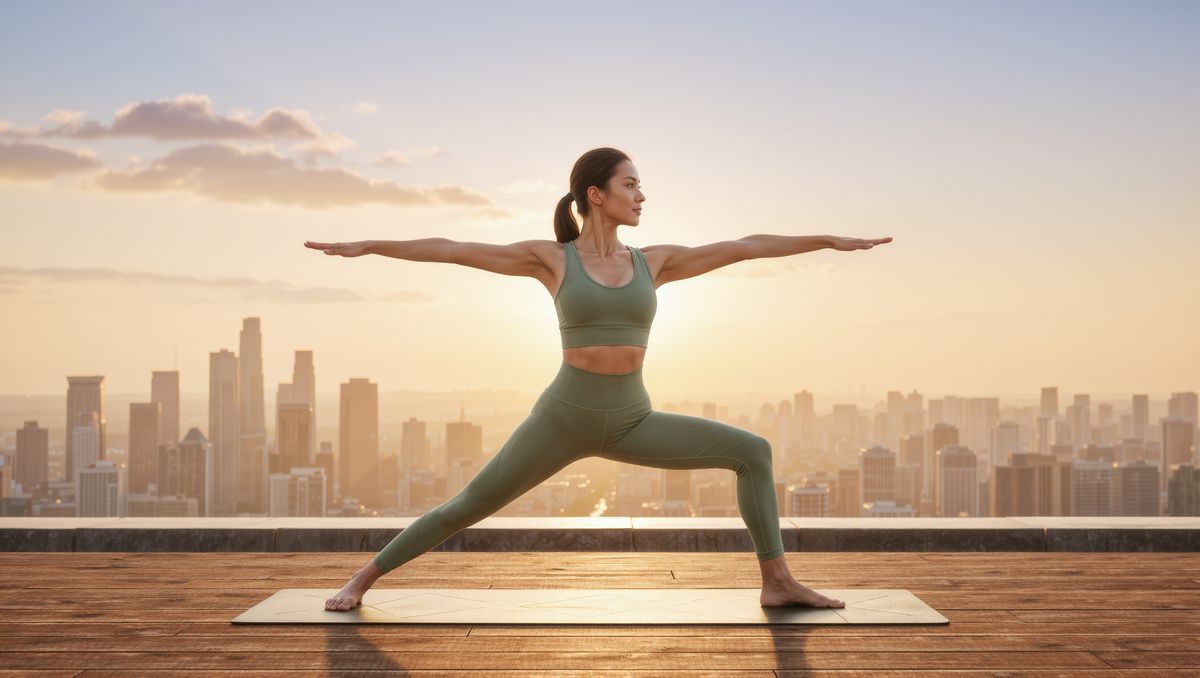
A woman in a sage green yoga set holds a warrior two pose on a wooden rooftop terrace at sunrise, the city skyline soft in the background. Wide landscape framing with the woman in the center, photoreal wellness photography.

This is how one set of landscape keyframes feeds both a 16:9 and a 9:16 deliverable. Keep the subject near the center of the still when you plan to change the shape, since that is the part of the frame both versions share.
Tips
-
Pin both ends. Set
frameon the first and last image, and leave it off the keyframes in between. -
Let the stills fix the look and the prompt fix the motion. Describe what moves and how the camera travels, not what the frames already show.
-
Derive later frames from the first. Editing the opening still into the closing one keeps the framing and the light consistent.
-
Write a timeline for three or more keyframes. A time range and a keyframe pair per segment keeps every turning point where you placed it.
-
Set a size to change the shape. Send
widthandheight. Without them, the clip follows the first frame.