Kling VIDEO 4.0

Kling VIDEO 4.0 is a unified video model that generates 1080p clips of up to 30 seconds from text, images, reference videos, and reusable elements. It follows up to 10 keyframes per clip, including first, middle, and last frames, and combines reference images, reference videos, and elements in a single request to hold subjects, style, and motion. It also edits an existing video from a prompt, which suits long narrative shots, storyboard-driven sequences, and reference-driven production work.
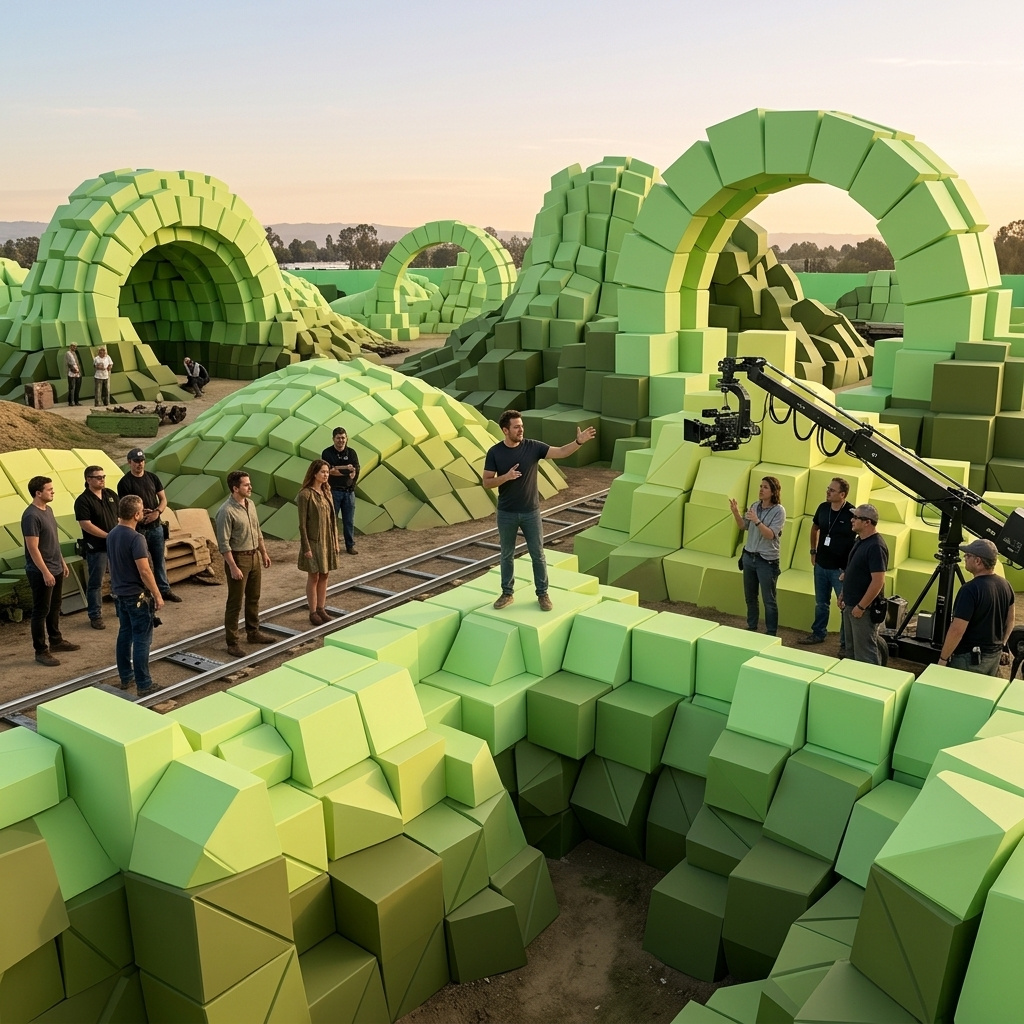
Editing video
How to edit existing footage with Kling VIDEO 4.0: swap a product for a reference image, add or remove a subject, or change the visual style while the shot stays the same.
Introduction
Kling VIDEO 4.0 can change one thing in footage you already have and leave the rest of the shot alone. The clip goes in as the video to edit, and the prompt opens with "Edit <<<video_1>>>", says what changes, and then lists what has to stay.
- New product
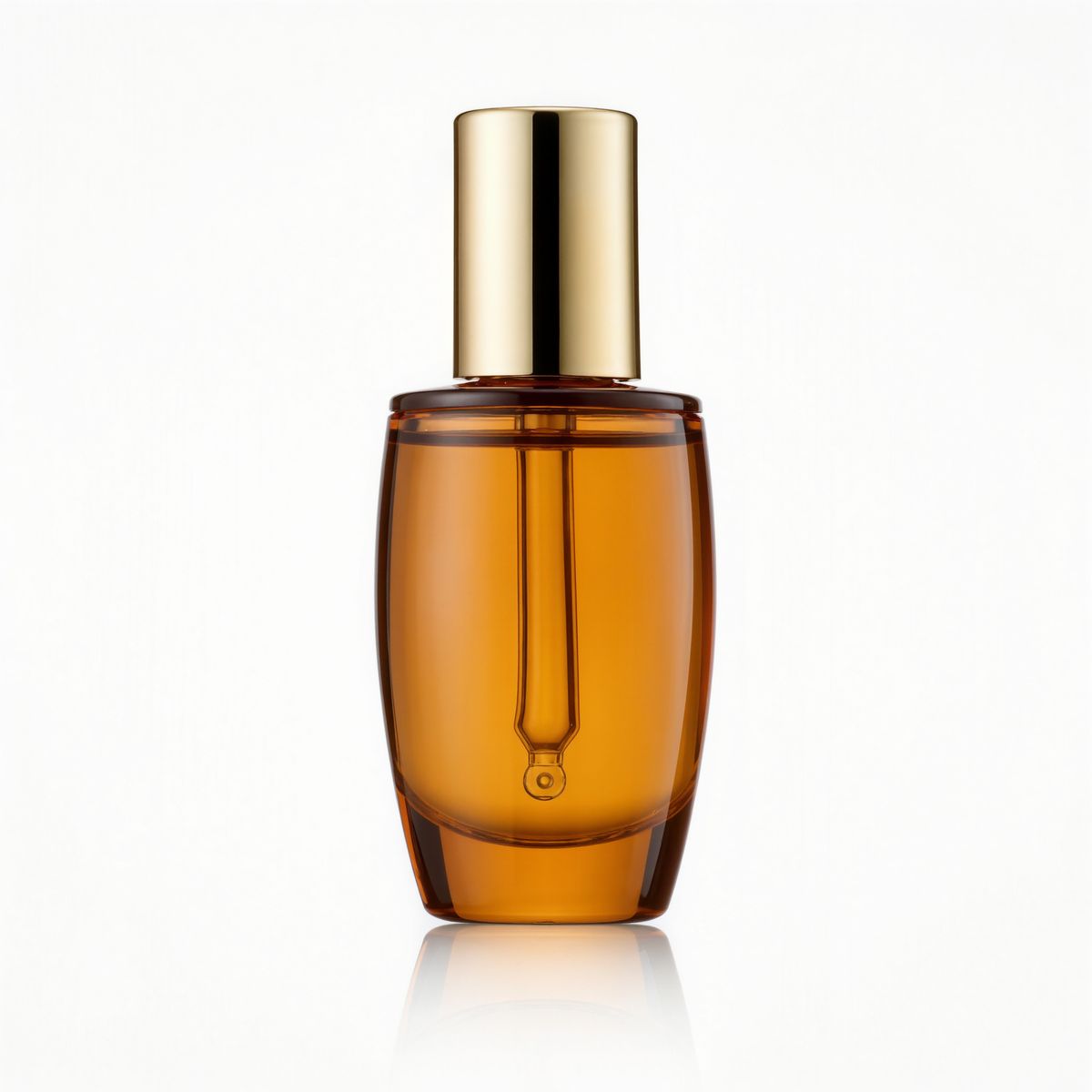
A slim amber glass serum bottle with a gold dropper cap on a white background. Product packshot, photoreal, no text, no logos.

Drag the handle across the shot. The hand and its timing come from the source, and the bottle comes from the product image. One piece of footage can carry every product in a range this way.
Request shape
The clip goes in inputs.video, by URL or by the UUID of an earlier generation, and becomes <<<video_1>>> in the prompt. Reference images are optional and keep their own <<<image_N>>> numbering:
import { createClient } from '@runware/sdk'

const client = await createClient({ apiKey: process.env.RUNWARE_API_KEY })
await client.connect()

const [result] = await client.run({
  model: 'klingai:kling-video@4.0',
  positivePrompt: 'Edit <<<video_1>>>. Replace the white lotion bottle with the serum bottle in <<<image_1>>>, keeping it exactly as shown. Keep everything else unchanged: the hand, its motion and timing, the shelf, the towel, the light, and the camera.',
  resolution: '720p',
  duration: 6,
  inputs: {
    video: 'https://vm.runware.ai/video/os/a14d18/ws/2/vi/1c2d3e4f-5a6b-4c7d-9e8f-0a1b2c3d4e5f.mp4',
    referenceImages: [
      'https://im.runware.ai/image/os/a14d18/ws/2/ii/2d3e4f5a-6b7c-4d8e-8f9a-1b2c3d4e5f6a.jpg'
    ]
  }
})
import asyncio
import os
from runware import Runware
async def main():
async with Runware(api_key=os.environ["RUNWARE_API_KEY"]) as client:
results = await client.run({
"model": "klingai:kling-video@4.0",
"positivePrompt": "Edit <<<video_1>>>. Replace the white lotion bottle with the serum bottle in <<<image_1>>>, keeping it exactly as shown. Keep everything else unchanged: the hand, its motion and timing, the shelf, the towel, the light, and the camera.",
"resolution": "720p",
"duration": 6,
"inputs": {
"video": "https://vm.runware.ai/video/os/a14d18/ws/2/vi/1c2d3e4f-5a6b-4c7d-9e8f-0a1b2c3d4e5f.mp4",
"referenceImages": [
"https://im.runware.ai/image/os/a14d18/ws/2/ii/2d3e4f5a-6b7c-4d8e-8f9a-1b2c3d4e5f6a.jpg"
]
}
})
asyncio.run(main())curl https://api.runware.ai/v1 \
-H "Authorization: Bearer $RUNWARE_API_KEY" \
-H "Content-Type: application/json" \
-d '[
{
  "taskType": "videoInference",
  "taskUUID": "0b1c2d3e-4f5a-4b6c-8d7e-9f0a1b2c3d4e",
  "model": "klingai:kling-video@4.0",
  "positivePrompt": "Edit <<<video_1>>>. Replace the white lotion bottle with the serum bottle in <<<image_1>>>, keeping it exactly as shown. Keep everything else unchanged: the hand, its motion and timing, the shelf, the towel, the light, and the camera.",
  "resolution": "720p",
  "duration": 6,
  "inputs": {
    "video": "https://vm.runware.ai/video/os/a14d18/ws/2/vi/1c2d3e4f-5a6b-4c7d-9e8f-0a1b2c3d4e5f.mp4",
    "referenceImages": [
      "https://im.runware.ai/image/os/a14d18/ws/2/ii/2d3e4f5a-6b7c-4d8e-8f9a-1b2c3d4e5f6a.jpg"
    ]
  }
}
]'runware run klingai:kling-video@4.0 \
positivePrompt="Edit <<<video_1>>>. Replace the white lotion bottle with the serum bottle in <<<image_1>>>, keeping it exactly as shown. Keep everything else unchanged: the hand, its motion and timing, the shelf, the towel, the light, and the camera." \
resolution=720p \
duration=6 \
inputs.video=https://vm.runware.ai/video/os/a14d18/ws/2/vi/1c2d3e4f-5a6b-4c7d-9e8f-0a1b2c3d4e5f.mp4 \
inputs.referenceImages.0=https://im.runware.ai/image/os/a14d18/ws/2/ii/2d3e4f5a-6b7c-4d8e-8f9a-1b2c3d4e5f6a.jpg{
"taskType": "videoInference",
"taskUUID": "0b1c2d3e-4f5a-4b6c-8d7e-9f0a1b2c3d4e",
"model": "klingai:kling-video@4.0",
"positivePrompt": "Edit <<<video_1>>>. Replace the white lotion bottle with the serum bottle in <<<image_1>>>, keeping it exactly as shown. Keep everything else unchanged: the hand, its motion and timing, the shelf, the towel, the light, and the camera.",
"resolution": "720p",
"duration": 6,
"inputs": {
"video": "https://vm.runware.ai/video/os/a14d18/ws/2/vi/1c2d3e4f-5a6b-4c7d-9e8f-0a1b2c3d4e5f.mp4",
"referenceImages": [
"https://im.runware.ai/image/os/a14d18/ws/2/ii/2d3e4f5a-6b7c-4d8e-8f9a-1b2c3d4e5f6a.jpg"
]
}
}Response
[
  {
    "taskType": "videoInference",
    "taskUUID": "0b1c2d3e-4f5a-4b6c-8d7e-9f0a1b2c3d4e",
    "videoUUID": "3e4f5a6b-7c8d-4e9f-9a0b-2c3d4e5f6a7b",
    "videoURL": "https://vm.runware.ai/video/os/a14d18/ws/2/vi/3e4f5a6b-7c8d-4e9f-9a0b-2c3d4e5f6a7b.mp4"
  }
]
There is no width or height here: resolution picks 720p or 1080p, and the edit keeps the shape of the source. The source clips in this guide run six seconds, and each edit sets duration to match.
Edit or reference
The opening words decide what kind of request this is. "Edit <<<video_1>>>" keeps the footage and changes what the prompt names. "Reference <<<video_1>>>" builds a new clip from its motion, which is the workflow in Reference videos. Every prompt in this guide opens with "Edit".
The second half matters as much as the first. An edit prompt has three parts:
Name what stays, item by item: "Keep everything else unchanged" on its own is a request, and the list after the colon tells the model which parts of the shot it covers.
Adding a subject
To add something, say what it is, where it sits in the frame, and what it does while the shot runs:
Edit <<<video_1>>>. Add a golden retriever asleep on the cream rug in front of the sofa, breathing slowly. Keep everything else unchanged: the room, the furniture, the light, and the camera push-in. Audio: keep the room tone and add soft dog breathing.The prompt places the dog relative to the rug in front of the sofa, so it has a spot to hold as the camera pushes in. It also edits the sound: "keep the room tone and add soft dog breathing" treats the audio like the picture.
Removing a subject
When you remove a subject, also say what should appear where it was. The man in the robe crosses the frame, so the prompt asks for the pool deck behind him:
Edit <<<video_1>>> to remove the man in the white robe walking across the foreground. Keep everything else unchanged, including the pool, the loungers, the umbrellas, the light, and the camera pan, and fill the area he covered with the pool deck behind him.Identify the subject by something visible, "the man in the white robe walking across the foreground", so there is no doubt about which person to take out of a busy shot.
Changing the style
A style edit keeps the movement and redraws everything else. Describe the target look in concrete terms, and rule out photorealism explicitly, since the source footage is photoreal:
Edit <<<video_1>>>. Change the visual style to hand-drawn 2D cel animation with clean ink outlines and flat colors, with no photoreal textures. Keep the skateboarder's movement, the ollie, the timing, the ramp, and the camera move exactly the same. Change only the style, and keep the audio unchanged."Clean ink outlines and flat colors" is a style the model can draw. "Change only the style" closes the prompt so everything but the look stays as it was.
Tips
-
Open the prompt with the edit instruction. "Edit
<<<video_1>>>" keeps the footage instead of using it as a reference for a new clip. -
List what stays after "keep everything else unchanged". The list says which parts of the shot are off-limits.
-
Use a reference image for product swaps. The image defines the product, the prompt names what it replaces.
-
Anchor added subjects to the scene. Place them relative to something already in the frame.
-
Say what fills the gap. Name what was behind the subject you remove.
-
Edit the audio in the same prompt. Say what to keep and what to add, as with the picture.