Muse Image

Muse Image is Meta's flagship image generation model from Meta Superintelligence Labs. It is built for prompt-faithful image creation, precision editing, and multi-reference composition, with strong text rendering and the ability to refine existing photos through localized markup-based edits. Meta positions it as an agentic image model that plans layouts, uses search and coding tools to improve accuracy, blends multiple visual references intelligently, and handles both creative generation and practical visual tasks such as infographics, QR codes, restorations, product-style mockups, and photobomber removal.
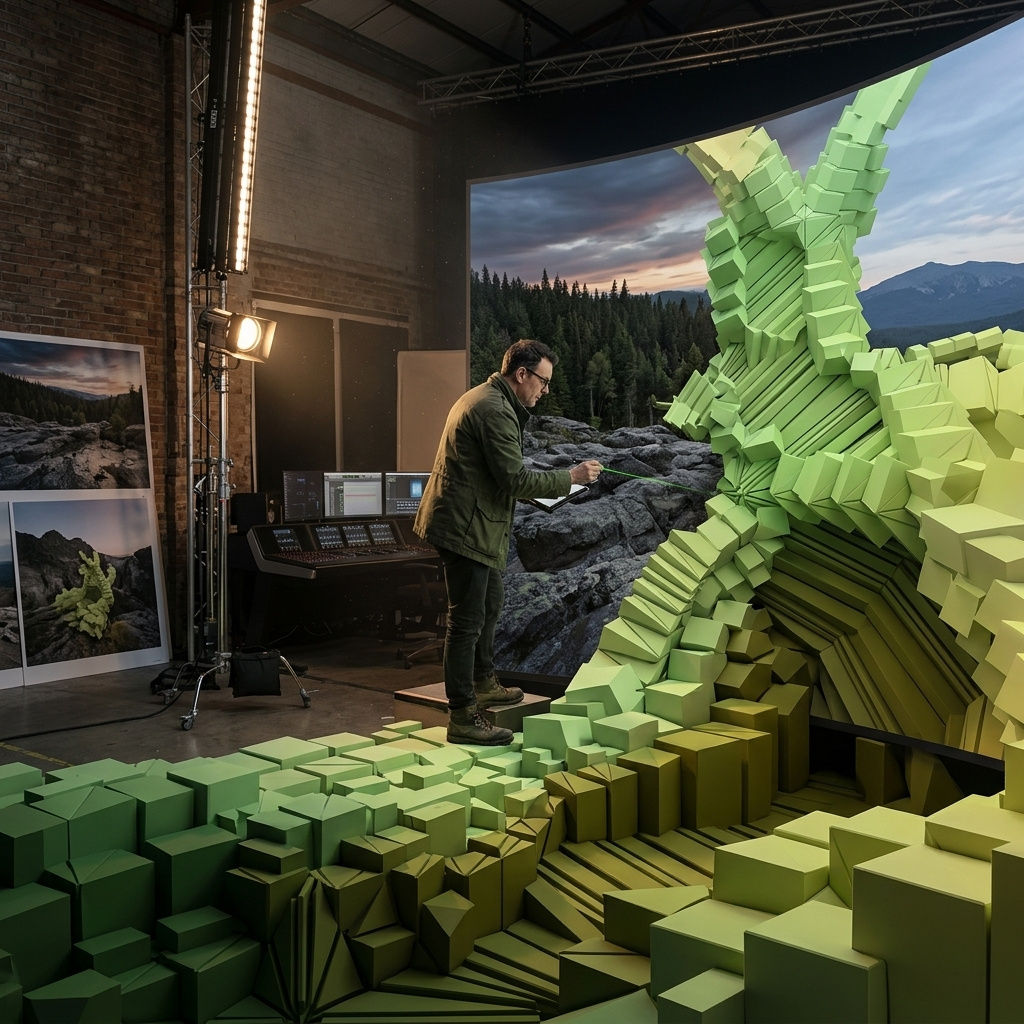
Grounding images with web and image search
How to ground Muse Image in real facts and real references with settings.webSearch and settings.imageSearch, and when to switch the lookups off.
Introduction
Muse Image plans a picture before it draws it, and part of that plan can be a lookup. Two booleans decide what the model is allowed to fetch while it thinks: settings.webSearch reads the web for facts the render has to state, and settings.imageSearch retrieves pictures for a look the render has to match. Both default to true.
The default is the important half. A prompt that names a real district or a real product category gets grounded unless you say otherwise, so the baseline output already sits closer to the real thing than an unaided render would. What is left to you is phrasing the prompt so the search has something to find, and knowing when a lookup gets in the way of what you were trying to make.

A hospitality listing hero photograph of the rooftop terrace of a small boutique hotel in Alfama, Lisbon: two wooden loungers and a low azulejo-tiled parapet in the foreground, the terracotta pantile roofs of the old quarter falling away below, and São Jorge Castle standing on the ridge behind. Late afternoon sun, wide editorial travel photography, natural colour, deep focus, no people.
The castle on the ridge and the way Alfama stacks down toward the water are that district's real geometry, not an average of southern-European hillsides. Naming the district is what buys the accuracy. Image search has a query it can run, and the render is conditioned on what comes back.
This guide covers what each lookup contributes, how to phrase a prompt the search can act on, the four combinations of the two flags, and the cases where grounding is the wrong default. Pinning a look with pictures you supply yourself is a different mechanism, covered in multi-reference composition.
The two settings
Both flags sit under settings, and neither has a dependency on any other parameter. Nothing else about the request changes when you set them, and the rest of the surface is listed in the model reference.
import { createClient } from '@runware/sdk'

const client = await createClient({ apiKey: process.env.RUNWARE_API_KEY })
await client.connect()

const [result] = await client.run({
  model: 'meta:muse@image',
  positivePrompt: 'A hospitality listing hero photograph of the rooftop terrace of a small boutique hotel in Alfama, Lisbon: two wooden loungers and a low azulejo-tiled parapet in the foreground, the terracotta pantile roofs of the old quarter falling away below, and São Jorge Castle standing on the ridge behind. Late afternoon sun, wide editorial travel photography, natural colour, deep focus, no people.',
  width: 1920,
  height: 1280,
  settings: {
    webSearch: true,
    imageSearch: true
  }
})
import asyncio
import os
from runware import Runware
async def main():
async with Runware(api_key=os.environ["RUNWARE_API_KEY"]) as client:
results = await client.run({
"model": "meta:muse@image",
"positivePrompt": "A hospitality listing hero photograph of the rooftop terrace of a small boutique hotel in Alfama, Lisbon: two wooden loungers and a low azulejo-tiled parapet in the foreground, the terracotta pantile roofs of the old quarter falling away below, and São Jorge Castle standing on the ridge behind. Late afternoon sun, wide editorial travel photography, natural colour, deep focus, no people.",
"width": 1920,
"height": 1280,
"settings": {
"webSearch": True,
"imageSearch": True
}
})
asyncio.run(main())curl https://api.runware.ai/v1 \
-H "Authorization: Bearer $RUNWARE_API_KEY" \
-H "Content-Type: application/json" \
-d '[
{
  "taskType": "imageInference",
  "taskUUID": "c4a71f39-8b02-4d16-9e5a-2f70bd18c341",
  "model": "meta:muse@image",
  "positivePrompt": "A hospitality listing hero photograph of the rooftop terrace of a small boutique hotel in Alfama, Lisbon: two wooden loungers and a low azulejo-tiled parapet in the foreground, the terracotta pantile roofs of the old quarter falling away below, and São Jorge Castle standing on the ridge behind. Late afternoon sun, wide editorial travel photography, natural colour, deep focus, no people.",
  "width": 1920,
  "height": 1280,
  "settings": {
    "webSearch": true,
    "imageSearch": true
  }
}
]'runware run meta:muse@image \
positivePrompt="A hospitality listing hero photograph of the rooftop terrace of a small boutique hotel in Alfama, Lisbon: two wooden loungers and a low azulejo-tiled parapet in the foreground, the terracotta pantile roofs of the old quarter falling away below, and São Jorge Castle standing on the ridge behind. Late afternoon sun, wide editorial travel photography, natural colour, deep focus, no people." \
width=1920 \
height=1280 \
settings.webSearch=true \
settings.imageSearch=true{
"taskType": "imageInference",
"taskUUID": "c4a71f39-8b02-4d16-9e5a-2f70bd18c341",
"model": "meta:muse@image",
"positivePrompt": "A hospitality listing hero photograph of the rooftop terrace of a small boutique hotel in Alfama, Lisbon: two wooden loungers and a low azulejo-tiled parapet in the foreground, the terracotta pantile roofs of the old quarter falling away below, and São Jorge Castle standing on the ridge behind. Late afternoon sun, wide editorial travel photography, natural colour, deep focus, no people.",
"width": 1920,
"height": 1280,
"settings": {
"webSearch": true,
"imageSearch": true
}
}Response
[
  {
    "taskType": "imageInference",
    "taskUUID": "c4a71f39-8b02-4d16-9e5a-2f70bd18c341",
    "imageUUID": "5d2e9c07-63b4-4f81-a0c9-7e14ab35d962",
    "imageURL": "https://im.runware.ai/image/os/a14d18/ws/2/ii/5d2e9c07-63b4-4f81-a0c9-7e14ab35d962.jpg"
  }
]
settings.webSearch gives the model text it can quote: what a place is called, what a rule is, what a number currently is, what happened and when. It fixes the content of the image.
settings.imageSearch gives the model pictures it can copy from: the shape of a landmark, the construction of a garment, the conventions of a product category, the signature of a named visual style. It fixes the appearance of the image.
The two are independent, so any of the four on/off combinations is a valid request, and each lookup is a tool call the model makes inside its planning step before it starts rendering. Neither search reports back: the response carries the generated image and nothing about the pages or pictures the model consulted, so a grounded result cannot be traced to its sources.
A grounded image reflects what the search returned at that moment, and Muse Image has no seed parameter, so re-running a prompt re-plans the layout and re-runs the lookup. Keep the file you approved rather than expecting to regenerate it. Non-determinism is covered in the prompting guide.
Grounding a look with image search
The clearest test for imageSearch is a subject with exactly one correct appearance, where a wrong render is obvious to anyone who knows the place. The two headers below come from an identical prompt for a city neighbourhood guide. The left one ran with both lookups off, the right one with imageSearch on and webSearch still off.

An editorial header photograph for a city neighbourhood guide: the Oberbaum Bridge in Berlin seen from the Kreuzberg bank of the Spree at dusk, its twin brick towers and double-deck arches lit against a deep blue evening sky, a yellow U-Bahn train crossing the upper deck, the river in the foreground. Wide travel-editorial framing, natural colour, no text.

An editorial header photograph for a city neighbourhood guide: the Oberbaum Bridge in Berlin seen from the Kreuzberg bank of the Spree at dusk, its twin brick towers and double-deck arches lit against a deep blue evening sky, a yellow U-Bahn train crossing the upper deck, the river in the foreground. Wide travel-editorial framing, natural colour, no text.
Both are brick bridges over a river at dusk. Only the second one is the actual Oberbaum: twin towers with stepped gables, and an arcaded road deck sitting under a separate rail viaduct at the proportion that makes the crossing recognisable. The first is a plausible European bridge that no reader who knows the city would accept.
Reach for image search whenever the prompt names something the reader could check against reality: a landmark, a piece of civic infrastructure, a regional building style, a vehicle type, a garment cut, a product category with strong conventions. It adds nothing for a subject you invented, because there is nothing to retrieve.
The same retrieval also covers logos and brand marks. If a design has to carry a mark, the safe pattern is to supply the artwork yourself as a reference image rather than asking the search to go and find one, so what lands in the frame is the file you own. That path runs through multi-reference composition.
Grounding a fact with web search
webSearch earns its place when the image has to say something true. The destination card below is a travel marketplace format: a photograph with a strip of practical information across the bottom. Same prompt twice, once with everything off and once with webSearch on and imageSearch off.

A travel marketplace destination card for Marrakesh, Morocco, square format. A photograph of the medina rooftops at golden hour fills the card, with a clean white information strip across the bottom third listing four practical facts: the local currency and its symbol, the official languages, the mains voltage and socket type, and the time zone. Use the real values. Crisp legible sans-serif, high contrast, no other text.

A travel marketplace destination card for Marrakesh, Morocco, square format. A photograph of the medina rooftops at golden hour fills the card, with a clean white information strip across the bottom third listing four practical facts: the local currency and its symbol, the official languages, the mains voltage and socket type, and the time zone. Use the real values. Crisp legible sans-serif, high contrast, no other text.
With the lookup off, every value on that strip is a guess dressed as data, plausible enough to survive a glance and wrong where a traveller would notice. With webSearch on, the model resolves the four fields before it lays the card out and prints the dirham, Arabic and Amazigh, a 220 V Type C socket, and Morocco's real offset. The layout was never the hard part, the facts were.
Web search covers anything stated rather than seen: a name, a date, a count, a rate, a rule, a current price. It has nothing to offer a render whose only requirement is to look right. Getting a looked-up value to render as clean, legible copy is the job of text in images, and turning retrieved numbers into a chart or a table is what the code tool does in infographics and charts.
Writing a prompt search can act on
A lookup only helps if the prompt hands it a query. The hero prompt at the top of this guide splits into five kinds of clause, and only one of them is doing the grounding work.
The anchor clauses are the searchable part. Everything else describes a picture the model could have made on its own, so the grounding is only as good as the anchors you write.
Name the entity, not the impression. "A hillside city in southern Europe" gives the search nothing to run. "Alfama, Lisbon" gives it a query, and adding the castle gives it a second one. The narrower the name the better the retrieval, so a district beats a city and a named bridge beats "a bridge".
Say which view of it you want. A search returns whatever is most photographed, which for most landmarks is the postcard angle. Name the vantage point or the part of the subject that matters, the way the neighbourhood header above asks for the Kreuzberg bank at dusk rather than the bridge in general.
Ask for the real value out loud when a fact has to appear in the frame. "Use the real values" or "the actual current figure" tells the model the number is a lookup rather than a placeholder it should invent to fit the layout. Keep the strings that carry those values short, since long baked-in copy is harder to render cleanly.
Choosing a combination
Four combinations, and each one is the right answer to a different brief.
- Both on. The default, and the setting for anything that depicts a real place or a real product. The two lookups reinforce each other, since web search establishes what is true and image search establishes what it looks like.
- Image search only. For work that has to look correct but states nothing. Location photography and packshots of a well-known product category. You skip a lookup that would return text the image never uses.
- Web search only. For work whose facts must be right but whose art direction is yours. Illustration systems and branded templates, where a real photograph entering the plan pulls the render off-style.
- Both off. For anything invented. Concept work, fictional products, stylised scenes, or any prompt whose subject has no real-world counterpart to match. Editing an image you already have usually belongs here too, since rearranging what is already in the frame gives either lookup nothing to fetch.
Switching imageSearch off to protect an art direction is the least obvious of the four. Both cards below are the same flat-illustration brief for a travel app, webSearch on in each, and only imageSearch differs.

A flat vector illustration for a travel booking app's city card: Chicago, square format. A strictly limited four-colour palette of deep teal, warm sand, off-white and one coral accent. Simple geometric shapes, no gradients, no outlines, no photographic texture. The skyline and an elevated train reduced to clean silhouettes on a generous flat background, the city name set small in the lower left.

A flat vector illustration for a travel booking app's city card: Chicago, square format. A strictly limited four-colour palette of deep teal, warm sand, off-white and one coral accent. Simple geometric shapes, no gradients, no outlines, no photographic texture. The skyline and an elevated train reduced to clean silhouettes on a generous flat background, the city name set small in the lower left.
With retrieval on, the model has real photographs of the skyline in hand while it plans, and the illustration inherits some of their depth and color. With it off, the model stays inside the palette and the shape language you wrote, while webSearch still keeps the buildings and the train in the right city. Switch off the lookup that competes with your brief, not both of them.
Real use cases
Four deliverables that sit at different points on the same two flags.
Rental and real-estate listings
Listing platforms need a hero that matches the flat someone will actually walk into, down to the building stock of the street. Name the arrondissement and the building type, then leave both flags on so the window proportions and the view out follow the city's real housing instead of a generic apartment.

A real-estate listing hero photograph of the living room of a renovated two-bedroom apartment on the fourth floor of a Haussmann building in the 11th arrondissement of Paris: herringbone parquet, a white marble fireplace, tall casement windows with wrought-iron Juliet balconies open onto a plane-tree-lined boulevard, pale walls and a low linen sofa. Bright overcast daylight, wide architectural photography, straight verticals, no people.
Retail category and seasonal banners
A category banner has to read as the right kind of product in the right kind of place, and no part of it needs a fact. Run imageSearch on its own so the terrain and the product conventions come from real references, and describe the product as unbranded so nothing pulls a real mark into the frame.

A wide e-commerce category banner for an outdoor retailer's trail-running section: a single unbranded trail-running shoe with a lugged outsole and a breathable mesh upper planted on wet black volcanic rock in the Icelandic highlands, moss and steam in the mid-ground, a glacier-fed river and dark ridges behind under flat grey light. Product sharp and close on the left third, generous empty space on the right for copy. Photoreal outdoor product photography, no text, no logos.
Editorial and stock imagery
Stock contributors and editorial teams sell accuracy. A named piece of infrastructure or a named event gives both lookups something to work with, and the result holds up in front of a reader who has stood in the place.

An editorial stock photograph of morning bicycle commuters riding the Cykelslangen, the elevated orange cycle ramp curving over the harbour at Fisketorvet in Copenhagen: riders in ordinary work clothes on city bikes with cargo bikes among them, the ramp's slim steel railings and orange deck, harbour water and modern apartment blocks behind. Overcast Nordic daylight, wide documentary framing, natural colour, no text.
Concept work with nothing to match
The other end of the range. A product that does not exist yet has no reference to retrieve and no fact to check, so both flags come off and the model works only from your description. Dropping the two lookups also removes two tool calls from the plan, so there is less work in front of the render.

A studio concept packshot of an unbranded insulated stainless-steel water bottle in a matte two-tone finish, deep aubergine body with a sage-green lid and a knurled collar, standing centred on a seamless pale grey backdrop. Soft top light with a single soft shadow to the right, square format, sharp commercial product photography, no text, no logos, no branding.
Tips
-
Leave the defaults alone for real-world work. Both flags start at
true, which is already the right setting for anything that depicts a real place or a real product category. Change them when you have a reason, not as a habit. -
Name the narrowest entity you can. A district beats a city and a named building beats a building type. Retrieval quality tracks how specific the noun is.
-
Turn off the lookup that fights your brief. Illustration systems and locked palettes usually want
imageSearch: falsewithwebSearchleft on, so the facts stay right while the art direction stays yours. -
Say the value should be real. When a number or a name has to appear in the frame, ask for the actual figure. Without that, the model will happily invent something that fits the layout.
-
Supply brand artwork instead of searching for it. Pass a mark you own as a reference image rather than relying on retrieval to find it. See multi-reference composition.
-
Archive grounded results. The web moves and there is no seed to pin the render, so a grounded asset is a snapshot. Store the approved file rather than the prompt that made it.