Ideogram Vector 1.0

Ideogram Vector 1.0 is Ideogram's vector model, generating SVG artwork from text prompts, optionally guided by up to five reference images, and converting existing images into SVG. Each shape stays editable, so colors can be matched to a brand and individual elements refined in a vector editor. It suits logos, typography, illustrations, print designs, and labels or stickers.
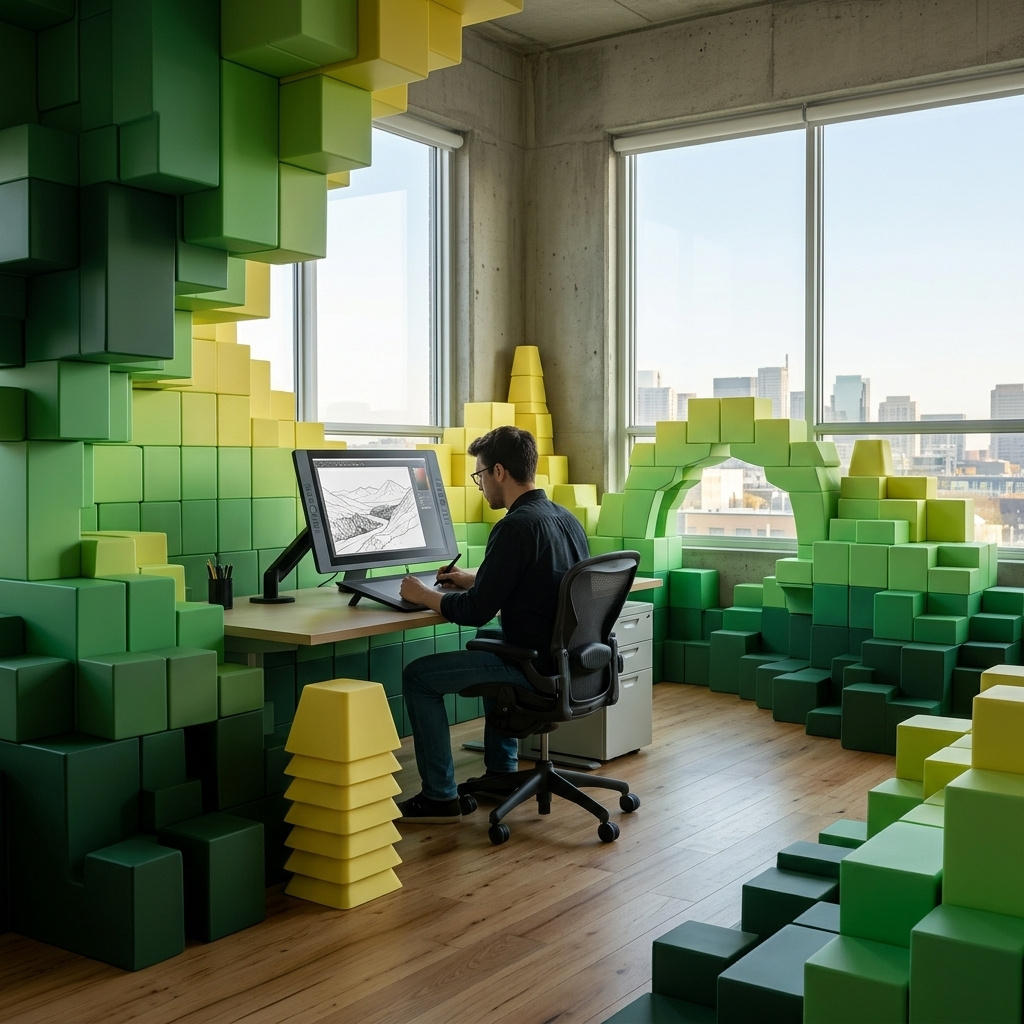
Vectorizing images
How to convert raster images to SVG with Ideogram Vector 1.0: the request, the size of the result, and the simple, detailed and auto modes.
Introduction
Raster artwork stops at its pixel count. A logo that only exists as a small JPEG from an old website turns soft and blocky the moment it is enlarged for a van wrap or a shop sign.
Ideogram Vector 1.0 converts an existing image into an SVG. You send the image on its own, with no prompt, and the model traces it into editable paths.

Flat logo for a family-run plumbing company: a white wrench crossed with a water drop inside a navy blue shield, with the name "RIVERA PLUMBING" in bold white capitals on a navy banner below the shield. Plain white background, clean graphic design, no texture.
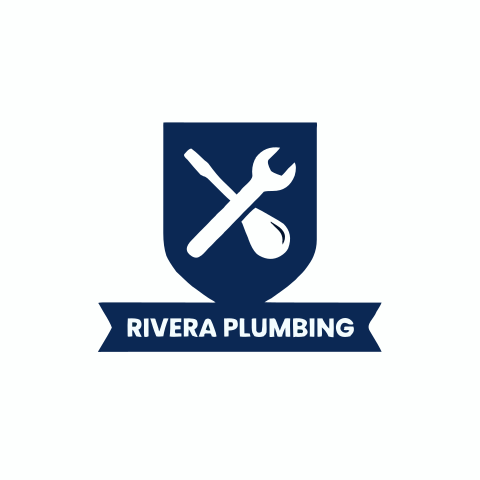
Open both at full size. The JPEG breaks into compression blocks around the lettering, while the SVG keeps clean edges at any zoom.
This guide covers the request, the size of the result and the three levels of detail.
The request
A conversion takes one field: the image in inputs.image, as a UUID, a URL, a data URI or Base64, in JPEG, PNG or WebP.
Everything that belongs to generating is refused next to an image: positivePrompt, inputs.referenceImages, width, height and settings.quality. The only setting a conversion takes is settings.mode.
import { createClient } from '@runware/sdk'

const client = await createClient({ apiKey: process.env.RUNWARE_API_KEY })
await client.connect()

const [result] = await client.run({
  model: 'ideogram:vector@1.0',
  inputs: {
    image: 'https://im.runware.ai/image/os/a14d18/ws/2/ii/c3d9e1f7-4a26-4b8c-9e05-7f1a2b6d8c43.jpg'
  }
})
import asyncio
import os
from runware import Runware
async def main():
async with Runware(api_key=os.environ["RUNWARE_API_KEY"]) as client:
results = await client.run({
"model": "ideogram:vector@1.0",
"inputs": {
"image": "https://im.runware.ai/image/os/a14d18/ws/2/ii/c3d9e1f7-4a26-4b8c-9e05-7f1a2b6d8c43.jpg"
}
})
asyncio.run(main())curl https://api.runware.ai/v1 \
-H "Authorization: Bearer $RUNWARE_API_KEY" \
-H "Content-Type: application/json" \
-d '[
{
  "taskType": "vectorize",
  "taskUUID": "b81f3c5a-2e47-4d9b-a6c0-5f8e1d3a7b24",
  "model": "ideogram:vector@1.0",
  "inputs": {
    "image": "https://im.runware.ai/image/os/a14d18/ws/2/ii/c3d9e1f7-4a26-4b8c-9e05-7f1a2b6d8c43.jpg"
  }
}
]'runware run ideogram:vector@1.0 \
inputs.image=https://im.runware.ai/image/os/a14d18/ws/2/ii/c3d9e1f7-4a26-4b8c-9e05-7f1a2b6d8c43.jpg{
"taskType": "vectorize",
"taskUUID": "b81f3c5a-2e47-4d9b-a6c0-5f8e1d3a7b24",
"model": "ideogram:vector@1.0",
"inputs": {
"image": "https://im.runware.ai/image/os/a14d18/ws/2/ii/c3d9e1f7-4a26-4b8c-9e05-7f1a2b6d8c43.jpg"
}
}Response
[
  {
    "taskType": "vectorize",
    "taskUUID": "b81f3c5a-2e47-4d9b-a6c0-5f8e1d3a7b24",
    "imageUUID": "9a4e2c71-6b3d-4f58-8c19-e0d7a5b3f286",
    "imageURL": "https://im.runware.ai/image/os/a14d18/ws/2/ii/9a4e2c71-6b3d-4f58-8c19-e0d7a5b3f286.svg"
  }
]
The size of the result
The SVG keeps the dimensions of the source up to 2048 pixels on its long side. The 480 × 480 logo above comes back as a 480 × 480 SVG, and a 1280 × 1760 image would come back as 1280 × 1760. A larger source is scaled down to 2048 on its long side, so 3000 × 2000 comes back as 2048 × 1365.
Any aspect ratio converts, from a narrow banner to a tall poster. The pixel size becomes the canvas of the SVG, and the paths scale without loss from there, but they can only trace the detail the source holds. Send the largest version of the image you have.
Choosing a level of detail
settings.mode sets how closely the paths follow the source. simple traces fewer, simpler shapes, detailed keeps fine detail, and auto picks a level for each image. Without it, the model picks the level itself.

E-commerce studio photograph of a single running shoe with a cobalt blue mesh upper, white laces and a bright orange sole, in a three-quarter side view on a plain warm yellow background, soft even lighting, crisp detail on the mesh and the sole, no logos or text on the shoe.
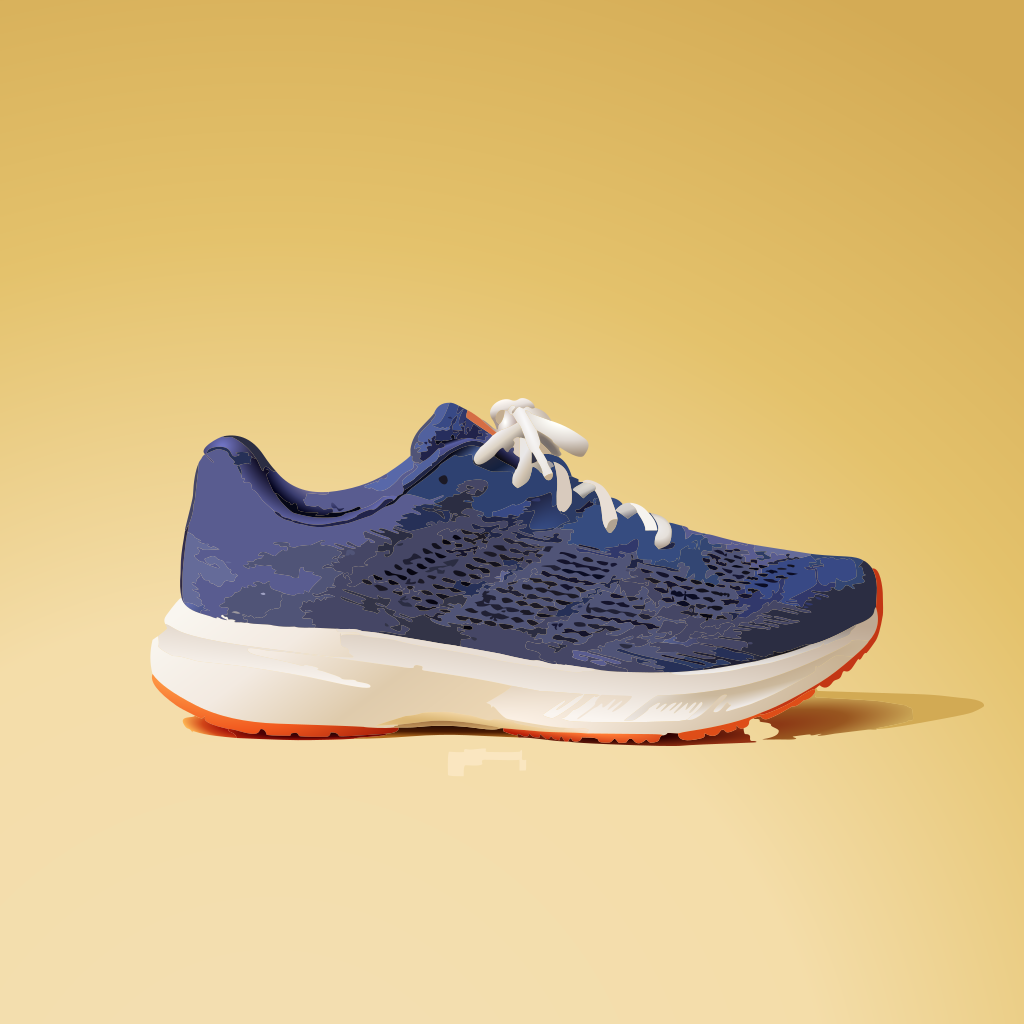
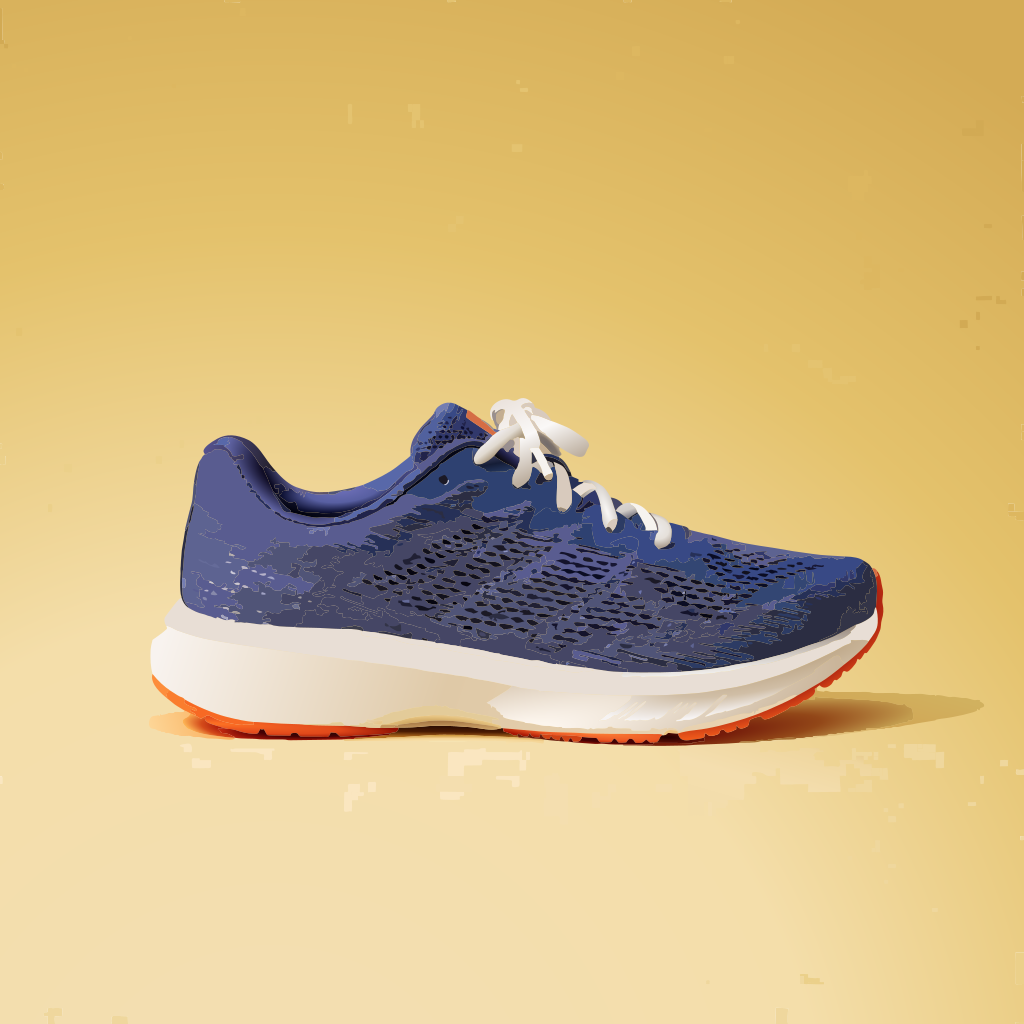
At full size, simple flattens the knit mesh into a few large patches of blue, while detailed keeps the pattern of the mesh and the eyelets. auto returned exactly the same file as detailed.
Pick simple when the SVG will be edited by hand or cut on a plotter, since fewer shapes are easier to select and change. Pick detailed when the SVG has to look like the source, as a product photo turned into artwork for a flyer does.
The price is the same for every mode and every image size, so the choice is only about the file you want back.
Tips
- Send the largest source you have. The SVG keeps up to 2048 pixels on the long side, and the paths can only trace what the source holds.
- Send the image alone. A prompt, a size or a quality tier next to
inputs.imageis refused. - Use JPEG, PNG or WebP. Other formats are refused as a source.
- Use
simplefor files people will edit. Fewer shapes mean fewer paths to select and recolor. - Redraw instead of tracing when the source needs changes. To turn an image into new artwork with a prompt, send it as a reference, see Reference images.