HeyGen Avatar 6

HeyGen Avatar 6 is an audio-driven avatar video model that animates a HeyGen avatar, a single photo, or a reference video of an animated or illustrated character. It generates gestures and facial expressions that match what is being said, with accurate lip sync and native 2K output, and a motion prompt can direct gestures, posture and camera. It suits presenter, training and product videos where natural motion matters.
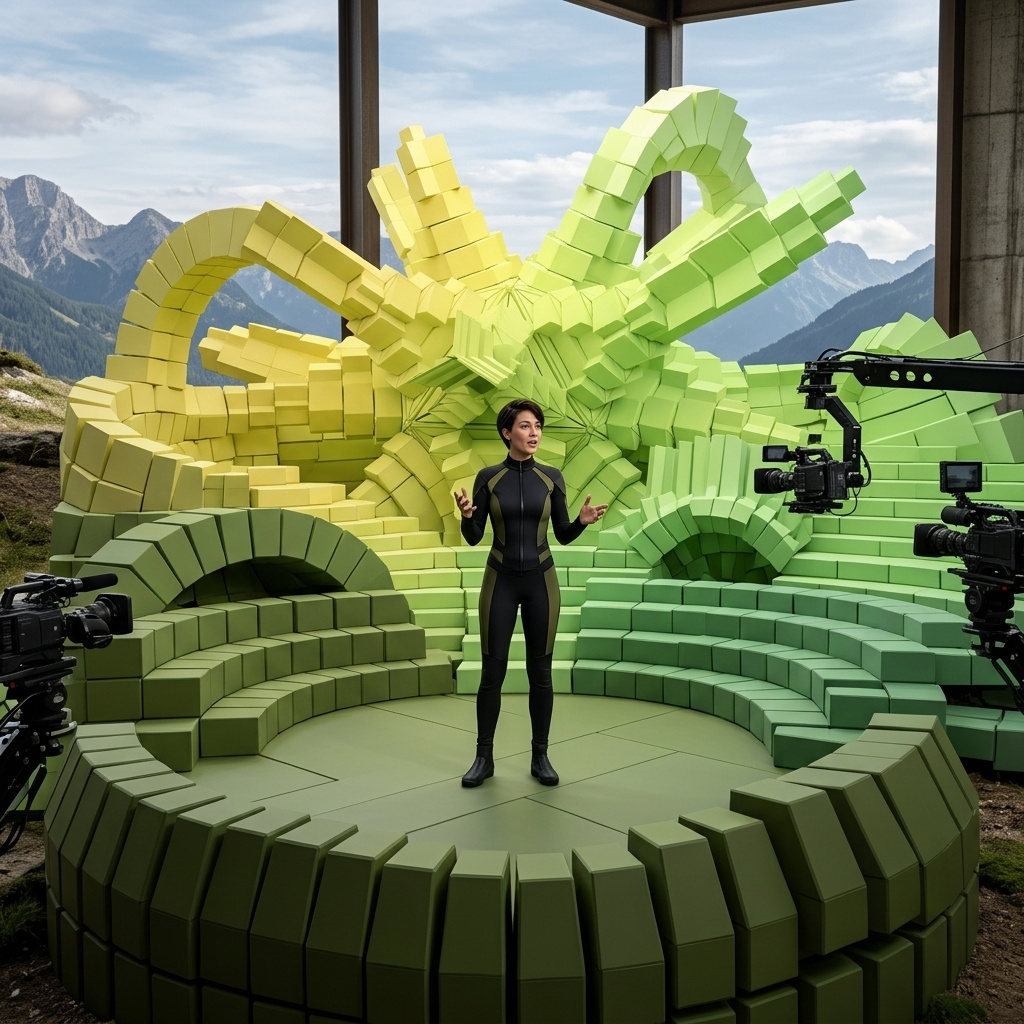
Animating a character from a reference video
How to animate a cartoon or 3D character in HeyGen Avatar 6 from a reference clip: comparing a clip with a photo, pairing the two and generating the clip.
Introduction
A reference video gives HeyGen Avatar 6 how a character moves as well as how it looks. Send a clip of an animated or illustrated character in inputs.referenceVideos with new speech, and the character performs the new lines in the manner of the clip: its gestures and the way it holds itself.
This is the mode for characters that already have a way of moving, such as the mascot of a children's app or the host of an explainer series, who have to stay recognizable from one video to the next. A clip of a realistic person is rejected, so a real person starts from a photo, covered in the reference images guide.
{
  "taskType": "videoInference",
  "taskUUID": "f80d792a-ec33-4440-869c-8a0bfbfa241b",
  "model": "heygen:avatar@6",
  "inputs": {
    "referenceVideos": ["https://assets.runware.ai/guides/heygen-avatar-6/reference-videos/reference-fox.mp4"],
    "audio": "https://assets.runware.ai/guides/heygen-avatar-6/reference-videos/speech-fox.mp3"
  }
}- Clip
3D animated feature-film style, rendered with soft global illumination and rich, saturated color. Locked-off camera at the character's eye level, a medium shot from the knees up. A small red fox character with big amber eyes, fluffy cheeks and a knitted green scarf stands on a wooden reading desk in a warm children's library, shelves of plain colored book spines softly out of focus behind it. The fox talks straight to the camera with lively energy: it bounces on its toes, opens both paws wide, taps its chest with one paw and flicks its bushy tail as it speaks. It says: "Hi there, reader! I saved you a seat. Let's find out what happens next in our story." Its mouth moves in sync with every word. Warm lamp light from the left. No logos, brand names, letters or printed words anywhere in frame, including on the book spines. Audio: its bright, playful voice and a quiet library room tone. No music.
- Speech0:00
Hey, reader! You finished three whole chapters this week, and that's a new record. Tonight's story has a dragon in it, so get cozy, and let's turn the page together.
This guide covers the request, what a clip adds over a photo, pairing the clip with a matching photo, and making a reference clip when the character only exists as a design.
The request
The clip goes in inputs.referenceVideos and the speech in inputs.audio.
import { createClient } from '@runware/sdk'

const client = await createClient({ apiKey: process.env.RUNWARE_API_KEY })
await client.connect()

const [result] = await client.run({
  model: 'heygen:avatar@6',
  inputs: {
    referenceVideos: [
      'https://assets.runware.ai/guides/heygen-avatar-6/reference-videos/reference-fox.mp4'
    ],
    audio: 'https://assets.runware.ai/guides/heygen-avatar-6/reference-videos/speech-fox.mp3'
  }
})
import asyncio
import os
from runware import Runware
async def main():
async with Runware(api_key=os.environ["RUNWARE_API_KEY"]) as client:
results = await client.run({
"model": "heygen:avatar@6",
"inputs": {
"referenceVideos": [
"https://assets.runware.ai/guides/heygen-avatar-6/reference-videos/reference-fox.mp4"
],
"audio": "https://assets.runware.ai/guides/heygen-avatar-6/reference-videos/speech-fox.mp3"
}
})
asyncio.run(main())curl https://api.runware.ai/v1 \
-H "Authorization: Bearer $RUNWARE_API_KEY" \
-H "Content-Type: application/json" \
-d '[
{
  "taskType": "videoInference",
  "taskUUID": "f80d792a-ec33-4440-869c-8a0bfbfa241b",
  "model": "heygen:avatar@6",
  "inputs": {
    "referenceVideos": [
      "https://assets.runware.ai/guides/heygen-avatar-6/reference-videos/reference-fox.mp4"
    ],
    "audio": "https://assets.runware.ai/guides/heygen-avatar-6/reference-videos/speech-fox.mp3"
  }
}
]'runware run heygen:avatar@6 \
inputs.referenceVideos.0=https://assets.runware.ai/guides/heygen-avatar-6/reference-videos/reference-fox.mp4 \
inputs.audio=https://assets.runware.ai/guides/heygen-avatar-6/reference-videos/speech-fox.mp3{
"taskType": "videoInference",
"taskUUID": "f80d792a-ec33-4440-869c-8a0bfbfa241b",
"model": "heygen:avatar@6",
"inputs": {
"referenceVideos": [
"https://assets.runware.ai/guides/heygen-avatar-6/reference-videos/reference-fox.mp4"
],
"audio": "https://assets.runware.ai/guides/heygen-avatar-6/reference-videos/speech-fox.mp3"
}
}Response
[
  {
    "taskType": "videoInference",
    "taskUUID": "f80d792a-ec33-4440-869c-8a0bfbfa241b",
    "videoUUID": "50577ef3-b68f-48b7-bf68-3992524adbde",
    "videoURL": "https://vm.runware.ai/video/os/a14d18/ws/2/vi/50577ef3-b68f-48b7-bf68-3992524adbde.mp4"
  }
]inputs.referenceVideostakes one clip of at least 2 seconds and up to 50 MB, as a UUID (a previous generation's, or one uploaded via Media Storage) or a URL.inputs.referenceImagesis optional next to a clip and takes one photo of the same character, covered in Pairing the clip with a photo.inputs.audiois required, and the video runs the length of the audio, however long the clip is.- The output keeps the shape of the reference, and
resolutionsets its size,1080pby default or2k. The 1890 × 1080 clips in this guide come back at 1904 × 1088 with1080p.widthandheightare rejected. positivePromptandsettings.motionExpressivenesswork the same as with a photo, covered in the prompting guide.
What the clip adds
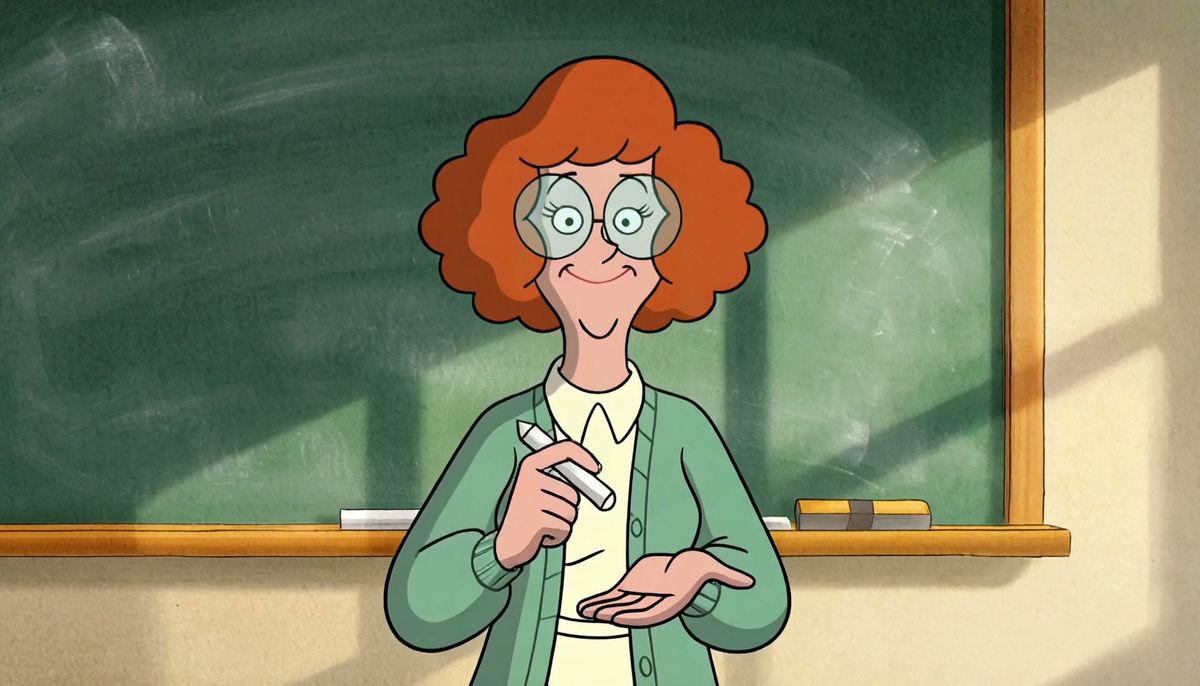
A photo tells the model what the character looks like, and it invents the motion. A clip also shows how the character moves, and the model carries that manner into lines the clip never contained. The two takes below speak the same new line, one from a photo of the teacher and one from her clip.
{
  "taskType": "videoInference",
  "taskUUID": "ecc71697-583c-4e6e-ba3c-0153bbbf949e",
  "model": "heygen:avatar@6",
  "inputs": {
    "referenceImages": ["https://assets.runware.ai/guides/heygen-avatar-6/reference-videos/photo-teacher.jpg"],
    "audio": "https://assets.runware.ai/guides/heygen-avatar-6/reference-videos/speech-teacher.mp3"
  }
}{
"taskType": "videoInference",
"taskUUID": "fce3f037-0ce8-4f44-a8af-8df967d07e20",
"model": "heygen:avatar@6",
"inputs": {
"referenceVideos": ["https://assets.runware.ai/guides/heygen-avatar-6/reference-videos/reference-teacher.mp4"],
"audio": "https://assets.runware.ai/guides/heygen-avatar-6/reference-videos/speech-teacher.mp3"
}
}- Clip
Hand-painted 2D cel animation: clean ink outlines of even weight, flat cel shading with a single hard-edged shadow tone per color, and a hand-painted background. Locked-off camera, a waist-up medium shot. A cartoon science teacher in her thirties with a curly red bob, big round glasses and a mint-green cardigan stands in front of a blank green chalkboard in a sunny classroom, a piece of white chalk in her right hand. She talks straight to the camera with warm enthusiasm: she pushes her glasses up her nose with one finger, points the chalk toward the camera to make a point, and spreads her hands wide on the last word. She says: "Okay, class, here is today's big question. Where does all the rain go when it stops?" Her mouth moves in sync with every word. Animated on twos, with held poses between movements. A palette of mint, chalkboard green, warm red and cream. No 3D rendering, no smooth digital gradients. No logos, brand names, letters, numbers or writing anywhere in frame, including on the chalkboard. Audio: her clear, friendly voice and quiet classroom room tone. No music.
- Photo
- Speech0:00
Here's a quick way to remember the water cycle. The sun heats the water, it rises as vapor, it cools into clouds, and then it falls back down as rain. And then it all starts again.

In the clip the teacher talks with her palms up and her chalk held upright, then spreads her hands wide, and the take built from it reuses that gesture on the new line. The take from the photo alone keeps her look but waves one hand instead, a manner of the model's own. When a character has to move the same way across a series, send the clip.
Pairing the clip with a photo
HeyGen recommends adding a matching photo of the character in inputs.referenceImages alongside the clip. The simplest match is a frame of the clip itself, with the same design and framing. The teacher's photo above is the first frame of her clip:
ffmpeg -i reference-teacher.mp4 -frames:v 1 photo-teacher.jpgMaking a reference clip
A character that only exists as a design needs a clip before it can be a reference. Both clips in this guide were generated with HeyGen Video 1.0, from a prompt that has the character talk to the camera and move the way it should keep moving:
The camera and framing of that clip carry through to the final video, because the output keeps the reference's shot. Lock the camera and frame the character the way the finished video should be framed.
The mannerisms are what the model learns to repeat. Name the gestures the character is known for, and the clip shows them for Avatar 6 to draw on. The dialogue keeps the mouth moving, so the clip shows the character speaking rather than posing.
Tips
-
Give the clip a range of motion. A character that talks and gestures in the clip gives the model a manner to carry into new lines. Two seconds is the minimum the request accepts.
-
Keep one character in the clip. The speech drives one speaker, so a clip with a single character facing the camera is the clearest reference.
-
Frame the clip for the destination. The output keeps the shape of the reference, so a vertical series needs a vertical clip.
-
Reuse the same clip across a series. Every video built from it draws on the same motion, which keeps a mascot or a host recognizable from episode to episode.