HeyGen Avatar 6

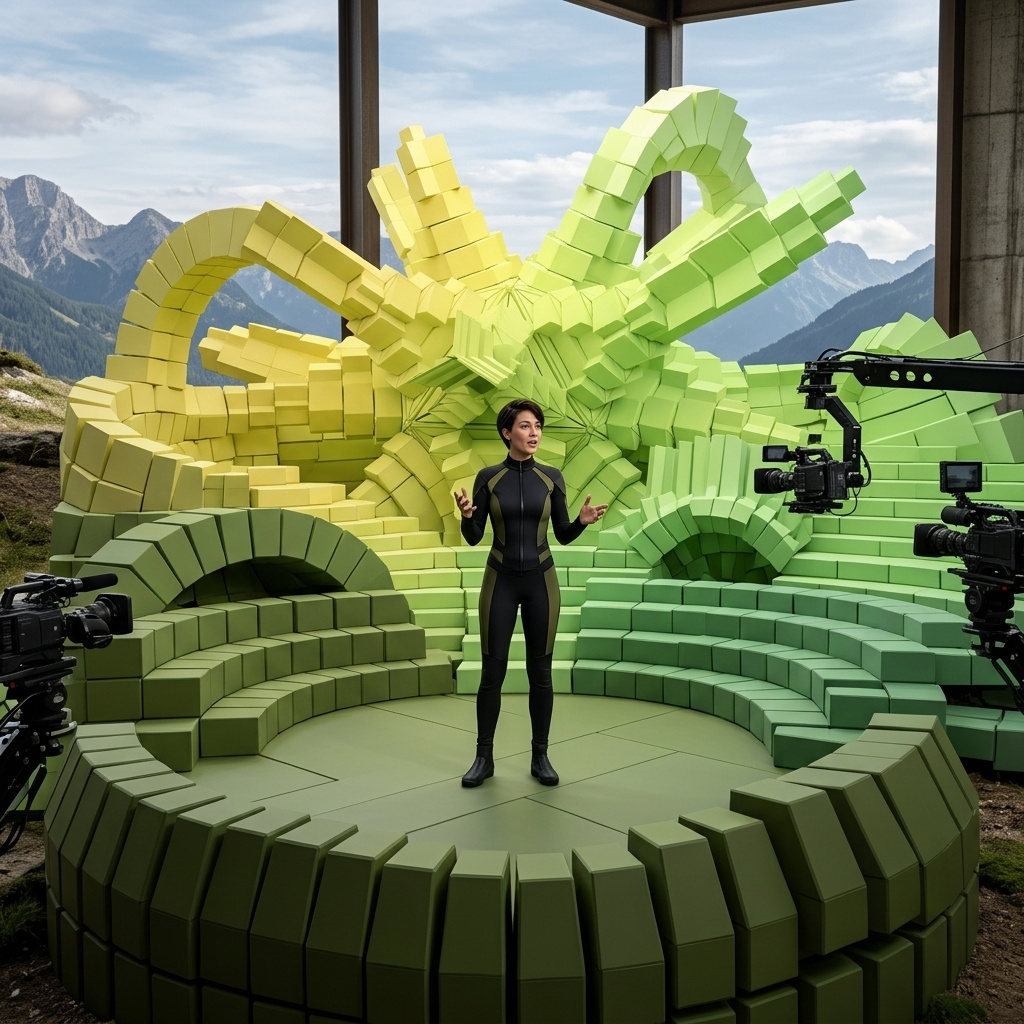
HeyGen Avatar 6 is an audio-driven avatar video model that animates a HeyGen avatar, a single photo, or a reference video of an animated or illustrated character. It generates gestures and facial expressions that match what is being said, with accurate lip sync and native 2K output, and a motion prompt can direct gestures, posture and camera. It suits presenter, training and product videos where natural motion matters.
Animating a photo
How to animate a single photo with HeyGen Avatar 6: framing and output shape, illustrated and 3D characters, resolution and long scripts.
Introduction
One photo and a speech track are enough for HeyGen Avatar 6 to animate the person in the photo, with lip sync and gestures that follow the words. The photo stays the shot: its framing, setting and light carry into the video, and the video runs as long as the audio.
This is the mode for turning an existing photo into a presenter: a real estate agent in the listing they are selling, a creator holding the product, a support agent answering a ticket, a mascot greeting a child in an app.
{
  "taskType": "videoInference",
  "taskUUID": "756118ea-1a3a-4ce4-9406-d1f4a539f359",
  "model": "heygen:avatar@6",
  "inputs": {
    "referenceImages": ["https://assets.runware.ai/guides/heygen-avatar-6/reference-images/reference-realtor.jpg"],
    "audio": "https://assets.runware.ai/guides/heygen-avatar-6/reference-images/speech-realtor.mp3"
  }
}- Photo
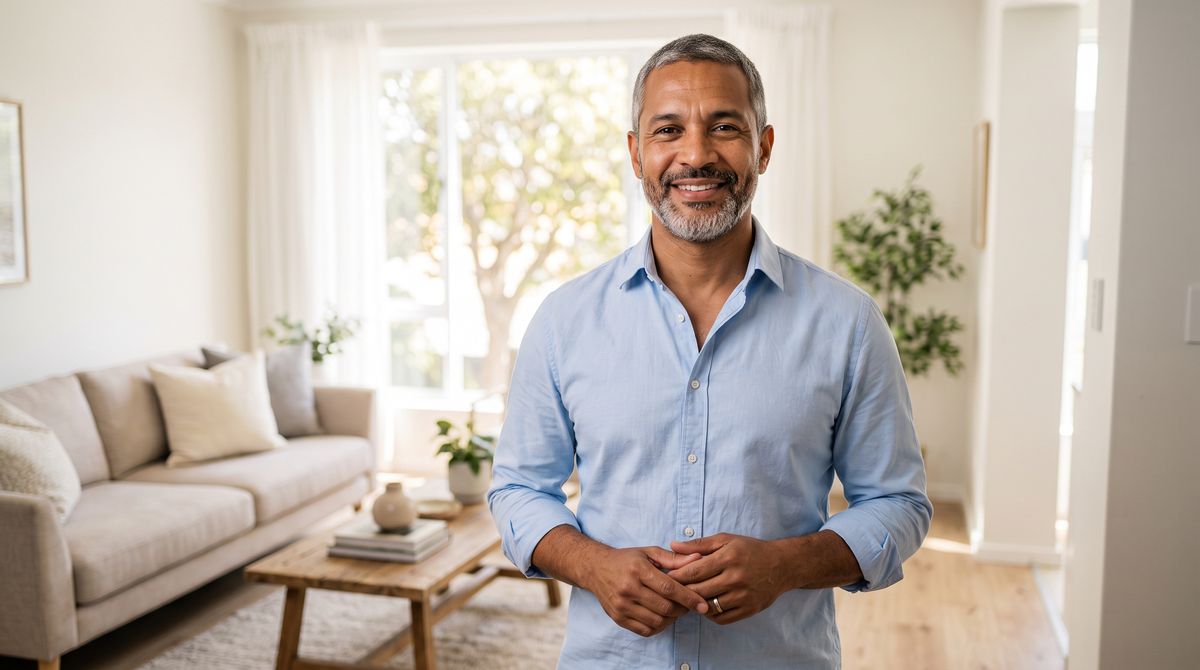
A photoreal photograph of a real estate agent in his forties with short graying hair, a trimmed beard and medium brown skin, in a light blue shirt with rolled sleeves and no tie, standing in the living room of a bright, staged apartment with a pale sofa, a wooden coffee table and tall windows with morning sun softly out of focus behind him. He faces the camera with a warm, closed-mouth smile, hands relaxed in front of him. Framed from the waist up with both hands in frame, natural window light, real skin texture. No logos, brand names or printed words anywhere in frame.
- Speech0:00
This two-bedroom gets morning sun in every room. The kitchen was redone last spring, the floors are original oak, and there's a shared roof terrace with a view you'll want to see for yourself.

This guide covers the request, how the photo sets the framing and the shape of the output, illustrated and 3D characters, resolution, and long scripts.
The request
The photo goes in inputs.referenceImages and the speech in inputs.audio.
import { createClient } from '@runware/sdk'

const client = await createClient({ apiKey: process.env.RUNWARE_API_KEY })
await client.connect()

const [result] = await client.run({
  model: 'heygen:avatar@6',
  inputs: {
    referenceImages: [
      'https://assets.runware.ai/guides/heygen-avatar-6/reference-images/reference-realtor.jpg'
    ],
    audio: 'https://assets.runware.ai/guides/heygen-avatar-6/reference-images/speech-realtor.mp3'
  }
})
import asyncio
import os
from runware import Runware
async def main():
async with Runware(api_key=os.environ["RUNWARE_API_KEY"]) as client:
results = await client.run({
"model": "heygen:avatar@6",
"inputs": {
"referenceImages": [
"https://assets.runware.ai/guides/heygen-avatar-6/reference-images/reference-realtor.jpg"
],
"audio": "https://assets.runware.ai/guides/heygen-avatar-6/reference-images/speech-realtor.mp3"
}
})
asyncio.run(main())curl https://api.runware.ai/v1 \
-H "Authorization: Bearer $RUNWARE_API_KEY" \
-H "Content-Type: application/json" \
-d '[
{
  "taskType": "videoInference",
  "taskUUID": "756118ea-1a3a-4ce4-9406-d1f4a539f359",
  "model": "heygen:avatar@6",
  "inputs": {
    "referenceImages": [
      "https://assets.runware.ai/guides/heygen-avatar-6/reference-images/reference-realtor.jpg"
    ],
    "audio": "https://assets.runware.ai/guides/heygen-avatar-6/reference-images/speech-realtor.mp3"
  }
}
]'runware run heygen:avatar@6 \
inputs.referenceImages.0=https://assets.runware.ai/guides/heygen-avatar-6/reference-images/reference-realtor.jpg \
inputs.audio=https://assets.runware.ai/guides/heygen-avatar-6/reference-images/speech-realtor.mp3{
"taskType": "videoInference",
"taskUUID": "756118ea-1a3a-4ce4-9406-d1f4a539f359",
"model": "heygen:avatar@6",
"inputs": {
"referenceImages": [
"https://assets.runware.ai/guides/heygen-avatar-6/reference-images/reference-realtor.jpg"
],
"audio": "https://assets.runware.ai/guides/heygen-avatar-6/reference-images/speech-realtor.mp3"
}
}Response
[
  {
    "taskType": "videoInference",
    "taskUUID": "756118ea-1a3a-4ce4-9406-d1f4a539f359",
    "videoUUID": "ce94a82a-c2e5-4347-ab83-f03ad9ebf139",
    "videoURL": "https://vm.runware.ai/video/os/a14d18/ws/2/vi/ce94a82a-c2e5-4347-ab83-f03ad9ebf139.mp4"
  }
]inputs.referenceImagestakes one image of up to 32 MB in JPEG, PNG or WebP, as a UUID (a previous generation's, or one uploaded via Media Storage), a URL, a data URI or base64.inputs.audiois required with a photo and is the only source of speech in this mode, so aspeechscript is rejected. To speak a script, generate the audio first with HeyGen Voice 1.0.- The video runs the length of the audio. There is no duration to set.
widthandheightare rejected with a photo, because the output keeps the photo's aspect ratio.resolutionsets its size, covered in Resolution.inputs.background,settings.backgroundColor,settings.removeBackground,settings.captionandsettings.fitwork with a HeyGen avatar ininputs.avatarand are rejected with a photo. Compose the background in the photo itself.positivePromptdirects gestures, expression, posture and camera, covered in the prompting guide. The examples here send none, so every gesture is the model's own.
Framing and output shape
Avatar 6 keeps the photo's framing and shape. Choose the photo for where the video will play, because it decides the output before the model does anything else.
A vertical photo held at arm's length gives a vertical video for Reels and TikTok:
{
  "taskType": "videoInference",
  "taskUUID": "7cfed11a-f79b-4c9d-9e7f-1786acf6dcfd",
  "model": "heygen:avatar@6",
  "inputs": {
    "referenceImages": ["https://assets.runware.ai/guides/heygen-avatar-6/reference-images/reference-creator.jpg"],
    "audio": "https://assets.runware.ai/guides/heygen-avatar-6/reference-images/speech-creator.mp3"
  }
}- Photo
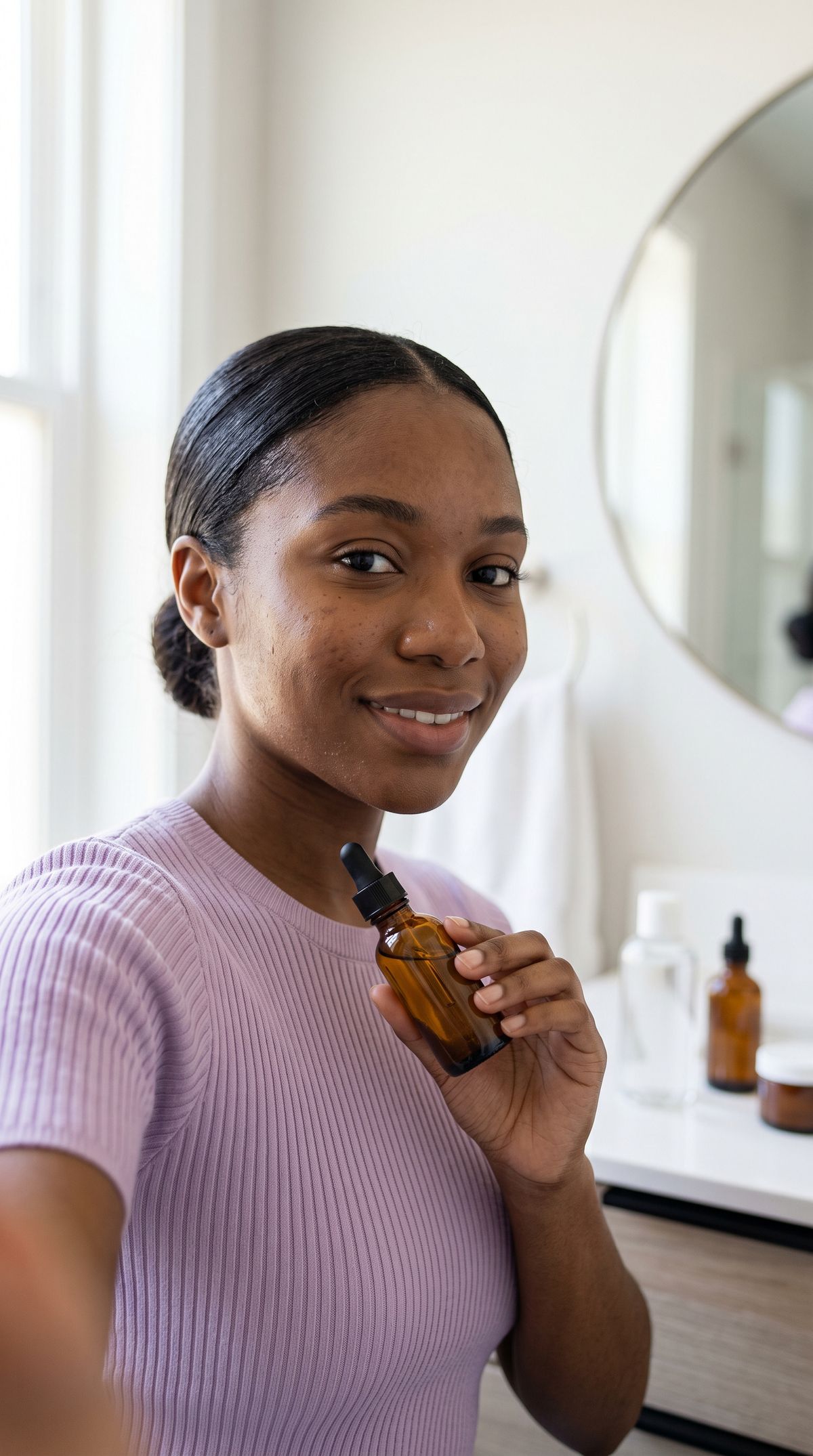
A photoreal vertical photograph of a skincare creator in her mid-twenties with sleek dark hair in a low bun and deep brown skin, in a soft lilac knit top, sitting in front of a bright bathroom vanity with a round mirror and a few unlabeled glass bottles softly out of focus behind her. She holds a small unlabeled amber dropper bottle at chest height and faces the camera with a friendly, closed-mouth smile. Framed from the chest up as if filmed on a phone at arm's length, soft daylight, real skin texture. No logos, brand names or printed words anywhere in frame, including on the bottles.
- Speech0:00
Okay, so this is the serum I've been using every single night for a month. Two drops, pat it in, done. My skin has never felt this soft.

A full-length photo keeps the whole body in frame, which suits fitness and wellness content where the stance matters as much as the face:
{
  "taskType": "videoInference",
  "taskUUID": "967d4b52-5e8f-4aef-88e8-319dc62ff49a",
  "model": "heygen:avatar@6",
  "inputs": {
    "referenceImages": ["https://assets.runware.ai/guides/heygen-avatar-6/reference-images/reference-yoga.jpg"],
    "audio": "https://assets.runware.ai/guides/heygen-avatar-6/reference-images/speech-yoga.mp3"
  }
}- Photo
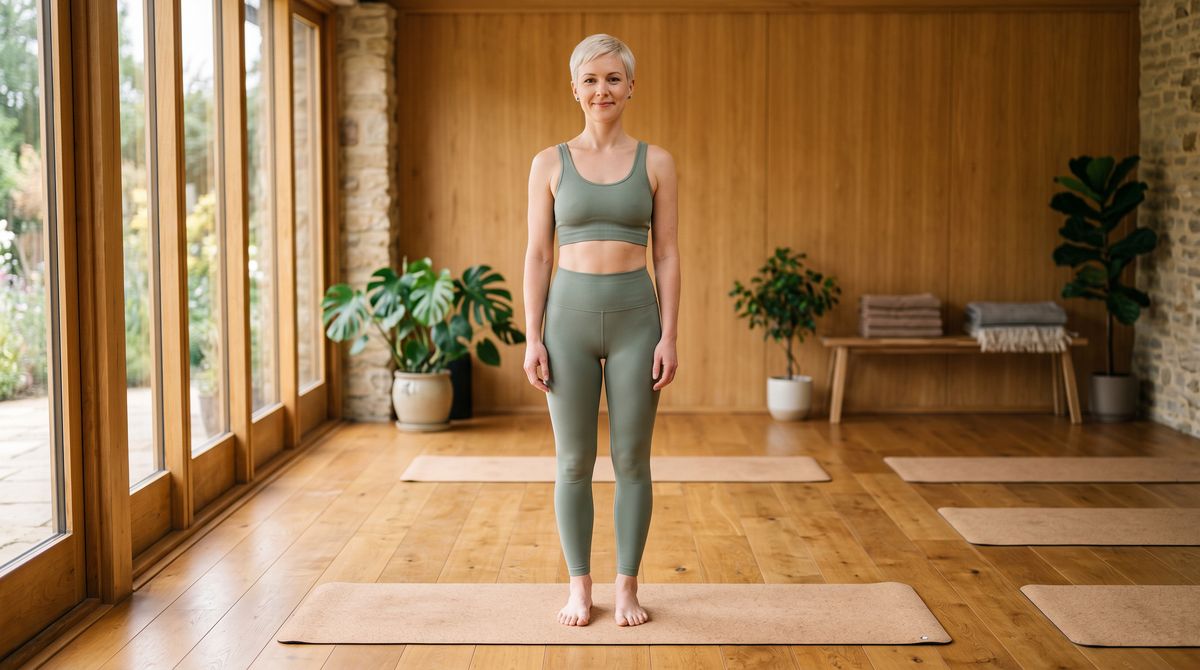
A photoreal full-length photograph of a yoga instructor in her thirties with a short platinum pixie cut and fair skin, in a sage-green sports top and matching leggings, barefoot, standing at the front of a cork yoga mat in a calm studio with wooden floors and a wall of tall windows. She stands relaxed with her arms at her sides and faces the camera with a gentle, closed-mouth smile. Her whole body from head to feet is in frame with space around her, soft diffused daylight. No logos, brand names or printed words anywhere in frame.
- Speech0:00
Welcome to your morning flow. We'll start standing, feet hip-width apart, and take a few easy breaths before we move.

A tight head-and-shoulders crop gives a close, conversational shot, the framing of a support or sales reply:
{
  "taskType": "videoInference",
  "taskUUID": "ee581dc5-7946-4e0f-b6ce-b4484a5fa92a",
  "model": "heygen:avatar@6",
  "inputs": {
    "referenceImages": ["https://assets.runware.ai/guides/heygen-avatar-6/reference-images/reference-support.jpg"],
    "audio": "https://assets.runware.ai/guides/heygen-avatar-6/reference-images/speech-support.mp3"
  }
}- Photo

A photoreal head-and-shoulders photograph of a customer support agent in his twenties with short curly black hair and dark brown skin, wearing a light headset with a small boom microphone and a plain forest-green polo shirt, in a bright, quiet support office softly out of focus behind him. He faces the camera with a warm, closed-mouth smile. Tight framing from the shoulders up, soft even light, real skin texture. No logos, brand names or printed words anywhere in frame, including on the headset.
- Speech0:00
Thanks for reaching out. I've checked your account, and the refund went through this morning. You should see it on your card within three business days.

Frame the photo for the shot you want. A waist-up photo leaves room for the gestures Avatar 6 adds. A tight crop does not stop them: the support agent's hand comes up into the close-up to wave on the greeting and to count the three days. Cropping or padding the photo before you send it is the way to change the output's shape, since width and height are not available with a photo.
Illustrated and 3D characters
The reference can be an illustration or a 3D render as well as a photograph. Avatar 6 animates a drawn or rendered character the same way and keeps its art style, which suits app mascots and animated explainers.
{
  "taskType": "videoInference",
  "taskUUID": "68d33d98-3850-4712-a28d-501c5dfbf6ea",
  "model": "heygen:avatar@6",
  "inputs": {
    "referenceImages": ["https://assets.runware.ai/guides/heygen-avatar-6/reference-images/reference-mascot.jpg"],
    "audio": "https://assets.runware.ai/guides/heygen-avatar-6/reference-images/speech-mascot-cat.mp3"
  }
}- Illustration

A flat 2D vector illustration of a friendly cartoon mascot for a children's language-learning app: a round, orange cat character with big expressive eyes, a small pink nose, a wide closed-mouth smile and a bright blue hoodie, standing upright and facing the viewer with its paws relaxed at its sides. Clean outlines, flat colors with soft cel shading, set against a simple pastel classroom background with a plain chalkboard and a few colored blocks. Framed from the knees up. No letters, numbers, logos or printed words anywhere in the image.
- Speech0:00
Hi, friend! Today we're learning the names of five fruits. Listen to each word, then say it back to me. Ready? Let's go!

{
  "taskType": "videoInference",
  "taskUUID": "392ad955-f9d0-4a81-b3c2-45c6d48ca2ba",
  "model": "heygen:avatar@6",
  "inputs": {
    "referenceImages": ["https://assets.runware.ai/guides/heygen-avatar-6/reference-images/reference-explorer.jpg"],
    "audio": "https://assets.runware.ai/guides/heygen-avatar-6/reference-images/speech-explorer-kid.mp3"
  }
}- 3D render
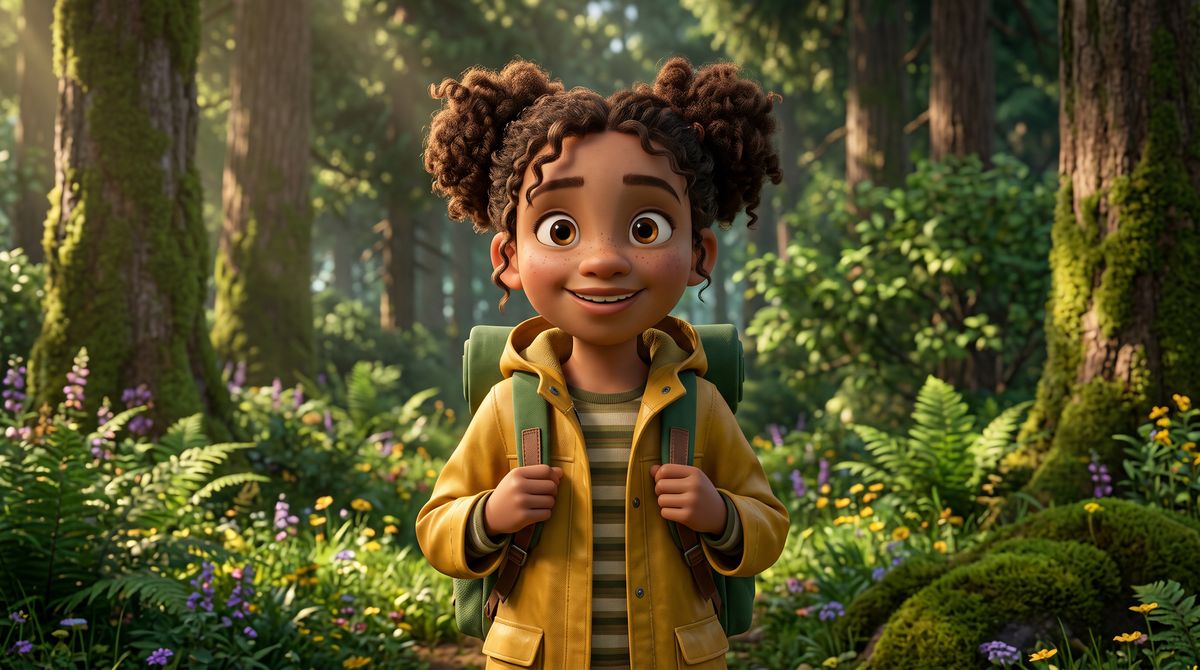
A 3D animated feature-film style render of a young explorer character, a girl of about ten with big expressive eyes, curly brown hair in two puffs, freckles, a mustard-yellow rain jacket and a small green backpack, standing in a lush, sunlit forest clearing with ferns and tall trees. She faces the camera with an excited, closed-mouth smile, hands holding the straps of her backpack. Framed from the waist up, soft stylized lighting with warm rim light, rich saturated colors. No logos, brand names or printed words anywhere in frame.
- Speech0:00
Look how tall these trees are! Some of them are more than two hundred years old. Come on, let's find out what lives at the very top.

Draw the character facing the viewer with its mouth in view, the way you would frame a person for this mode, since the mouth is what the lip sync animates. For a character that already exists as animation, a clip of it moving carries more than a still, which the reference videos guide covers.
Resolution
With a photo, resolution sets the size of the output and the photo sets the shape. 1080p is the default and 2k the larger option. The landscape photos in this guide, 2752 × 1536, come back at 1920 × 1072 with 1080p and at 2880 × 1608 with 2k. The vertical photo comes back at 1072 × 1920 and the square crop at 1088 × 1088.
{
  "taskType": "videoInference",
  "taskUUID": "9a969dc3-c34a-4c9a-8fe1-4b98c082cbd5",
  "model": "heygen:avatar@6",
  "inputs": {
    "referenceImages": ["https://assets.runware.ai/guides/heygen-avatar-6/reference-images/reference-chef.jpg"],
    "audio": "https://assets.runware.ai/guides/heygen-avatar-6/reference-images/speech-chef.mp3"
  },
  "resolution": "2k"
}- Photo
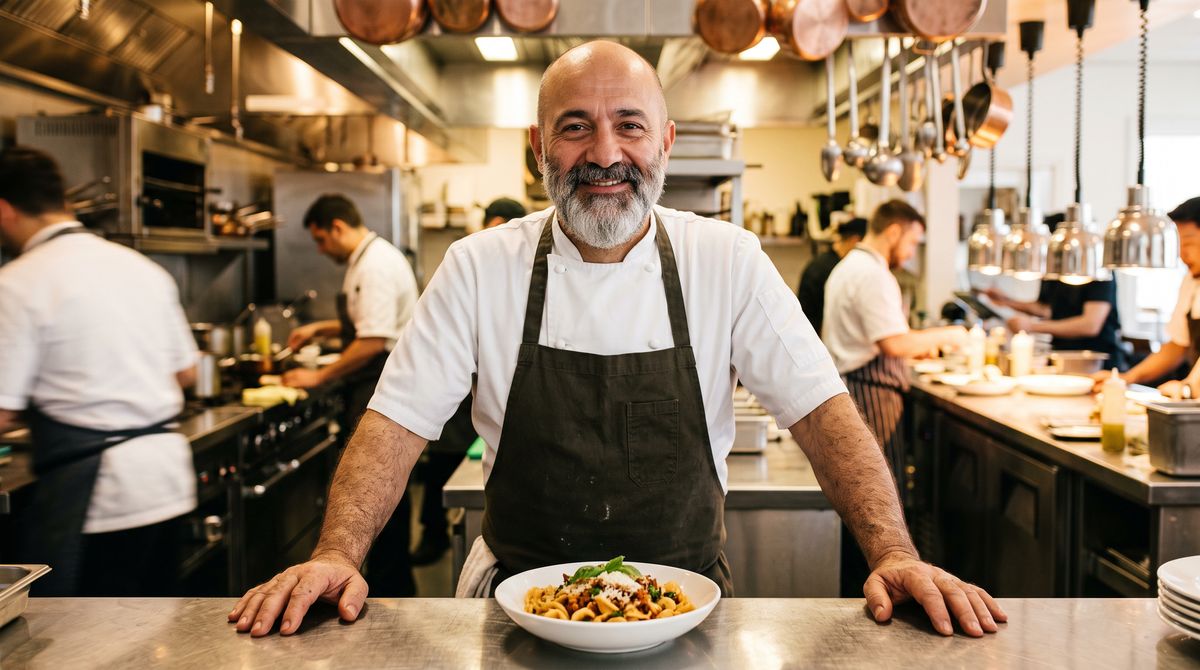
A photoreal photograph of a chef in his fifties with a shaved head, a full salt-and-pepper beard and light olive skin, in a white chef's jacket and a dark apron, standing at a steel pass in a busy, bright restaurant kitchen with copper pans and cooks softly out of focus behind him. A plated pasta dish sits on the pass in front of him. He faces the camera with a confident, closed-mouth smile, both hands resting on the edge of the pass. Waist-up framing, warm kitchen light, crisp detail in his beard and skin. No logos, brand names or printed words anywhere in frame.
- Speech0:00
This is our fresh tagliatelle with brown butter and sage. We make the pasta every morning, and it goes from the pot to your plate in under two minutes.

A frame three seconds into each render, with the loupe on the beard. Each render is its own take, so the pose differs:

{
  "taskType": "videoInference",
  "taskUUID": "5ca81744-ed5a-49a7-9d08-7eef5a9787b0",
  "model": "heygen:avatar@6",
  "inputs": {
    "referenceImages": ["https://assets.runware.ai/guides/heygen-avatar-6/reference-images/reference-chef.jpg"],
    "audio": "https://assets.runware.ai/guides/heygen-avatar-6/reference-images/speech-chef.mp3"
  },
  "resolution": "1080p"
}
Reach for 2k when the video will be cropped in an edit or played on a large screen, where the extra pixels in hair and skin survive the crop. For phone feeds and in-app players, 1080p is already at or above the display size.
Long scripts
A longer script is a longer audio file in the same request. The trainer below speaks for 32 seconds from one photo and one audio file, with nothing stitched together.
{
  "taskType": "videoInference",
  "taskUUID": "c9d375ff-c692-4a23-9400-ec75ce47b2f4",
  "model": "heygen:avatar@6",
  "inputs": {
    "referenceImages": ["https://assets.runware.ai/guides/heygen-avatar-6/reference-images/reference-trainer.jpg"],
    "audio": "https://assets.runware.ai/guides/heygen-avatar-6/reference-images/speech-trainer.mp3"
  }
}- Photo
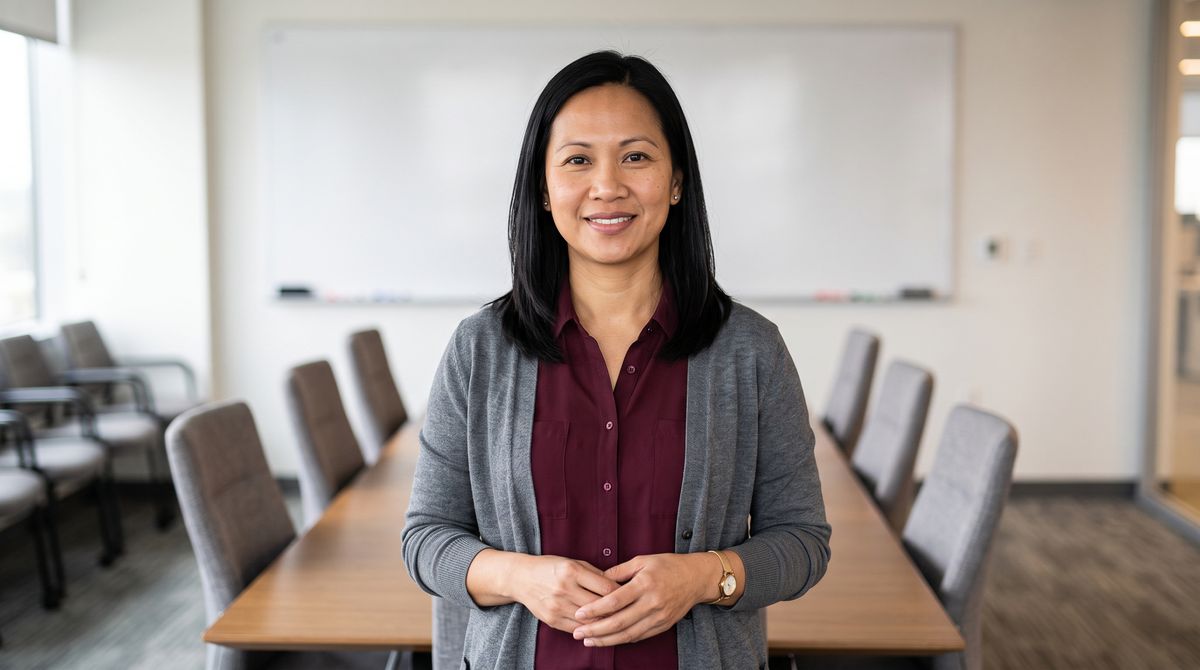
A photoreal photograph of a workplace safety trainer in her forties with shoulder-length straight black hair and light brown skin, in a plain burgundy blouse and a gray cardigan, standing in a bright meeting room with a long table, chairs and a blank whiteboard softly out of focus behind her. She faces the camera with a composed, closed-mouth smile, hands loosely clasped in front of her. Framed from the waist up with both hands in frame, soft even office light, real skin texture. No logos, brand names or printed words anywhere in frame, including on the whiteboard.
- Speech0:00
Welcome to this short module on reporting a safety concern. Over the next few minutes, we'll cover what counts as a concern, who to tell, and what happens after you report it. Let's start with the first question. A safety concern is anything that could hurt you, a colleague or a visitor, even if nobody has been hurt yet. A loose cable across a walkway counts. So does a fire door that has been propped open, or a machine guard that is missing. If you are not sure whether something counts, report it anyway. Nobody will be in trouble for raising a concern that turns out to be minor.

Her face and framing hold from the first line to the last, so a course module or an onboarding video can be one request per section rather than a chain of short clips. Split a script only where the content changes, such as one video per lesson.
Tips
-
One person, facing the camera, with the face clearly lit. The photo is everything the model knows about how the person looks.
-
Shoot or crop for the destination. The output keeps the photo's shape, so a vertical photo is the way to a vertical video.
-
Put the background in the photo. Background settings are rejected with a photo, and the room and the light in the photo are what the video shows.
-
Leave room for the hands. A waist-up photo gives the gestures space. In a tight crop they still come up, close to the camera.
-
Make the speech first. A script has to become audio before it reaches Avatar 6 in this mode, and HeyGen Voice 1.0 turns text into the speech track in one request.
-
Render at 2K for footage you will crop. At display size the two resolutions look alike, and the difference is in the detail a crop or a large screen reveals.