Gemini Omni Flash 1.2

Gemini Omni Flash 1.2 is Google's multimodal video model for generating, editing, and extending clips with native synchronized audio. It generates up to 15 seconds from text or a single starting image, edits source videos of up to 15 seconds with optional reference images, and keeps characters, products, and brand details consistent across reference images and videos. Output runs from 360p for quick drafts to 1080p and 4K for delivery, which suits high-volume work such as product clips, virtual try-ons, and ad variations.
Replacing elements with reference images
How to edit a clip with Gemini Omni Flash 1.2 and a reference image: swap a garment for virtual try-on, swap a product for ad variations, or add furniture to a room.
Introduction
Gemini Omni Flash 1.2 can edit a clip you already have with a reference image. The footage keeps its motion and its camera move, and the image supplies the element you name in the prompt. You send the clip and one product photo, with a short prompt that says what to replace.
- Running shoe
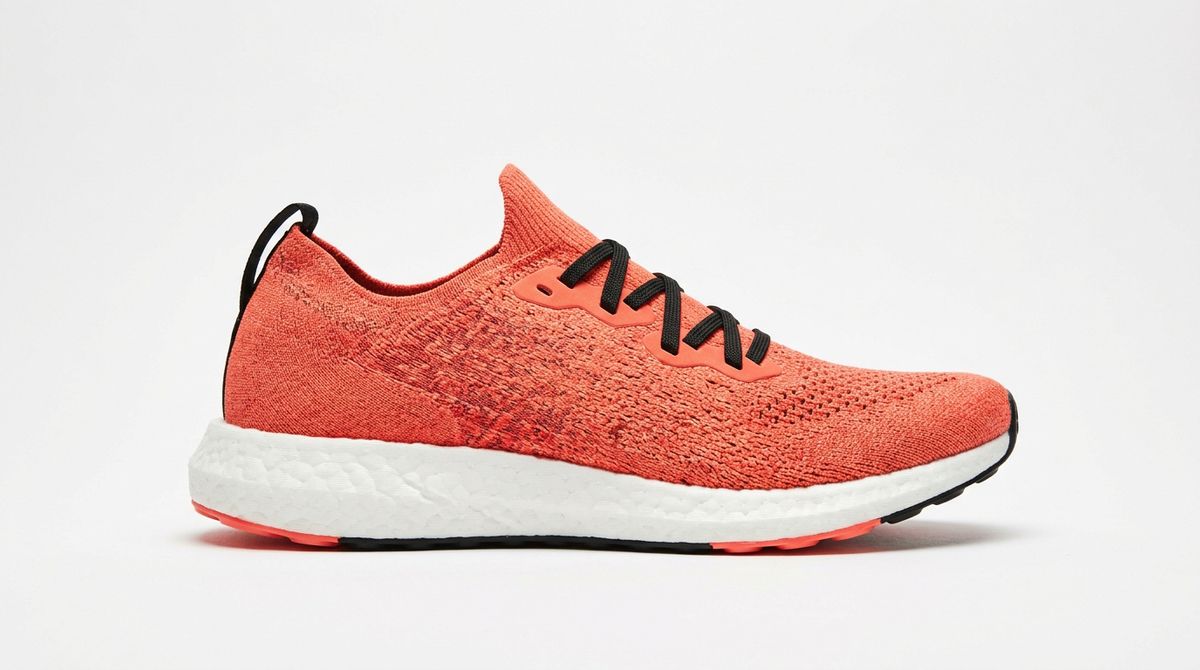
A single running shoe in side profile facing right on a plain white background, with a coral knit upper, a thick white foam midsole, a black heel tab and black laces. Clean e-commerce packshot, soft even studio light, a faint contact shadow, no text, no logos.

The sections below use the same request to dress a model in a new garment, turn one product clip into a set of ads, and stage a room with new furniture. Edits that need no image, such as relighting or removing an object, are covered in Editing video. New clips built from references are covered in Reference images and videos.
Request shape
An edit takes the clip in inputs.video, as a URL or the UUID of an earlier generation, and the image in inputs.referenceImages. The payload has no duration, and leaving it out is what makes the request an edit:
import { createClient } from '@runware/sdk'

const client = await createClient({ apiKey: process.env.RUNWARE_API_KEY })
await client.connect()

const [result] = await client.run({
  model: 'google:gemini@omni-flash-1.2',
  positivePrompt: 'Replace the white running shoes she is wearing with the running shoe in the reference image, on both feet. Keep everything else the same.',
  resolution: '720p',
  inputs: {
    video: 'https://assets.runware.ai/guides/google-gemini-omni-flash-1-2/replacing-with-reference-images/source-hero.mp4',
    referenceImages: [
      'https://assets.runware.ai/guides/google-gemini-omni-flash-1-2/replacing-with-reference-images/source-sneaker.jpg'
    ]
  }
})
import asyncio
import os
from runware import Runware
async def main():
async with Runware(api_key=os.environ["RUNWARE_API_KEY"]) as client:
results = await client.run({
"model": "google:gemini@omni-flash-1.2",
"positivePrompt": "Replace the white running shoes she is wearing with the running shoe in the reference image, on both feet. Keep everything else the same.",
"resolution": "720p",
"inputs": {
"video": "https://assets.runware.ai/guides/google-gemini-omni-flash-1-2/replacing-with-reference-images/source-hero.mp4",
"referenceImages": [
"https://assets.runware.ai/guides/google-gemini-omni-flash-1-2/replacing-with-reference-images/source-sneaker.jpg"
]
}
})
asyncio.run(main())curl https://api.runware.ai/v1 \
-H "Authorization: Bearer $RUNWARE_API_KEY" \
-H "Content-Type: application/json" \
-d '[
{
  "taskType": "videoInference",
  "taskUUID": "c83d9ca5-4a3f-473d-85ba-026089ca4bcc",
  "model": "google:gemini@omni-flash-1.2",
  "positivePrompt": "Replace the white running shoes she is wearing with the running shoe in the reference image, on both feet. Keep everything else the same.",
  "resolution": "720p",
  "inputs": {
    "video": "https://assets.runware.ai/guides/google-gemini-omni-flash-1-2/replacing-with-reference-images/source-hero.mp4",
    "referenceImages": [
      "https://assets.runware.ai/guides/google-gemini-omni-flash-1-2/replacing-with-reference-images/source-sneaker.jpg"
    ]
  }
}
]'runware run google:gemini@omni-flash-1.2 \
positivePrompt="Replace the white running shoes she is wearing with the running shoe in the reference image, on both feet. Keep everything else the same." \
resolution=720p \
inputs.video=https://assets.runware.ai/guides/google-gemini-omni-flash-1-2/replacing-with-reference-images/source-hero.mp4 \
inputs.referenceImages.0=https://assets.runware.ai/guides/google-gemini-omni-flash-1-2/replacing-with-reference-images/source-sneaker.jpg{
"taskType": "videoInference",
"taskUUID": "c83d9ca5-4a3f-473d-85ba-026089ca4bcc",
"model": "google:gemini@omni-flash-1.2",
"positivePrompt": "Replace the white running shoes she is wearing with the running shoe in the reference image, on both feet. Keep everything else the same.",
"resolution": "720p",
"inputs": {
"video": "https://assets.runware.ai/guides/google-gemini-omni-flash-1-2/replacing-with-reference-images/source-hero.mp4",
"referenceImages": [
"https://assets.runware.ai/guides/google-gemini-omni-flash-1-2/replacing-with-reference-images/source-sneaker.jpg"
]
}
}Response
[
  {
    "taskType": "videoInference",
    "taskUUID": "c83d9ca5-4a3f-473d-85ba-026089ca4bcc",
    "videoUUID": "0b236a21-6704-4588-ac3c-f01c1968eb8a",
    "videoURL": "https://vm.runware.ai/video/os/a14d18/ws/2/vi/0b236a21-6704-4588-ac3c-f01c1968eb8a.mp4"
  }
]
The source clip runs 3 to 15 seconds, up to 32 MiB, and the reference image can be up to 4096 px per side and 20 MiB. For the output, resolution picks the tier from 360p to 4K, while width and height are rejected whenever inputs.video is in the request. The source clips in this guide are 720p generations of six to eight seconds, and every edit asks for 720p.
Sending duration with inputs.video turns the request into an extension, and an extension takes no reference images. A request that has duration, inputs.video and inputs.referenceImages together is rejected.
Writing the edit prompt
Name the element in the footage, then point at the image that replaces it. Close with "Keep everything else the same.", the line Google recommends for Omni edits:
Refer to the image in plain words, as in "the running shoe in the reference image". Google's guidance for Omni is to say what each image is for in natural language, without tags such as <IMAGE_REF_0>.
Leave the product's description to the image, since the packshot already shows the shoe's color and materials. The prompt names neither and spends its words on what the image cannot say: which shoes in the clip change, and that both feet do.
Keep each prompt to one change: Google notes that long edit prompts asking for several changes tend to alter parts of the shot nobody asked about. Every example in this guide changes one element with one image.
Virtual try-on
Start from footage of a model in a garment of the same type, here a jacket, and swap it for the one in the product photo. The walk and the turn stay as they were, so one clip can show every jacket in a collection.
Replace the black bomber jacket she is wearing with the jacket in the reference image. Keep everything else the same.- Jacket
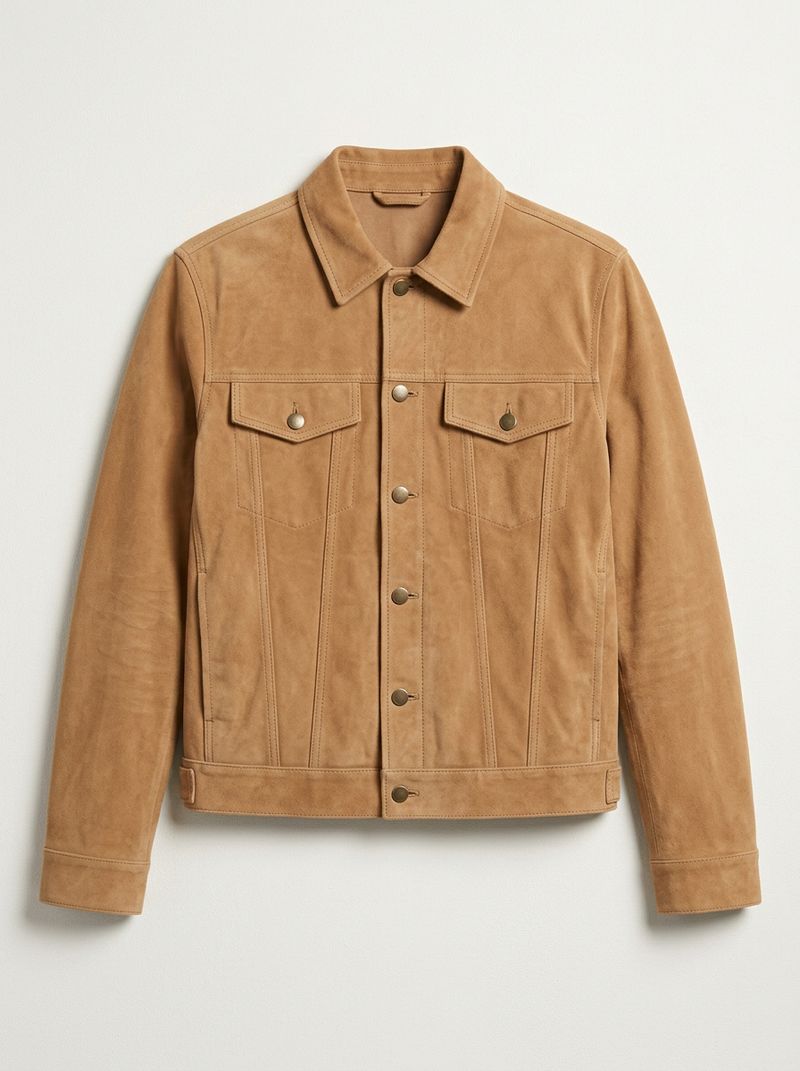
A camel suede trucker jacket laid flat on a plain off-white background, photographed from directly above, front view with the sleeves straight at the sides, a button front and two flap chest pockets. Clean e-commerce flat-lay, soft even light, no hanger, no text, no logos.

Name the garment the way it appears in the clip, "the black bomber jacket she is wearing". The outfit has several layers, and the description points at the one to replace.
For the product image, use a flat-lay or packshot of the whole garment on a plain background. It gives the model the full front of the piece with nothing else in the frame.
Ad variations
One product clip can carry a whole range: the clip and the prompt stay fixed, and only the image changes. Each flavor is one request against the same source clip, with its own packshot:

A slim aluminum can of sparkling water standing upright on a plain light gray background, front view at eye level. The can is matte lime green with the white wordmark "KOVA" across the middle and a small white lime-slice icon below it, with fine beads of condensation on the metal. Clean e-commerce packshot, soft even studio light, a faint contact shadow.

A slim aluminum can of sparkling water standing upright on a plain light gray background, front view at eye level. The can is matte pale pink with the white wordmark "KOVA" across the middle and a small white grapefruit-slice icon below it, with fine beads of condensation on the metal. Clean e-commerce packshot, soft even studio light, a faint contact shadow.

A slim aluminum can of sparkling water standing upright on a plain light gray background, front view at eye level. The can is matte deep purple with the white wordmark "KOVA" across the middle and a small white blackberry icon below it, with fine beads of condensation on the metal. Clean e-commerce packshot, soft even studio light, a faint contact shadow.
import { createClient } from '@runware/sdk'

const client = await createClient({ apiKey: process.env.RUNWARE_API_KEY })
await client.connect()

const [result] = await client.run({
  model: 'google:gemini@omni-flash-1.2',
  positivePrompt: 'Replace the white can with the can in the reference image. Keep everything else the same.',
  resolution: '720p',
  inputs: {
    video: 'https://assets.runware.ai/guides/google-gemini-omni-flash-1-2/replacing-with-reference-images/source-can.mp4',
    referenceImages: [
      'https://assets.runware.ai/guides/google-gemini-omni-flash-1-2/replacing-with-reference-images/source-lime.jpg'
    ]
  }
})
import asyncio
import os
from runware import Runware
async def main():
async with Runware(api_key=os.environ["RUNWARE_API_KEY"]) as client:
results = await client.run({
"model": "google:gemini@omni-flash-1.2",
"positivePrompt": "Replace the white can with the can in the reference image. Keep everything else the same.",
"resolution": "720p",
"inputs": {
"video": "https://assets.runware.ai/guides/google-gemini-omni-flash-1-2/replacing-with-reference-images/source-can.mp4",
"referenceImages": [
"https://assets.runware.ai/guides/google-gemini-omni-flash-1-2/replacing-with-reference-images/source-lime.jpg"
]
}
})
asyncio.run(main())curl https://api.runware.ai/v1 \
-H "Authorization: Bearer $RUNWARE_API_KEY" \
-H "Content-Type: application/json" \
-d '[
{
  "taskType": "videoInference",
  "taskUUID": "511e785e-9623-40ca-aeef-1f1acd761206",
  "model": "google:gemini@omni-flash-1.2",
  "positivePrompt": "Replace the white can with the can in the reference image. Keep everything else the same.",
  "resolution": "720p",
  "inputs": {
    "video": "https://assets.runware.ai/guides/google-gemini-omni-flash-1-2/replacing-with-reference-images/source-can.mp4",
    "referenceImages": [
      "https://assets.runware.ai/guides/google-gemini-omni-flash-1-2/replacing-with-reference-images/source-lime.jpg"
    ]
  }
}
]'runware run google:gemini@omni-flash-1.2 \
positivePrompt="Replace the white can with the can in the reference image. Keep everything else the same." \
resolution=720p \
inputs.video=https://assets.runware.ai/guides/google-gemini-omni-flash-1-2/replacing-with-reference-images/source-can.mp4 \
inputs.referenceImages.0=https://assets.runware.ai/guides/google-gemini-omni-flash-1-2/replacing-with-reference-images/source-lime.jpg{
"taskType": "videoInference",
"taskUUID": "511e785e-9623-40ca-aeef-1f1acd761206",
"model": "google:gemini@omni-flash-1.2",
"positivePrompt": "Replace the white can with the can in the reference image. Keep everything else the same.",
"resolution": "720p",
"inputs": {
"video": "https://assets.runware.ai/guides/google-gemini-omni-flash-1-2/replacing-with-reference-images/source-can.mp4",
"referenceImages": [
"https://assets.runware.ai/guides/google-gemini-omni-flash-1-2/replacing-with-reference-images/source-lime.jpg"
]
}
}Response
[
  {
    "taskType": "videoInference",
    "taskUUID": "511e785e-9623-40ca-aeef-1f1acd761206",
    "videoUUID": "4e9773b0-6795-4cd7-aece-b28c2e4b339d",
    "videoURL": "https://vm.runware.ai/video/os/a14d18/ws/2/vi/4e9773b0-6795-4cd7-aece-b28c2e4b339d.mp4"
  }
]
The grapefruit and blackberry requests are the same except for the URL in inputs.referenceImages. Pick Original to see the source clip:
A close-up of a slim matte white aluminum can with no label standing in a bed of crushed ice on a pale stone counter, beads of condensation running down the metal, bright window light from the left. A hand enters from the right, lifts the can a few inches out of the ice and turns it slowly toward the camera, then holds it still. Static camera, shallow depth of field. Single continuous shot, no scene cuts. Audio: ice shifting and a faint fizz. No music, no dialogue, no on-screen text.
Replace the white can with the can in the reference image. Keep everything else the same.
Replace the white can with the can in the reference image. Keep everything else the same.
Replace the white can with the can in the reference image. Keep everything else the same.
Use a source clip of a plain product with no label, so the color and the wordmark of each variant come from its packshot alone. That is also why one prompt, "the can in the reference image", works for the whole set.
Adding an object
An edit can also bring in something the footage never had. For virtual staging, a furniture packshot goes into an existing walkthrough of a hotel room, and the prompt opens with "Add" since nothing in the room is being replaced:
Add the armchair from the reference image to the empty corner beside the window, angled toward the bed. Keep everything else the same.- Armchair
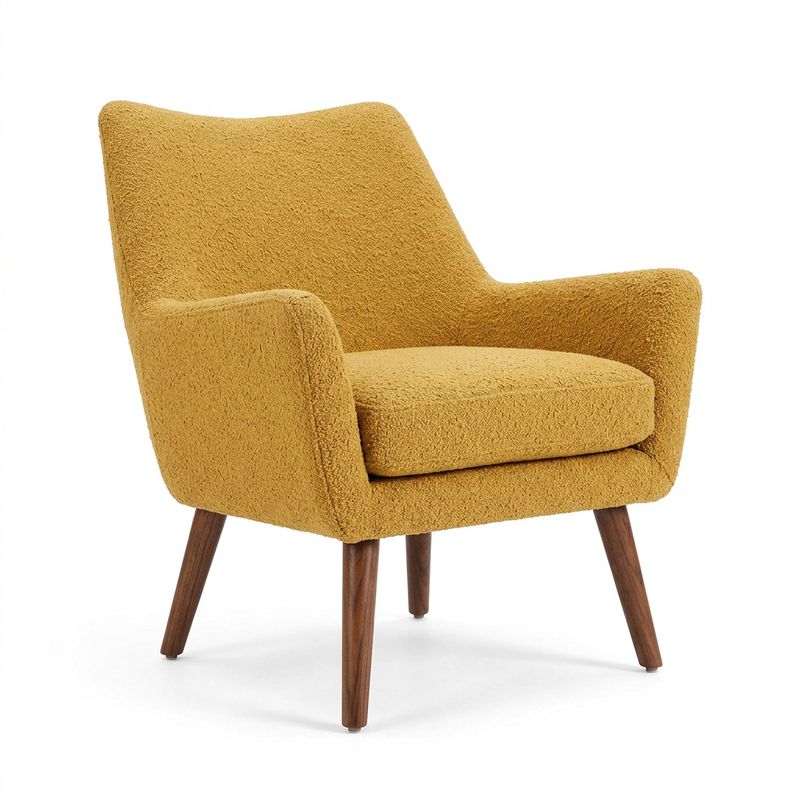
A mid-century lounge armchair upholstered in mustard-yellow bouclé, with a curved back, wide arms and tapered walnut legs, three-quarter front view on a plain white background. Clean e-commerce furniture packshot, soft even studio light, a faint contact shadow, no text, no logos.

Place the object relative to something already in the shot. "The empty corner beside the window" names one spot on the floor, and "angled toward the bed" sets which way the chair faces. Aim for a spot that is already empty in the source clip, like this corner, so nothing else in the room has to move.
Tips
-
Leave the length out of every edit. With
duration, the request becomes an extension, which takes no reference images. -
Name the element as it appears in the clip. "The white running shoes she is wearing" gives the edit one clear target.
-
Let the image describe the item. Point at it in plain words and leave its color and materials to the packshot.
-
Make one change per request. For a set of variants, send one request per image with the same clip and prompt.
-
Close with "Keep everything else the same." It is the line Google recommends to hold the rest of the shot.
-
Use a clean product image. A packshot or flat-lay of the whole item on a plain background, up to 4096 px per side and 20 MiB.