Gemini Omni Flash 1.2

Gemini Omni Flash 1.2 is Google's multimodal video model for generating, editing, and extending clips with native synchronized audio. It generates up to 15 seconds from text or a single starting image, edits source videos of up to 15 seconds with optional reference images, and keeps characters, products, and brand details consistent across reference images and videos. Output runs from 360p for quick drafts to 1080p and 4K for delivery, which suits high-volume work such as product clips, virtual try-ons, and ad variations.
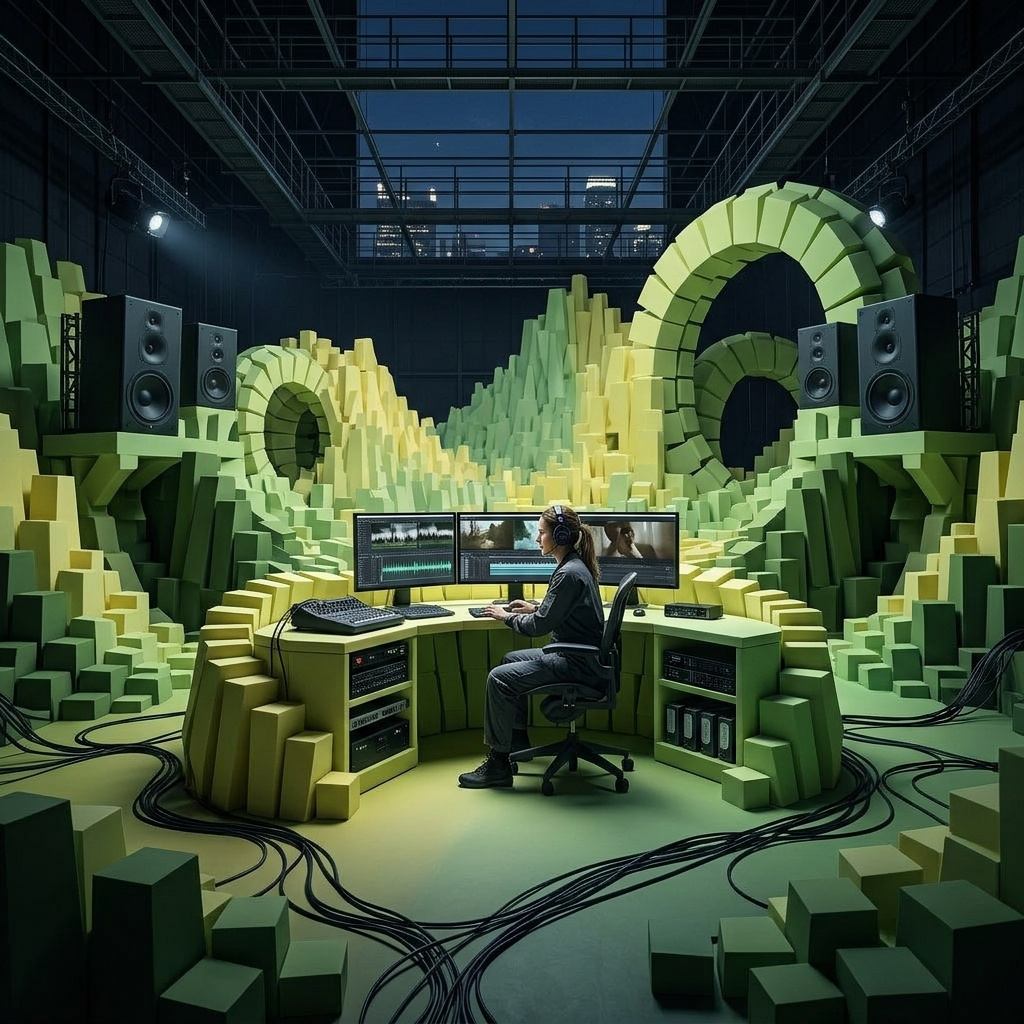
Editing video
How to edit a clip with Gemini Omni Flash 1.2 from a text prompt: relight a scene, change the season or style, rewrite a sign, remove or add objects, and chain edits.
Introduction
Gemini Omni Flash 1.2 can edit a clip you already have from a text instruction alone. The clip goes in inputs.video and the prompt names one change. Everything the prompt leaves alone, such as the action and the camera move, carries over from the source.
The prompt follows the edit pattern Google recommends: one short change, then "Keep everything else the same."
Request shape
An edit needs two fields: the source clip in inputs.video, as a URL or the UUID of an earlier generation, and the instruction in positivePrompt. resolution is optional and picks the output tier:
import { createClient } from '@runware/sdk'

const client = await createClient({ apiKey: process.env.RUNWARE_API_KEY })
await client.connect()

const [result] = await client.run({
  model: 'google:gemini@omni-flash-1.2',
  positivePrompt: 'Change the lighting to dusk, with the string lights glowing above the tables. Keep everything else the same.',
  resolution: '720p',
  inputs: {
    video: 'https://assets.runware.ai/guides/google-gemini-omni-flash-1-2/editing-video/source-hero.mp4'
  }
})
import asyncio
import os
from runware import Runware
async def main():
async with Runware(api_key=os.environ["RUNWARE_API_KEY"]) as client:
results = await client.run({
"model": "google:gemini@omni-flash-1.2",
"positivePrompt": "Change the lighting to dusk, with the string lights glowing above the tables. Keep everything else the same.",
"resolution": "720p",
"inputs": {
"video": "https://assets.runware.ai/guides/google-gemini-omni-flash-1-2/editing-video/source-hero.mp4"
}
})
asyncio.run(main())curl https://api.runware.ai/v1 \
-H "Authorization: Bearer $RUNWARE_API_KEY" \
-H "Content-Type: application/json" \
-d '[
{
  "taskType": "videoInference",
  "taskUUID": "7c2e9f41-5b3a-4d8e-9a16-2f0b8c4d6e13",
  "model": "google:gemini@omni-flash-1.2",
  "positivePrompt": "Change the lighting to dusk, with the string lights glowing above the tables. Keep everything else the same.",
  "resolution": "720p",
  "inputs": {
    "video": "https://assets.runware.ai/guides/google-gemini-omni-flash-1-2/editing-video/source-hero.mp4"
  }
}
]'runware run google:gemini@omni-flash-1.2 \
positivePrompt="Change the lighting to dusk, with the string lights glowing above the tables. Keep everything else the same." \
resolution=720p \
inputs.video=https://assets.runware.ai/guides/google-gemini-omni-flash-1-2/editing-video/source-hero.mp4{
"taskType": "videoInference",
"taskUUID": "7c2e9f41-5b3a-4d8e-9a16-2f0b8c4d6e13",
"model": "google:gemini@omni-flash-1.2",
"positivePrompt": "Change the lighting to dusk, with the string lights glowing above the tables. Keep everything else the same.",
"resolution": "720p",
"inputs": {
"video": "https://assets.runware.ai/guides/google-gemini-omni-flash-1-2/editing-video/source-hero.mp4"
}
}Response
[
  {
    "taskType": "videoInference",
    "taskUUID": "7c2e9f41-5b3a-4d8e-9a16-2f0b8c4d6e13",
    "videoUUID": "b41d7e92-0c6f-4a35-8e27-9d1f3a5c7b08",
    "videoURL": "https://vm.runware.ai/video/os/a14d18/ws/2/vi/b41d7e92-0c6f-4a35-8e27-9d1f3a5c7b08.mp4"
  }
]
The source clip runs 3 to 15 seconds, up to 32 MiB. width and height are rejected whenever inputs.video is present, so resolution is the only way to size an edit. An edit takes no duration either, because the clip is edited in place.
Adding duration turns the request into an extension, which keeps the source and adds new footage after it. To edit a clip in place, leave duration out. Extensions have their own guide, Extending video.
An edit can also take inputs.referenceImages to bring in an element from a picture, which is covered in Replacing elements with reference images. Every edit in this guide works from the prompt alone.
Writing the edit prompt
An edit prompt has two parts: the one change you want, in a short sentence, and the closing line "Keep everything else the same."
Describe the change alone. Every detail you write is something the model works into the shot, and a long prompt with many parts tends to bring changes you never asked for. Both prompts below ask for winter on the same delivery clip and close with the same line. The first one is short:
Make it a snowy winter day. Keep everything else the same.The second one spells out the winter detail by detail:
Turn this into a winter scene. Cover the street, the sidewalks and the parked cars in deep fresh snow, make the trees bare with frost on every branch, fill the air with heavy falling snowflakes, turn the sky a flat overcast gray, add frost to the shop windows and slush to the bike lane, show the courier's breath in the cold air, and replace the birdsong with the crunch of tires on packed snow. Keep everything else the same.The long prompt turns one request into a list of separate changes, and each one is more of the shot the model redraws. The short prompt leaves those decisions to the model and keeps the rest of the clip closer to the source. When you do need several changes, make them one request at a time, as in Chaining edits.
Kinds of edit
The terrace and the courier cover lighting and season. The same short pattern handles restyling the whole clip, rewriting a sign, removing an object and adding one.
Restyling the clip
A style edit redraws the look of every frame and keeps the action from the source, so one shoot gives a sports brand a live-action cut and an animated one for social. Name the style in plain terms, such as 2D animation or stop-motion claymation:
Restyle the video as stop-motion claymation. Keep everything else the same.Changing sign text
Put the new words in quotes, exactly as they should read. One storefront clip can then carry the name of each location, or follow a rebrand without a reshoot:
Change the sign to read "NORTH END BIKES". Keep everything else the same.Removing an object
To take something out of the shot, ask for it to be made invisible and leave out any description of what goes in its place. Name the object by where it is, "the smartphone on the desk", so there is only one thing it can mean:
Make the smartphone on the desk invisible. Keep everything else the same.Adding an accessory
To add an item, name it and say where it goes relative to something already in the shot. This edit starts from the clean desk above, so a store can show the stand on its own and with a matching mouse from the same footage:
Add a white wireless mouse on the desk to the right of the laptop stand. Keep everything else the same.Chaining edits
To make several changes, send each result back as inputs.video for the next edit, by its videoURL or its videoUUID, with a new one-change prompt every time. The mouse above is the second step of such a chain, and its request takes the clip from step one as the source:
import { createClient } from '@runware/sdk'

const client = await createClient({ apiKey: process.env.RUNWARE_API_KEY })
await client.connect()

const [result] = await client.run({
  model: 'google:gemini@omni-flash-1.2',
  positivePrompt: 'Add a white wireless mouse on the desk to the right of the laptop stand. Keep everything else the same.',
  resolution: '720p',
  inputs: {
    video: 'https://assets.runware.ai/guides/google-gemini-omni-flash-1-2/editing-video/output-remove.mp4'
  }
})
import asyncio
import os
from runware import Runware
async def main():
async with Runware(api_key=os.environ["RUNWARE_API_KEY"]) as client:
results = await client.run({
"model": "google:gemini@omni-flash-1.2",
"positivePrompt": "Add a white wireless mouse on the desk to the right of the laptop stand. Keep everything else the same.",
"resolution": "720p",
"inputs": {
"video": "https://assets.runware.ai/guides/google-gemini-omni-flash-1-2/editing-video/output-remove.mp4"
}
})
asyncio.run(main())curl https://api.runware.ai/v1 \
-H "Authorization: Bearer $RUNWARE_API_KEY" \
-H "Content-Type: application/json" \
-d '[
{
  "taskType": "videoInference",
  "taskUUID": "e5a83c17-9f2d-4b60-a4c8-1d7e0f362b95",
  "model": "google:gemini@omni-flash-1.2",
  "positivePrompt": "Add a white wireless mouse on the desk to the right of the laptop stand. Keep everything else the same.",
  "resolution": "720p",
  "inputs": {
    "video": "https://assets.runware.ai/guides/google-gemini-omni-flash-1-2/editing-video/output-remove.mp4"
  }
}
]'runware run google:gemini@omni-flash-1.2 \
positivePrompt="Add a white wireless mouse on the desk to the right of the laptop stand. Keep everything else the same." \
resolution=720p \
inputs.video=https://assets.runware.ai/guides/google-gemini-omni-flash-1-2/editing-video/output-remove.mp4{
"taskType": "videoInference",
"taskUUID": "e5a83c17-9f2d-4b60-a4c8-1d7e0f362b95",
"model": "google:gemini@omni-flash-1.2",
"positivePrompt": "Add a white wireless mouse on the desk to the right of the laptop stand. Keep everything else the same.",
"resolution": "720p",
"inputs": {
"video": "https://assets.runware.ai/guides/google-gemini-omni-flash-1-2/editing-video/output-remove.mp4"
}
}Response
[
  {
    "taskType": "videoInference",
    "taskUUID": "e5a83c17-9f2d-4b60-a4c8-1d7e0f362b95",
    "videoUUID": "3f9c2a64-d81e-4e07-b5a9-60c4e2d71f3a",
    "videoURL": "https://vm.runware.ai/video/os/a14d18/ws/2/vi/3f9c2a64-d81e-4e07-b5a9-60c4e2d71f3a.mp4"
  }
]
Step through the chain from the original clip to the last edit:
A product video of a home-office desk. An unbranded silver laptop with its screen switched off sits on a walnut laptop stand, with a small potted plant and a brass desk lamp behind it and a smartphone lying face up on the desk to the left of the stand. Soft morning light comes from a window on the left. The camera orbits slowly from left to right around the laptop at desk height. Single continuous shot, no scene cuts. Audio: quiet room tone, the faint tick of a wall clock. No music, no dialogue, no on-screen text.
Make the smartphone on the desk invisible. Keep everything else the same.
Add a white wireless mouse on the desk to the right of the laptop stand. Keep everything else the same.
Keep each step to one change even when you know the whole list up front. Folding the steps into one prompt makes it the long, multi-part instruction from Writing the edit prompt.
Tips
-
Name one change per request. Every extra change gives the model more of the shot to redraw. Run further changes as a chain.
-
Close with "Keep everything else the same." It is Google's recommended closing line for edits, and it asks the model to keep everything the change does not name.
-
Describe only the change. A short instruction keeps the edit closer to the source than a detailed picture of the finished scene.
-
Quote new text exactly. Put sign text in quotes, spelled and capitalized as it should appear.
-
Remove by making invisible. Ask for the object to be made invisible and leave the fill to the model.
-
Leave the duration unset. With
duration, the request extends the clip instead of editing it.