P-Video-2-Pro-Lipsync

P-Video-2-Pro-Lipsync is Pruna AI's lip-sync model that takes a video of someone talking and a new audio track, and returns the same video with the mouth re-synced to the new words. Only the lower face is redrawn, so the speaker, framing, camera and background stay as shot, and the output keeps the source resolution and aspect ratio up to 1080p, as long as the shorter input up to 60 seconds. It follows speech in any language, for dubbing talking-head videos, ads and courses, or changing a line without a reshoot.
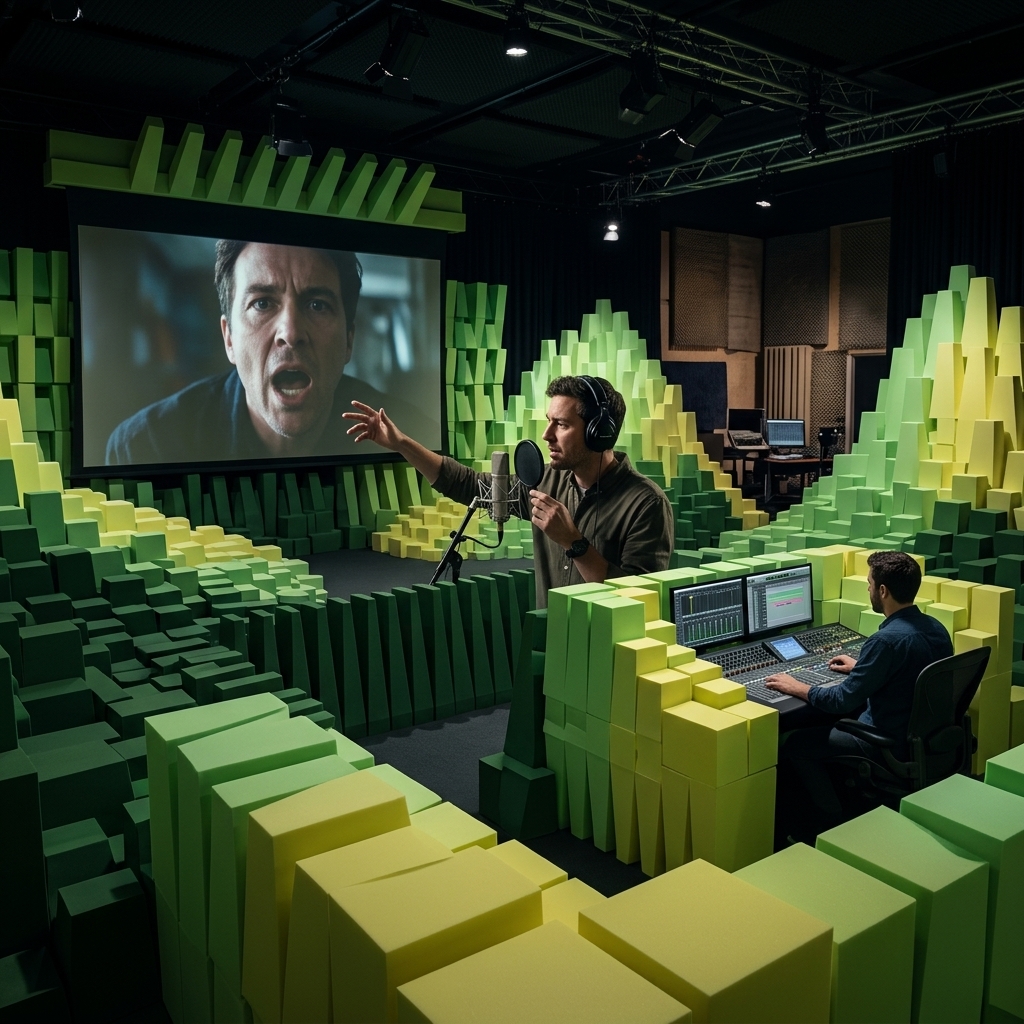
Editing speech in video
How to give an existing video new speech with Pruna P-Video-2-Pro-Lipsync: the request, changing one line without a reshoot, and dubbing a clip into other languages.
Introduction
P-Video-2-Pro-Lipsync takes a video of someone talking and a new audio track, and returns the same video with the mouth re-synced to the new speech. Only the lower face is redrawn, and everything else in the shot comes from your video. Turn the sound on:
- Source video
A boutique owner, a woman in her thirties with shoulder-length wavy brown hair, in a cream knit sweater, stands still in her small clothing shop in front of a rail of denim jackets and says to the camera in a calm, friendly voice, "All the denim on this rail is half price until Sunday." Vertical phone framing, close-up from the shoulders up, her face large in the frame and turned to the lens, her cream sweater fills the bottom of the frame with nothing between her and the camera, she keeps her head still and speaks without big expressions, locked-off camera, soft daylight. Photoreal small-business social video, no text, no logos. Audio: her calm clear voice close to the microphone, no music.
- New audio0:00
Our new spring jackets just came in, and they are already selling fast.
One video and one audio file, no prompt. This guide covers the request, changing a single line in the original voice, and dubbing one clip into several languages.
Request shape
The model takes two inputs, and both are required. The person speaking goes in inputs.video, and the speech the mouth should follow goes in inputs.audio. That is the whole request:
import { createClient } from '@runware/sdk'

const client = await createClient({ apiKey: process.env.RUNWARE_API_KEY })
await client.connect()

const [result] = await client.run({
  model: 'prunaai:p-video@2-pro-lipsync',
  inputs: {
    video: 'https://assets.runware.ai/guides/prunaai-p-video-2-pro-lipsync/editing-speech-in-video/source-hero.mp4',
    audio: 'https://assets.runware.ai/guides/prunaai-p-video-2-pro-lipsync/editing-speech-in-video/speech-hero.mp3'
  },
  deliveryMethod: 'async'
})
import asyncio
import os
from runware import Runware
async def main():
async with Runware(api_key=os.environ["RUNWARE_API_KEY"]) as client:
results = await client.run({
"model": "prunaai:p-video@2-pro-lipsync",
"inputs": {
"video": "https://assets.runware.ai/guides/prunaai-p-video-2-pro-lipsync/editing-speech-in-video/source-hero.mp4",
"audio": "https://assets.runware.ai/guides/prunaai-p-video-2-pro-lipsync/editing-speech-in-video/speech-hero.mp3"
},
"deliveryMethod": "async"
})
asyncio.run(main())curl https://api.runware.ai/v1 \
-H "Authorization: Bearer $RUNWARE_API_KEY" \
-H "Content-Type: application/json" \
-d '[
{
  "taskType": "videoInference",
  "taskUUID": "3c82201a-fad8-4f23-b20e-381e1189235f",
  "model": "prunaai:p-video@2-pro-lipsync",
  "inputs": {
    "video": "https://assets.runware.ai/guides/prunaai-p-video-2-pro-lipsync/editing-speech-in-video/source-hero.mp4",
    "audio": "https://assets.runware.ai/guides/prunaai-p-video-2-pro-lipsync/editing-speech-in-video/speech-hero.mp3"
  },
  "deliveryMethod": "async"
}
]'runware run prunaai:p-video@2-pro-lipsync \
inputs.video=https://assets.runware.ai/guides/prunaai-p-video-2-pro-lipsync/editing-speech-in-video/source-hero.mp4 \
inputs.audio=https://assets.runware.ai/guides/prunaai-p-video-2-pro-lipsync/editing-speech-in-video/speech-hero.mp3 \
deliveryMethod=async{
"taskType": "videoInference",
"taskUUID": "3c82201a-fad8-4f23-b20e-381e1189235f",
"model": "prunaai:p-video@2-pro-lipsync",
"inputs": {
"video": "https://assets.runware.ai/guides/prunaai-p-video-2-pro-lipsync/editing-speech-in-video/source-hero.mp4",
"audio": "https://assets.runware.ai/guides/prunaai-p-video-2-pro-lipsync/editing-speech-in-video/speech-hero.mp3"
},
"deliveryMethod": "async"
}Response
[
  {
    "taskType": "videoInference",
    "taskUUID": "3c82201a-fad8-4f23-b20e-381e1189235f",
    "videoUUID": "92989c4c-1f46-4b96-9774-6f0aaf5e116f",
    "videoURL": "https://vm.runware.ai/video/os/a14d18/ws/2/vi/92989c4c-1f46-4b96-9774-6f0aaf5e116f.mp4"
  }
]
There is no field for the shot or the length. A request with positivePrompt, width, height, resolution, duration or fps is rejected, because the video sets the size and the shorter of the two inputs sets the length. Preparing source video and Preparing the audio cover each input.
The two optional fields are seed and settings.safetyFilter, which turns on the provider's content filter. The filter is off by default.
Changing a line
A line can change after the take is approved, such as a date or a price. Generate the new line in the same voice, send it with the approved take, and the mouth moves to the new words while the rest of the take stays as it was:
- Approved take
- New line0:00
Join us live on Thursday at five for the full product demo.
Both lines come from the same voice with the same delivery direction, so the fix sounds like the take it replaces. The new audio carries the whole line, because it replaces the soundtrack of the clip and the shorter input sets the length. A file with only the changed word would return a clip as short as that word.
import { createClient } from '@runware/sdk'

const client = await createClient({ apiKey: process.env.RUNWARE_API_KEY })
await client.connect()

const [result] = await client.run({
  model: 'prunaai:p-video@2-pro-lipsync',
  inputs: {
    video: 'https://assets.runware.ai/guides/prunaai-p-video-2-pro-lipsync/editing-speech-in-video/take-approved.mp4',
    audio: 'https://assets.runware.ai/guides/prunaai-p-video-2-pro-lipsync/editing-speech-in-video/speech-webinar-thursday.mp3'
  },
  deliveryMethod: 'async'
})
import asyncio
import os
from runware import Runware
async def main():
async with Runware(api_key=os.environ["RUNWARE_API_KEY"]) as client:
results = await client.run({
"model": "prunaai:p-video@2-pro-lipsync",
"inputs": {
"video": "https://assets.runware.ai/guides/prunaai-p-video-2-pro-lipsync/editing-speech-in-video/take-approved.mp4",
"audio": "https://assets.runware.ai/guides/prunaai-p-video-2-pro-lipsync/editing-speech-in-video/speech-webinar-thursday.mp3"
},
"deliveryMethod": "async"
})
asyncio.run(main())curl https://api.runware.ai/v1 \
-H "Authorization: Bearer $RUNWARE_API_KEY" \
-H "Content-Type: application/json" \
-d '[
{
  "taskType": "videoInference",
  "taskUUID": "12a44961-e75e-47f7-9c6e-35fc39eda7e8",
  "model": "prunaai:p-video@2-pro-lipsync",
  "inputs": {
    "video": "https://assets.runware.ai/guides/prunaai-p-video-2-pro-lipsync/editing-speech-in-video/take-approved.mp4",
    "audio": "https://assets.runware.ai/guides/prunaai-p-video-2-pro-lipsync/editing-speech-in-video/speech-webinar-thursday.mp3"
  },
  "deliveryMethod": "async"
}
]'runware run prunaai:p-video@2-pro-lipsync \
inputs.video=https://assets.runware.ai/guides/prunaai-p-video-2-pro-lipsync/editing-speech-in-video/take-approved.mp4 \
inputs.audio=https://assets.runware.ai/guides/prunaai-p-video-2-pro-lipsync/editing-speech-in-video/speech-webinar-thursday.mp3 \
deliveryMethod=async{
"taskType": "videoInference",
"taskUUID": "12a44961-e75e-47f7-9c6e-35fc39eda7e8",
"model": "prunaai:p-video@2-pro-lipsync",
"inputs": {
"video": "https://assets.runware.ai/guides/prunaai-p-video-2-pro-lipsync/editing-speech-in-video/take-approved.mp4",
"audio": "https://assets.runware.ai/guides/prunaai-p-video-2-pro-lipsync/editing-speech-in-video/speech-webinar-thursday.mp3"
},
"deliveryMethod": "async"
}Response
[
  {
    "taskType": "videoInference",
    "taskUUID": "12a44961-e75e-47f7-9c6e-35fc39eda7e8",
    "videoUUID": "943c63f3-a833-4adf-ab8b-52603e90195c",
    "videoURL": "https://vm.runware.ai/video/os/a14d18/ws/2/vi/943c63f3-a833-4adf-ab8b-52603e90195c.mp4"
  }
]
Dubbing into several languages
A dub is one request per language on the same source. The voice is the one in the audio, so pick one that fits the person on screen, and keep the same voice across languages when one person speaks all of them:
An online course instructor, a woman in her fifties with a short silver pixie cut, in a rust-colored blouse, sits at a tidy desk with a laptop beside her and says to the camera, "Open the dashboard, click New report, and pick the date range you need." Medium close-up, locked-off camera, soft daylight, a bookshelf softly out of focus behind her. Photoreal e-learning lesson video, no text, no logos. Audio: her calm clear speaking voice close to the microphone, no music.
The model follows the speech in whatever language the audio is in, with nothing to set. A translation runs longer or shorter than the original line, and the output ends with the shorter input, so time each one against the clip before you send it. Preparing the audio shows what happens when it overruns.
Tips
-
Send the whole line. The audio replaces the soundtrack, so it has to carry everything the clip should say.
-
Keep one voice per person. Generate fixes and translations with the voice and the delivery direction of the original take.
-
Fit the voice to the face. The output speaks with the voice in the audio, whoever is on screen.
-
Time each translation against the clip. The shorter input sets the length, and a line that runs past the video is cut where the video ends.