Nano Banana 2

Nano Banana 2 (officially known as Gemini 3.1 Flash Image) is Google’s upgraded AI image generation and editing model that brings advanced visual creation capabilities to a broad audience. It generates detailed, expressive images from text and image prompts with sharp details, richer lighting, and improved adherence to complex instructions. Nano Banana 2 also supports multi-object and multi-character consistency, accurate text rendering within images, and flexible resolution control up to 4K. It is now integrated across Google’s AI platforms including the Gemini app, Search AI Mode, and other Gemini-powered services.
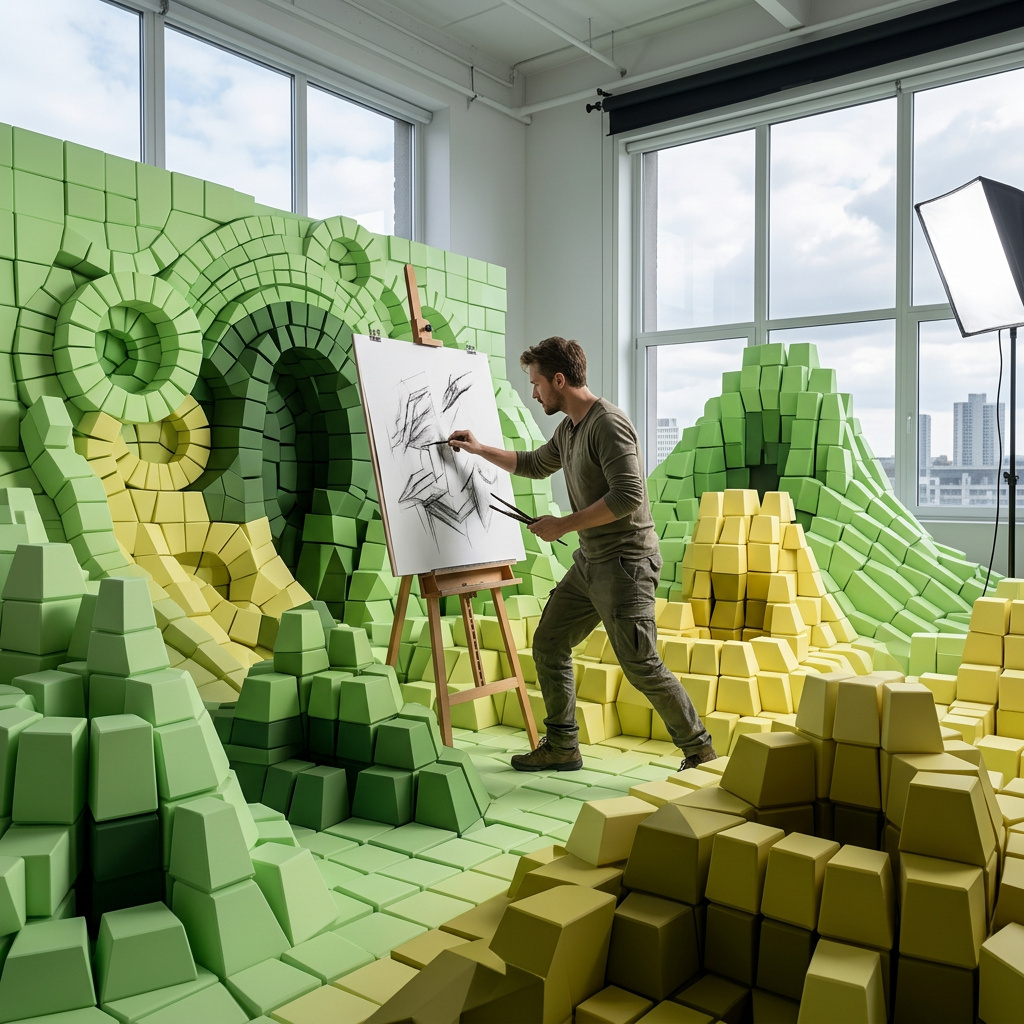
Combining multiple images into one composition
How to merge several reference images, a product, a subject, a backdrop, or a style, into a single coherent image with Nano Banana 2.
Introduction
Combining real elements into one image normally means a manual pipeline: cut out the product, mask the subject, drop it onto a background, then match the lighting and perspective by hand. Every revision means redoing the composite.
Nano Banana 2 collapses that into one request. You pass each element as a separate entry in inputs.referenceImages, describe how the pieces fit together in positivePrompt, and the model returns a single image with lighting and perspective already reconciled. One call takes up to 14 reference images, so you can assemble a scene from many parts at once.

Combine the astronaut from the first image, the cherry-red convertible from the second image, and the desert highway from the third image into one cinematic scene: the astronaut leaning casually against the parked convertible in the middle of the empty desert highway at sunset, golden-hour light, photorealistic, wide cinematic framing.
- The astronaut
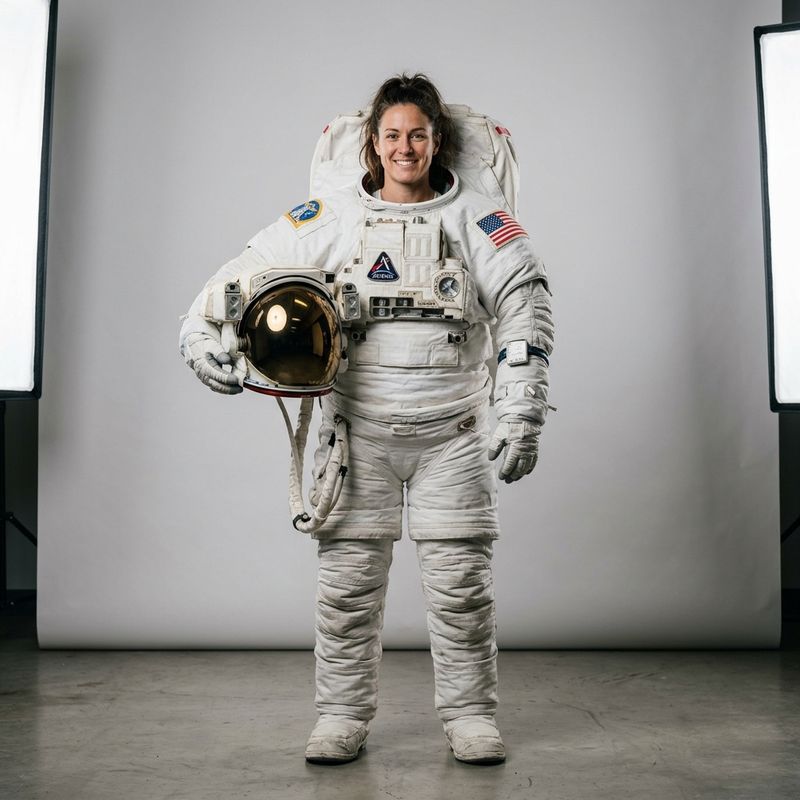
A full-body studio photo of an astronaut in a white spacesuit holding the helmet under one arm, standing, plain light-gray background, soft studio lighting, photorealistic.
- The car
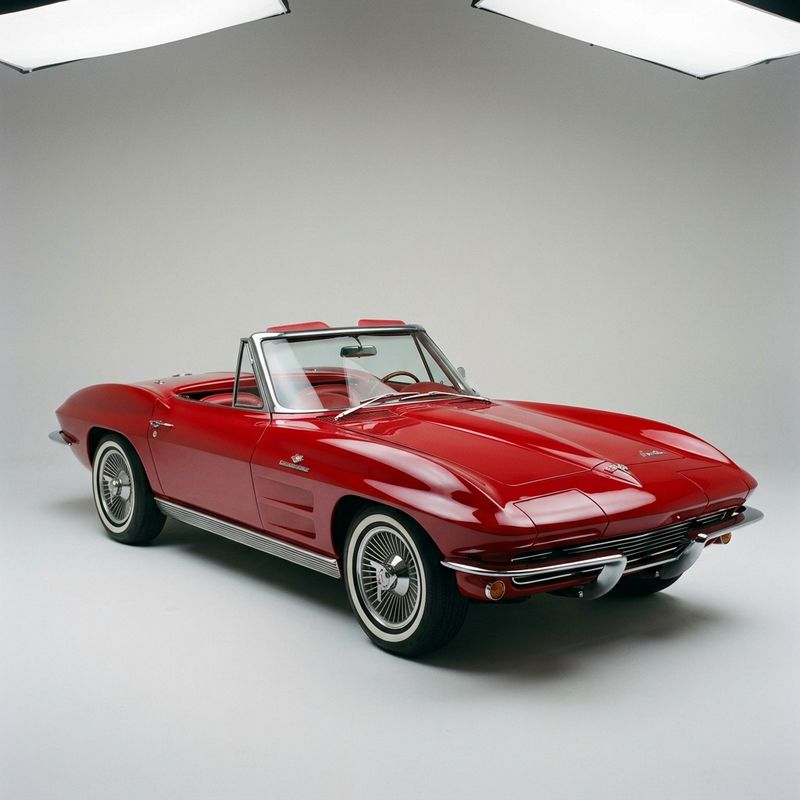
A studio product photo of a glossy cherry-red 1960s convertible car, three-quarter front view, plain light-gray background, soft even lighting, photorealistic.
- The highway
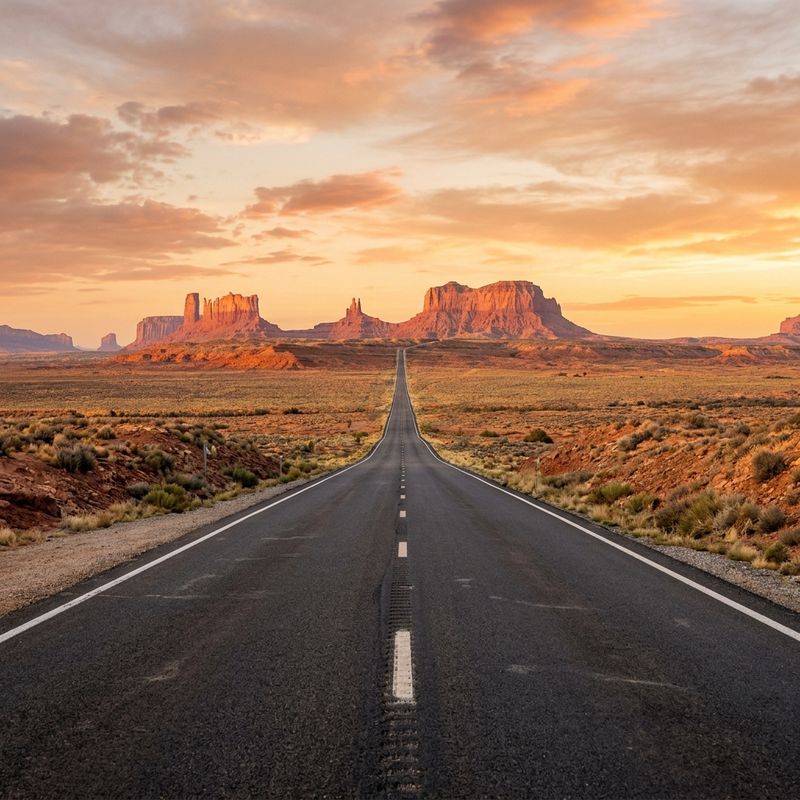
A wide empty desert highway stretching toward distant red mesas at sunset, warm golden light, no vehicles and no people, landscape photography.


Three separate studio shots, none of which share a setting, become one cinematic frame. The model placed the astronaut and the car into the desert, scaled them to each other, and relit everything for sunset.
This guide covers the request shape and three composition patterns: dropping a product into a scene, merging separate subjects, and transferring a style from one image onto another.
Composition uses the same inputs.referenceImages field as character consistency. Consistency keeps one subject the same across many images. Composition does the reverse: it pulls many images into one.
Request shape
Each element is its own entry in the inputs.referenceImages array. The prompt then describes the target scene and refers to each reference by its position in the array.
import { createClient } from '@runware/sdk'

const client = await createClient({ apiKey: process.env.RUNWARE_API_KEY })
await client.connect()

const [result] = await client.run({
  model: 'google:4@3',
  positivePrompt: 'Place the wristwatch from the first image onto the wooden table from the second image, beside the book and coffee, matching the warm morning light',
  width: 1200,
  height: 896,
  inputs: {
    referenceImages: [
      'https://example.com/watch.jpg',
      'https://example.com/table.jpg'
    ]
  }
})
import asyncio
import os
from runware import Runware
async def main():
async with Runware(api_key=os.environ["RUNWARE_API_KEY"]) as client:
results = await client.run({
"model": "google:4@3",
"positivePrompt": "Place the wristwatch from the first image onto the wooden table from the second image, beside the book and coffee, matching the warm morning light",
"width": 1200,
"height": 896,
"inputs": {
"referenceImages": [
"https://example.com/watch.jpg",
"https://example.com/table.jpg"
]
}
})
asyncio.run(main())curl https://api.runware.ai/v1 \
-H "Authorization: Bearer $RUNWARE_API_KEY" \
-H "Content-Type: application/json" \
-d '[
{
  "taskType": "imageInference",
  "taskUUID": "c3d4e5f6-a7b8-9012-cdef-345678901234",
  "model": "google:4@3",
  "positivePrompt": "Place the wristwatch from the first image onto the wooden table from the second image, beside the book and coffee, matching the warm morning light",
  "width": 1200,
  "height": 896,
  "inputs": {
    "referenceImages": [
      "https://example.com/watch.jpg",
      "https://example.com/table.jpg"
    ]
  }
}
]'runware run google:4@3 \
positivePrompt="Place the wristwatch from the first image onto the wooden table from the second image, beside the book and coffee, matching the warm morning light" \
width=1200 \
height=896 \
inputs.referenceImages.0=https://example.com/watch.jpg \
inputs.referenceImages.1=https://example.com/table.jpg{
"taskType": "imageInference",
"taskUUID": "c3d4e5f6-a7b8-9012-cdef-345678901234",
"model": "google:4@3",
"positivePrompt": "Place the wristwatch from the first image onto the wooden table from the second image, beside the book and coffee, matching the warm morning light",
"width": 1200,
"height": 896,
"inputs": {
"referenceImages": [
"https://example.com/watch.jpg",
"https://example.com/table.jpg"
]
}
}Response
{
  "data": [
    {
      "taskType": "imageInference",
      "taskUUID": "c3d4e5f6-a7b8-9012-cdef-345678901234",
      "imageUUID": "1a2b3c4d-5e6f-7a8b-9c0d-1e2f3a4b5c6d",
      "imageURL": "https://im.runware.ai/image/os/a14d18/ws/2/ii/1a2b3c4d-5e6f-7a8b-9c0d-1e2f3a4b5c6d.jpg"
    }
  ]
}
Order matters. The model maps "the first image" and "the second image" in your prompt to the array order, so naming the position is the most reliable way to tell it which element is which. You can also identify elements by description ("the watch", "the table"), which helps when a scene has several references.
The prompt does the directing. The references supply the what, and positivePrompt supplies the where and how: placement, scale, lighting, and the relationship between elements.
Compositing a product into a scene
The most common composite is placing a clean product shot into a styled environment. You photograph the product once on a plain background, then drop it into as many scenes as you need.

Place the wristwatch from the first image onto the wooden cafe table from the second image, resting beside the open book and the coffee, matching the warm morning light and the overhead flat-lay angle, photorealistic product photography.
- Product
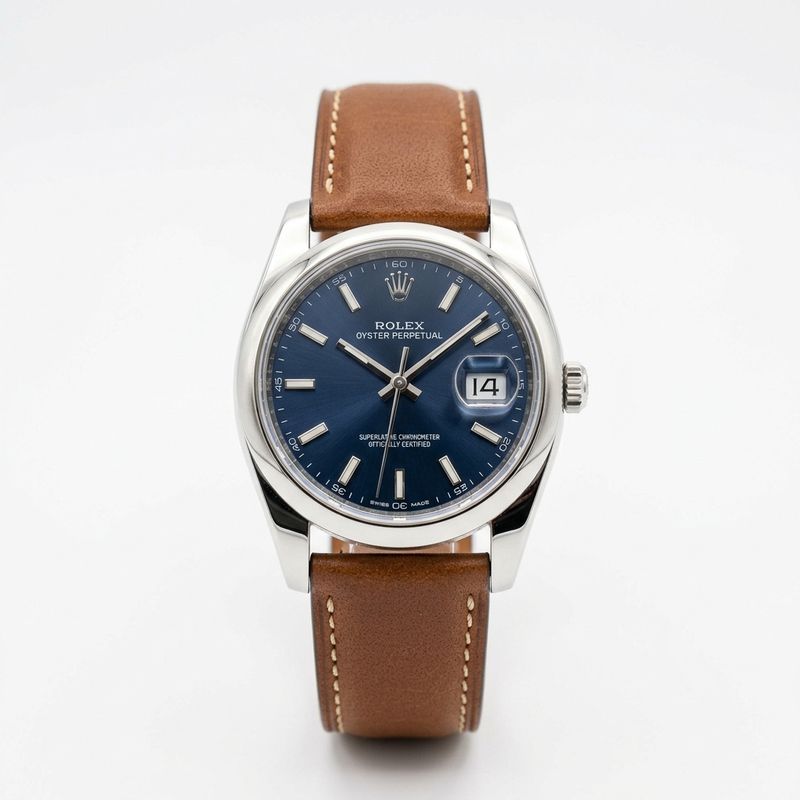
A product photo of a luxury wristwatch with a navy-blue dial, silver case, and brown leather strap, plain white background, soft studio lighting, centered.
- Scene
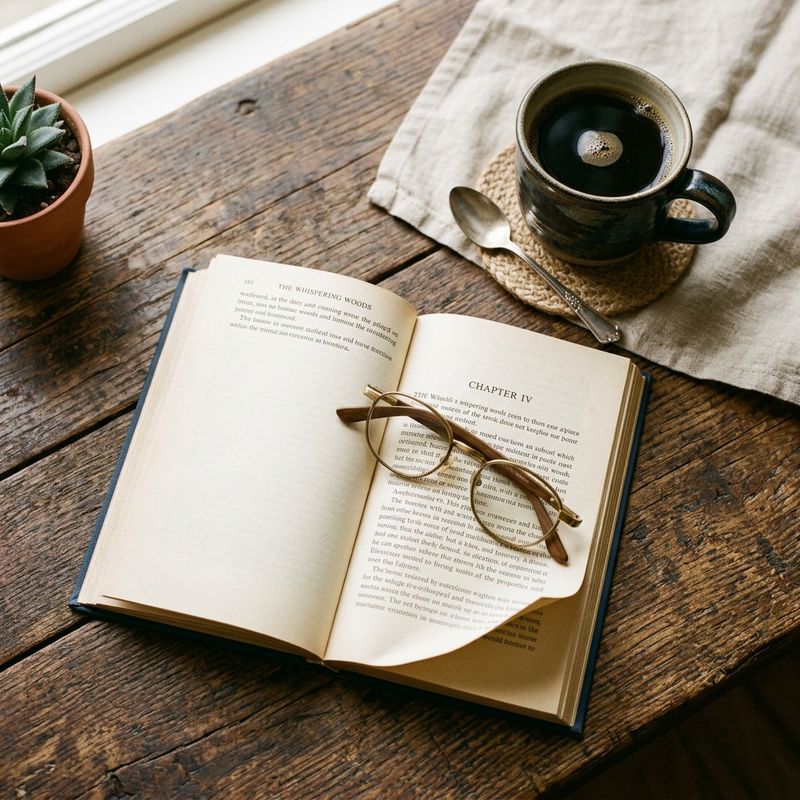
A rustic wooden cafe table seen from directly above with an open hardback book, a cup of black coffee, and a pair of reading glasses, warm morning light, flat-lay photography, no watch.


The watch keeps its navy dial and leather strap, and it picks up the scene's warm morning light and overhead angle. The same product reference can drop into a studio backdrop, an outdoor table, or a gift-box flat-lay without re-shooting.
Combining subjects
References don't have to be a product and a backdrop. Two separate subjects, shot apart, can be brought into one scene together.

Combine the woman from the first image and the corgi from the second image into one candid photograph: the woman in the red coat walking the corgi on a leash through an autumn city park, warm afternoon light, natural lifestyle photography. Keep both the woman and the corgi looking exactly as in their reference images.
- The woman
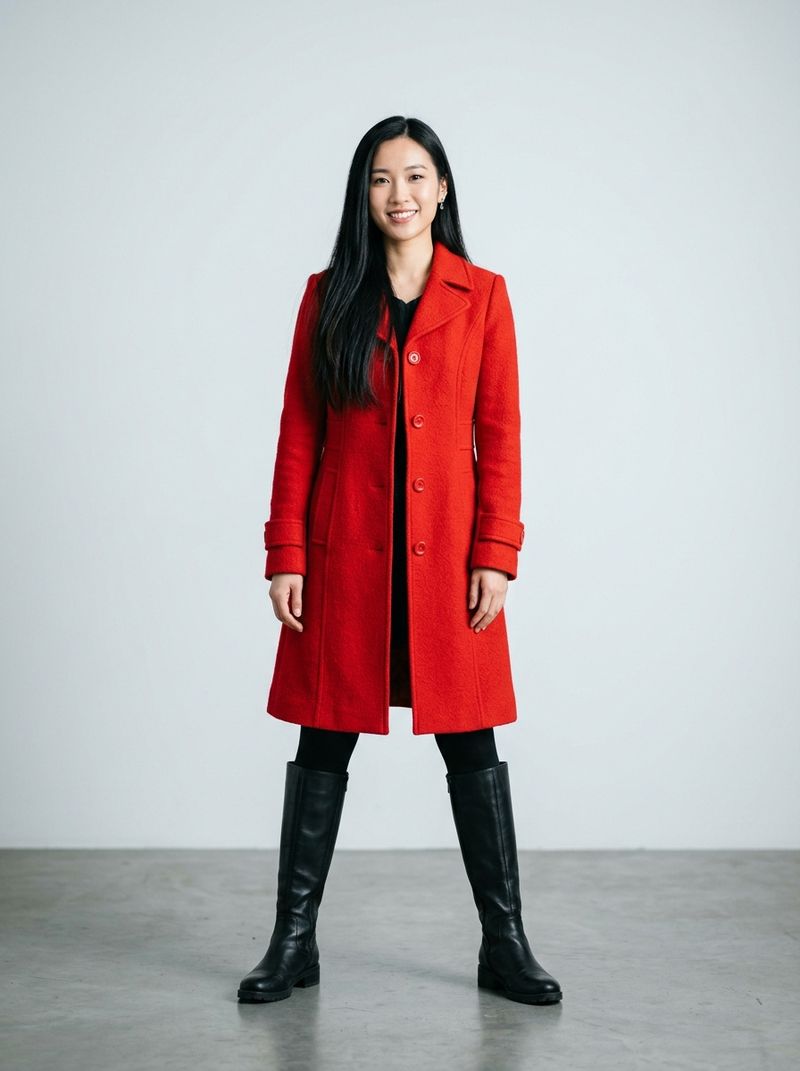
A full-body studio photo of a woman with long straight black hair wearing a bright red wool coat and black boots, standing, plain light-gray background, soft lighting, photorealistic.
- The corgi
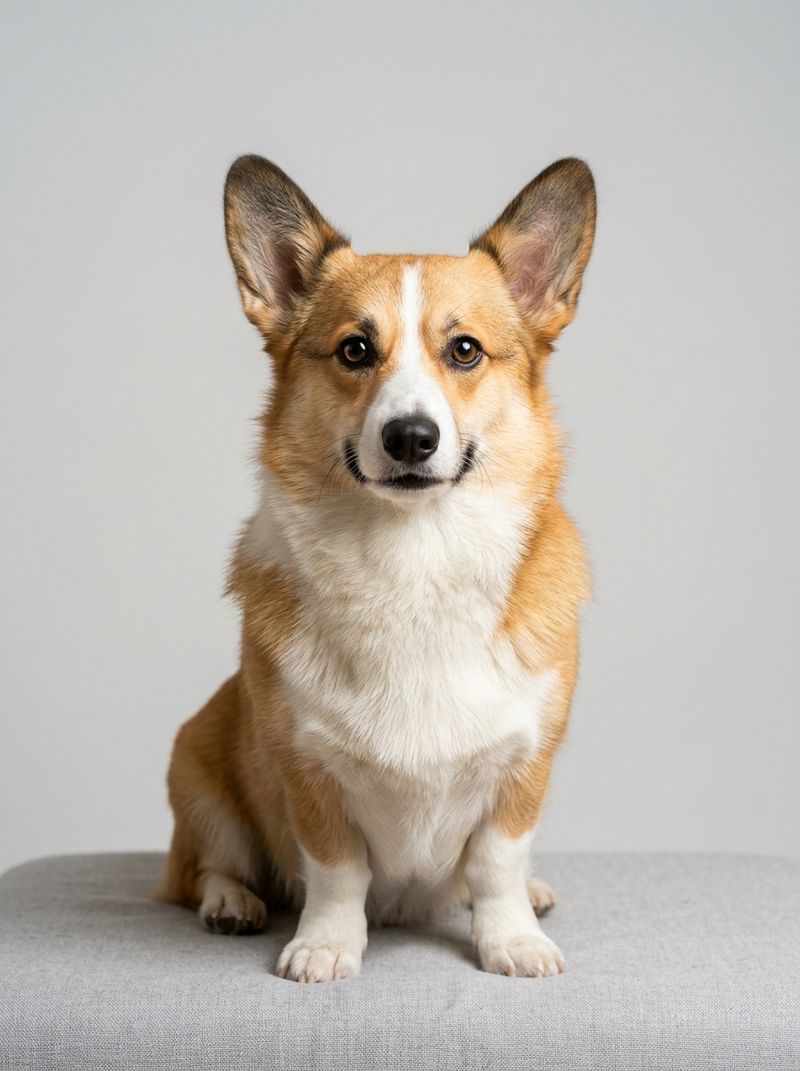
A studio photo of a Pembroke Welsh corgi with a tan and white coat sitting and facing the camera, plain light-gray background, soft lighting, photorealistic.


Both subjects arrive with their identities intact, the woman's red coat and the corgi's markings, posed naturally in a setting neither was photographed in. This is the bridge between composition and consistency: each reference is held to its source while the scene around them is invented.
Transferring a style
A reference can also carry a look rather than an object. Pair a photo with a style reference, and the model repaints the first in the manner of the second.

Repaint the cobblestone street scene from the first image in the swirling post-impressionist style of the second image, keeping the street layout and buildings recognizable but rendered with thick expressive brushstrokes and the vivid blue and yellow palette.
- Content

A photograph of a quiet European cobblestone street with old townhouses and a church spire in the distance, overcast daylight, no people.
- Style
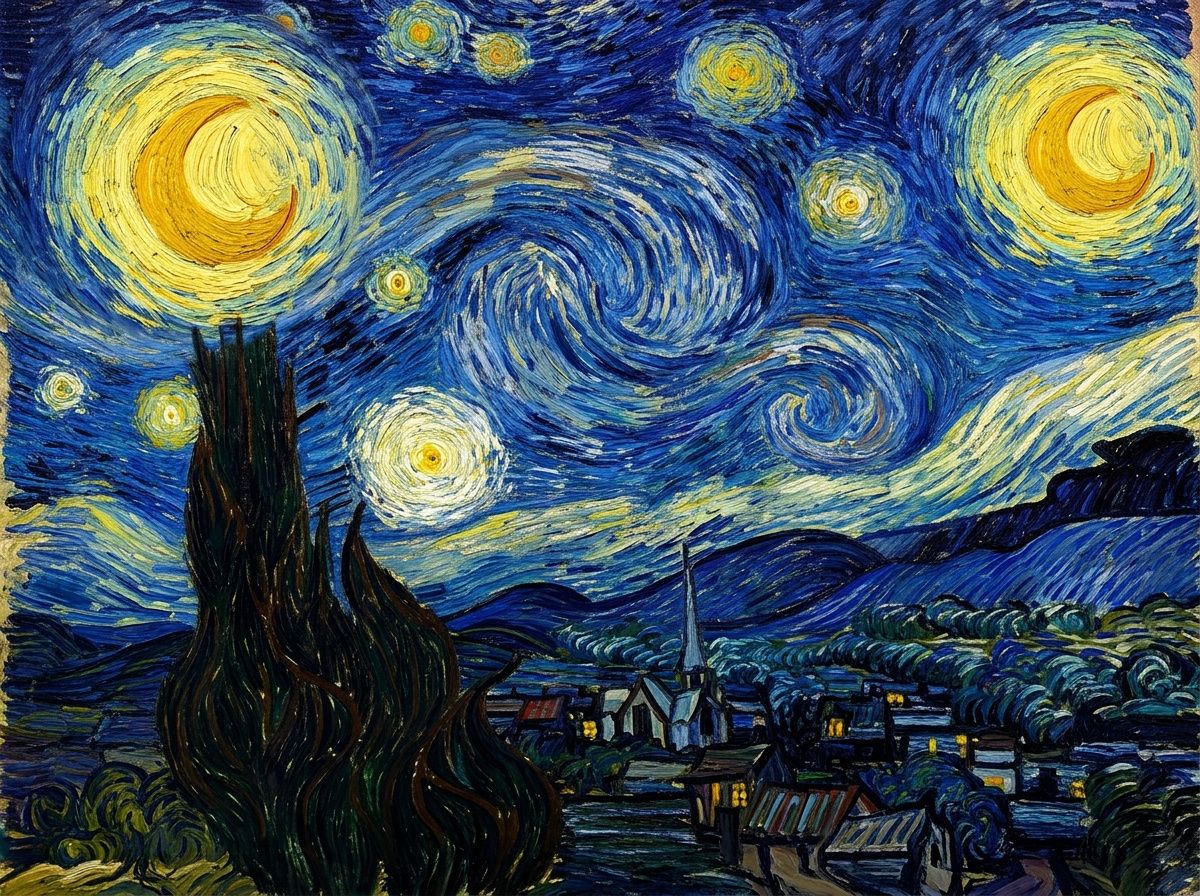
A swirling post-impressionist oil painting of a night sky with thick expressive brushstrokes and vivid blues and yellows, classic fine-art painting style.


The street keeps its layout and architecture, but the brushwork, palette, and texture come from the painting. Separating content from style across two references gives you more control than describing a style in words, because the model has an actual example to match.
Tips
-
Give each element a clean reference. A subject shot on a plain background composites more predictably than one already embedded in a busy scene, because the model has less to disentangle.
-
Name elements by position and description. "The watch from the first image" is clearer than "the watch" alone, especially once you pass three or more references.
-
Direct the relationship in the prompt. State placement, scale, and contact ("resting on", "leaning against", "walking beside"). The references can't tell the model how the pieces relate, so the prompt has to.
-
Let the model handle lighting. You don't need to match lighting between source references. Describe the target lighting once and the model relights every element to fit the final scene.
-
Build up complex scenes in passes. For a busy composite, get two or three elements right first, then feed that result back in as a new reference and add the next element, rather than stacking all references at once.