Rodin Gen-2

Rodin Gen-2 is a 10 billion parameter 3D generation model from Hyper3D built on the BANG architecture. It creates production-ready assets from text prompts or up to 5 input images, with 4x geometry improvement over Gen-1. It supports quad-dominant and raw mesh modes, PBR and shaded materials, configurable polygon counts, T/A pose control, bounding box constraints, and output in GLB, FBX, OBJ, USDZ, and STL formats.
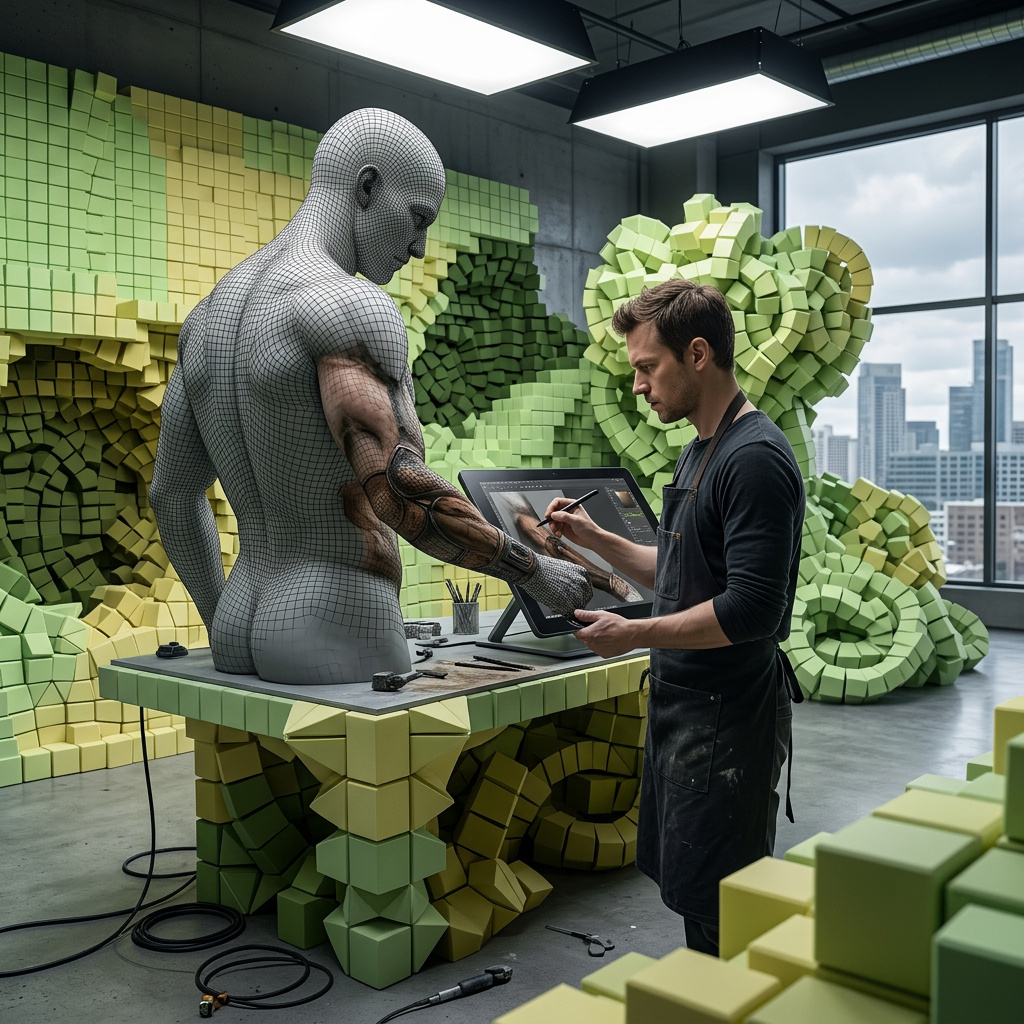
Controlling mesh topology and polygon budget
How to match Rodin Gen-2 output to your pipeline: Quad vs Raw topology, quality presets vs custom polygon counts, HighPack 4K textures, T/A pose for rigging, and PBR vs baked materials.
Introduction
Rodin Gen-2 ships with sensible defaults: a quad-dominant mesh at medium density with PBR materials. That gets you a usable model, but it's rarely the exact asset a specific pipeline wants. A background prop for a mobile game and a hero model for an offline render pull in opposite directions, and the same generation produces either one once you set a few controls.
This guide covers the settings that shape the output mesh: topology, polygon budget, the HighPack add-on, pose, and materials. If you haven't generated with Rodin Gen-2 yet, start with generating models from images and text.
An ornate medieval knight's great helm, polished steel with a hinged visor, riveted seams, and a fluted crest, weathered metal surface, single object
The defaults got you a model. These settings get you the model your pipeline can actually use.
Quad and Raw topology
Topology is how the surface is divided into faces, and it decides what you can do with the model after it's generated. Rodin Gen-2 offers two modes through settings.meshMode.
Quad is the default. It builds a quad-dominant mesh, with four-sided faces that flow in clean loops across the surface. Quads deform predictably when a model is rigged and animated, and they subdivide cleanly for smoothing, which is why they're the standard for characters and anything that moves.
Raw builds a triangulated mesh that is denser and more irregular, closer to a raw scan. It captures fine geometric detail without regard for edge flow, which suits static hero props or models you plan to retopologize yourself.
The rule of thumb: if the model will be rigged or animated, use Quad. If it's a static asset or you'll rework the topology downstream, Raw gives you denser detail to start from.
"settings": {
  "meshMode": "Raw"
}
Polygon budget
Polygon count is the lever for the tradeoff between detail and weight. More faces mean finer detail and a heavier file. Fewer faces mean a lighter asset that renders faster but reads coarser. You set the budget one of two ways, and they're mutually exclusive: a quality preset or a custom polyCount.
The orc bust below was generated at all four quality presets from the same prompt and seed. Only the face count changed. The difference shows in the silhouette and surface, from blocky and faceted at the bottom of the range to smooth at the top.
A faceted low-poly mesh is the right call for background props or mobile, where the budget per asset is tight and nobody inspects the surface up close. A smooth high-poly mesh earns its weight on hero assets and anything seen in close-up.
Presets map to fixed face counts, and the count depends on the mesh mode:
| Quality | Quad faces | Raw faces |
|---|---|---|
high | 50,000 | 500,000 |
medium | 18,000 | 150,000 |
low | 8,000 | 20,000 |
extra-low | 4,000 | 2,000 |
When you have a hard budget rather than a rough target, set polyCount directly. Quad accepts 1,000 to 200,000 faces, Raw accepts 500 to 1,000,000. Reach for this when an engine or an asset spec dictates an exact ceiling, like a prop that has to stay under 15,000 triangles.
"settings": {
  "polyCount": 15000
}
quality and polyCount are mutually exclusive. Sending both in the same request returns a validation error. Pick a preset when a rough level is enough, or a custom count when you have an exact budget.
HighPack: 4K textures and denser meshes
HighPack is an add-on that pushes a Quad mesh to its highest fidelity. It does two things at once: it multiplies the face count by roughly 16× over the quality preset, and it generates 4K textures in place of the default 2K. It's the setting for assets where surface detail carries the shot.
Zoom into the scales and horns on the two dragons above. The HighPack version holds detail under close inspection that the default smooths away. That fidelity roughly triples the per-generation cost, and it only applies in Quad mode. Raw mode clears add-ons, so HighPack has no effect there. Reserve it for hero assets and close-ups. On background props or quick prototypes, the extra faces and texture resolution are weight you won't see.
"settings": {
  "addons": ["HighPack"]
}
Pose for riggable characters
For humanoid models, settings.taPose forces a T-pose or A-pose, the neutral and symmetric poses that rigs are built around. When you're generating a character to animate, a T/A pose saves you from re-posing the mesh before you can skin it.
Without the setting, the character keeps whatever pose the prompt suggested, here mid-stride. With settings.taPose, the model overrides that to a neutral symmetric stance with the limbs clear of the body, ready to rig. The setting affects humanoid subjects only, so it has no effect on props or creatures.
"settings": {
  "taPose": true
}
Materials and texture
settings.material controls how the surface is shaded. PBR, the default, generates physically-based materials with base color, metallic, roughness, and normal maps that react correctly to scene lighting, which is what real-time engines and renderers expect. Shaded bakes lighting into the texture for a flatter look, suited to viewers and pipelines that won't relight the asset. A third option, All, returns both sets so you can decide downstream.
settings.hdTexture raises texture quality on its own, independent of the material mode. It's worth enabling when an object's color and surface read matter more than its geometry.
"settings": {
  "material": "Shaded"
}
Bounding box and scale
settings.boundingBox caps the model's maximum dimensions, given as [Y, Z, X]. It's how you hold generated assets to a consistent scale, so a set of props comes out sharing proportions instead of each one sized to fill its own frame.
"settings": {
  "boundingBox": [100, 100, 100]
}
Tips
-
Default to Quad. It deforms cleanly when rigged and subdivides without artifacts. Switch to Raw only for static, maximum-detail assets or when you'll rework the topology yourself.
-
Match the budget to where the asset is seen. Background and mobile assets can run extra-low or low. Hero and close-up assets justify high quality or a custom high
polyCount. -
Pick quality or polyCount, never both. Use a preset when a rough level is enough, and a custom count when an engine budget gives you an exact ceiling.
-
Reserve HighPack for assets that earn it. The 4K textures and denser mesh pay off on hero pieces and close-ups, and triple the cost on background props that don't need them.
-
Use T/A pose for characters you'll rig. A neutral, symmetric pose is far easier to skin than an arbitrary one.
-
Keep PBR unless your pipeline bakes lighting. PBR materials relight correctly in engines and renderers. Shaded is for viewers that take the texture as-is.