Rodin Gen-2

Rodin Gen-2 is a 10 billion parameter 3D generation model from Hyper3D built on the BANG architecture. It creates production-ready assets from text prompts or up to 5 input images, with 4x geometry improvement over Gen-1. It supports quad-dominant and raw mesh modes, PBR and shaded materials, configurable polygon counts, T/A pose control, bounding box constraints, and output in GLB, FBX, OBJ, USDZ, and STL formats.
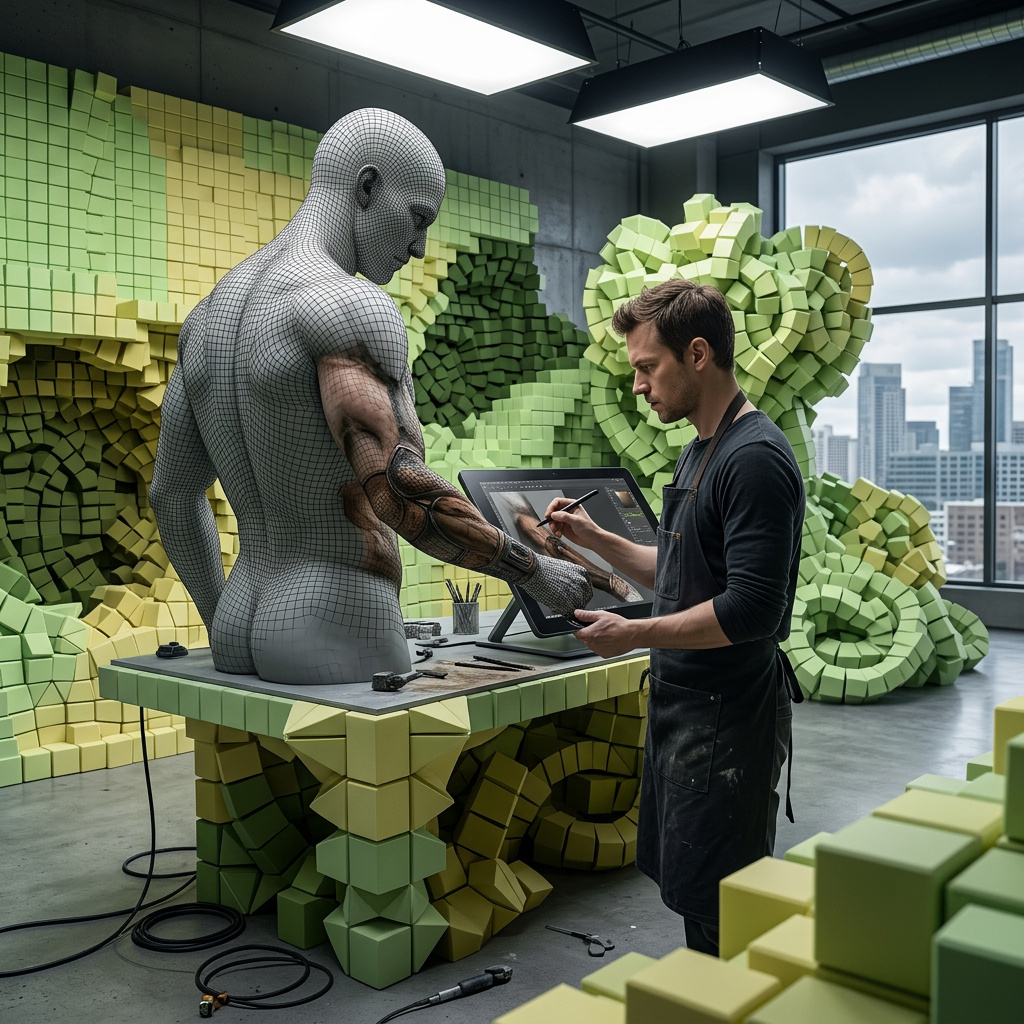
Generating 3D models from images and text
How to generate 3D models with Rodin Gen-2 from a text prompt or reference images: choosing inputs, using multi-view, prompting for 3D form, and working with the GLB output.
Introduction
Rodin Gen-2 turns a text prompt or a handful of reference images into a production-ready 3D model. Hand it up to five photos of an object or a written description, and it returns a mesh with real topology and PBR materials, packaged as a GLB file that loads directly in a game engine or a web viewer.
It's a 10 billion parameter model from Hyper3D built on the BANG architecture, and it works in two modes. Image-to-3D reconstructs an object from one or more photos and stays close to what you give it. Text-to-3D builds an object from a description alone, the path to reach for when you're inventing something that doesn't exist yet.
The model above came from one image. Drag to orbit it and scroll to zoom. Every 3D viewer on this page is the real GLB the API returned, not a rendered preview.
This guide covers both input modes, how to give the model images that reconstruct cleanly, how to prompt for 3D form, and what the GLB output gives you downstream.
Image-to-3D and text-to-3D
The two modes solve different problems. Image-to-3D is for fidelity: you already have a product photo or concept art, and you want a 3D version that matches it. Text-to-3D is for invention: you have an idea and no reference, and you want geometry to explore.
A whimsical fairy-tale mushroom cottage, a small round house built into the stem of a giant red toadstool with a white-spotted cap as the roof, a rounded wooden door, two glowing windows, a little stone chimney, storybook style
Reach for image-to-3D whenever a reference exists. It anchors the silhouette and surface detail to something concrete, so the result is predictable. Use text-to-3D for concepting and for shapes you can describe but can't photograph.
Reconstructing an object from images
Choosing an input image
Image-to-3D is only as good as the photo you feed it. The model reconstructs what it can see, so the input should show one object, clearly lit, against a plain background. Busy backgrounds or several objects in frame give the model competing signals and muddy the result.
- Input photo
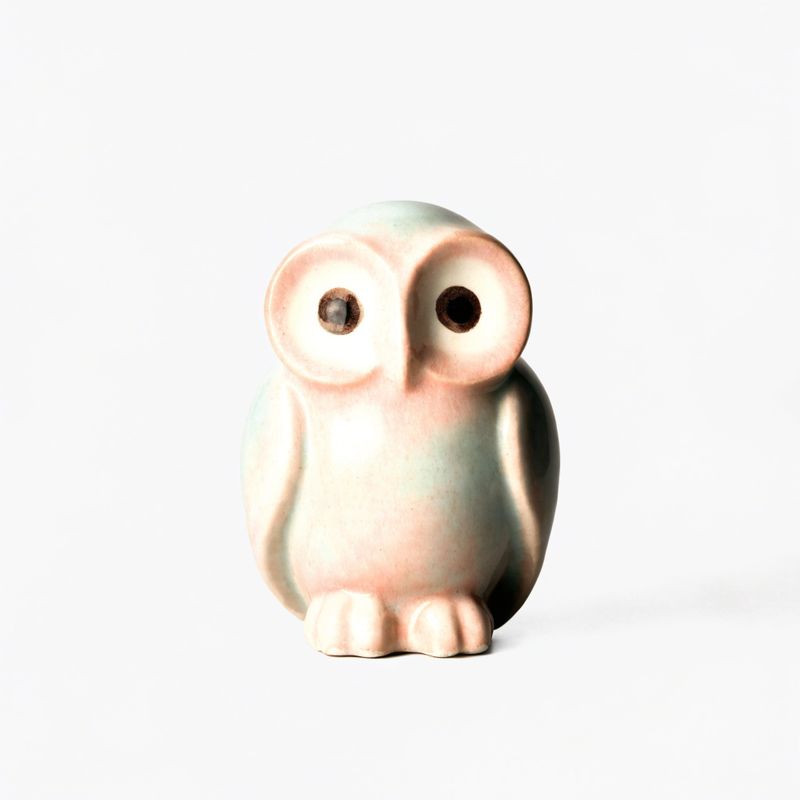
A small glazed ceramic owl figurine with a smooth rounded body, stylized folded wings and large round eyes, soft matte pastel glaze, single object centered and isolated, plain studio background, even soft lighting, product photography

The owl above was reconstructed from a single studio shot. A clean subject with even lighting gives the model an unambiguous read on its shape and materials, which is what separates a usable mesh from a lumpy approximation.
import { createClient } from '@runware/sdk'

const client = await createClient({ apiKey: process.env.RUNWARE_API_KEY })
await client.connect()

const [result] = await client.run({
  model: 'hyper3d:rodin@gen-2',
  inputs: {
    images: [
      'https://example.com/owl.jpg'
    ]
  }
})
import asyncio
import os
from runware import Runware
async def main():
async with Runware(api_key=os.environ["RUNWARE_API_KEY"]) as client:
results = await client.run({
"model": "hyper3d:rodin@gen-2",
"inputs": {
"images": [
"https://example.com/owl.jpg"
]
}
})
asyncio.run(main())curl https://api.runware.ai/v1 \
-H "Authorization: Bearer $RUNWARE_API_KEY" \
-H "Content-Type: application/json" \
-d '[
{
  "taskType": "3dInference",
  "taskUUID": "f47ac10b-58cc-4372-a567-0e02b2c3d479",
  "model": "hyper3d:rodin@gen-2",
  "inputs": {
    "images": [
      "https://example.com/owl.jpg"
    ]
  }
}
]'runware run hyper3d:rodin@gen-2 inputs.images.0=https://example.com/owl.jpg{
"taskType": "3dInference",
"taskUUID": "f47ac10b-58cc-4372-a567-0e02b2c3d479",
"model": "hyper3d:rodin@gen-2",
"inputs": {
"images": [
"https://example.com/owl.jpg"
]
}
}Response
{
  "data": [
    {
      "taskType": "3dInference",
      "taskUUID": "f47ac10b-58cc-4372-a567-0e02b2c3d479",
      "outputs": {
        "files": [
          {
            "uuid": "a1b2c3d4-e5f6-7890-abcd-ef1234567890",
            "url": "https://im.runware.ai/image/os/a14d18/ws/2/ii/a1b2c3d4-e5f6-7890-abcd-ef1234567890.glb"
          }
        ]
      }
    }
  ]
}
inputs.images accepts a URL, base64 string, data URI, or a UUID from a previous generation or the Media Storage API. The request above passes one image.
Turning 2D art into 3D
The input doesn't have to be a photograph. Image-to-3D reconstructs from any clear single image, including flat illustrations and concept art, which makes it a quick way to turn existing 2D assets into 3D. A front-facing character drawing comes back as a model you can pose and light.
- Flat illustration

A flat vector illustration of a kawaii cartoon cactus character with a round smiling face and little stub arms, planted in a small terracotta pot, simple bold shapes and clean outlines, soft pastel colors, front facing, centered, plain background, sticker style

The model reads the drawing's shapes and gives the flat character real volume and a back the illustration never showed. Simple, clearly outlined art reconstructs more cleanly than busy or heavily shaded drawings.
Using multiple views
A single image is enough, but the model accepts up to five images of the same object, and more angles give it more to reconstruct from. The images should be a turnaround of one subject, and the first image seeds the materials, so lead with the angle that best shows the object's color and surface.


Only the front was generated directly. The other three angles were derived from it with an image-editing model, a quick way to build a multi-view set from a single shot.
The single-image model reconstructs the face it was shown and infers the rest. The four-image model has direct evidence for the sides and back, so the geometry it has to guess shrinks.
[
  {
    "taskType": "3dInference",
    "taskUUID": "9b1deb4d-3b7d-4bad-9bdd-2b0d7b3dcb6d",
    "model": "hyper3d:rodin@gen-2",
    "inputs": {
      "images": [
        "https://example.com/front.jpg",
        "https://example.com/side.jpg",
        "https://example.com/back.jpg",
        "https://example.com/top.jpg"
      ]
    }
  }
]
Preserving transparency
If your input is a cutout on a transparent background, set settings.useOriginalAlpha to true. The model then uses that alpha channel as the object's silhouette instead of detecting edges itself, which keeps masked catalog images and pre-cut assets tight. The setting requires image input, so it has no effect in text-to-3D.
"settings": {
  "useOriginalAlpha": true
}
Building an object from a description
Prompting for form
Text-to-3D rewards a different kind of prompt than an image model. You're describing an object, not a photograph, so the details that matter are its form and materials. The camera and lighting language that drives an image model has no role here, because the output is a model you light and frame yourself.
A workable prompt names the object, its overall shape, its style, and what it's made of:
A low-poly stylized fox sitting upright, faceted geometric body, warm orange fur with a white chest and dark paws, clean flat-shaded game-asset look
A sci-fi blaster pistol, sleek angular hard-surface design, gunmetal body with a glowing cyan energy cell along the top, chunky grip and trigger guard, game prop
The same model handles a soft, stylized creature and a hard-surface mechanical prop without any change in approach. Both prompts lead with the object, then layer on shape and material.
Being specific pays off
The model fills in whatever you leave out. A bare prompt like "a chair" produces a generic chair invented from scratch. A specific prompt constrains the result to the chair you actually want.
a chair
A mid-century modern lounge chair, a molded walnut plywood shell, tufted tan leather seat and back cushions, four splayed tapered wooden legs, Eames-style silhouette
Both came from text alone. The detailed prompt locks in the silhouette and materials, while the bare one leaves every choice to the model. The more the asset matters, the more the prompt should say.
The GLB output
Every generation returns a single GLB file that carries the mesh and its PBR materials together. That's the format Runware returns for Rodin Gen-2, and it loads natively in most engines and viewers, including the embeds throughout this page.
By default the mesh is quad-dominant and the materials are PBR, a sensible starting point for most pipelines. The model also exposes controls for topology, polygon budget, texture resolution, and pose. Controlling mesh topology and polygon budget covers when to reach for each, and the model reference lists every parameter.
In image-to-3D, the prompt is optional. Add one to steer the reconstruction toward a name or material you have in mind, or leave it out and the model works from the images alone.
Tips
-
Start from an image when you have one. Image-to-3D anchors the result to a real reference and is more predictable than describing an object from scratch. Save text-to-3D for ideas you can't photograph.
-
Isolate the subject. One object, even lighting, and a plain background give the cleanest reconstruction. Crop out anything you don't want modeled.
-
Lead multi-view sets with your best angle. The first image seeds the materials, so put the most representative, best-lit view first.
-
Keep every view to the same object. Multi-view input should read as a turnaround of one subject. Mixing different objects confuses the reconstruction.
-
Prompt for form, not photography. In text-to-3D, describe the object's shape and what it's made of. Skip the camera and lighting language that belongs in an image prompt.
-
Set a seed to reproduce a result. Rodin Gen-2 accepts a
seedvalue from 0 to 65535, so a generation you like can be regenerated or varied deliberately.