Runway Gen-4.5

Runway Gen-4.5 is an AI video generation model that creates short video clips from text prompts or static images with high visual fidelity and smooth motion. It supports both text-to-video and image-to-video generation with a range of aspect ratios and clip durations. Gen-4.5 emphasizes realistic motion, strong prompt adherence, and controllable composition, making it suitable for cinematic sequences and creative video workflows.
Directing motion in image-to-video prompts
How to write Runway Gen-4.5 image-to-video prompts that direct motion instead of redescribing the scene, using the camera and subject channels.
Introduction
Visual consistency is the hardest part of text-to-video. Every roll picks a different region of the latent space and produces a different scene: a different car on a different cliff each time you regenerate. Locking the visual identity of a clip means starting each generation from a fixed still image and letting the prompt direct only the motion.
Gen-4.5 works exactly this way. You pass an image and a prompt. The image fixes the subject, the composition, the color palette, the lighting. The prompt's only job is to describe how the frame should evolve over the next few seconds.
Slow cinematic push-in toward the figure at the lake's edge. Mist drifts continuously across the water from left to right. The golden sunrise light shifts subtly across the distant snow-tipped peaks. The figure holds steady, a silhouette against the still water. Otherwise the composition holds.
That clip started from a still photograph of a figure at a foggy alpine lake at sunrise. The prompt described five seconds of subtle motion: a forward push, drifting mist, light shifting across the distant peaks, the figure holding steady. The model produced exactly that without inventing a new scene around the figure.
This guide covers the request shape, the two channels every prompt directs (the subject and the camera), the cinematic vocabulary the model understands, and how to layer atmospheric motion on top.
The techniques in this guide apply to the entire Runway Gen-4 family on Runware. Gen-4 Turbo is the cheaper, faster option for iteration and previsualization. The Gen-4 image models cover the still-image step before either video model.
Request shape
A Gen-4.5 request takes one source image, one motion prompt, and a small set of dimensional parameters:
import { createClient } from '@runware/sdk'

const client = await createClient({ apiKey: process.env.RUNWARE_API_KEY })
await client.connect()

const [result] = await client.run({
  model: 'runway:1@2',
  inputs: {
    frameImages: [
      {
        image: 'https://example.com/still.jpg',
        frame: 'first'
      }
    ]
  },
  positivePrompt: 'Slow push-in toward the subject. Steam rises continuously from the wok.',
  width: 1280,
  height: 720,
  duration: 5
})
import asyncio
import os
from runware import Runware
async def main():
async with Runware(api_key=os.environ["RUNWARE_API_KEY"]) as client:
results = await client.run({
"model": "runway:1@2",
"inputs": {
"frameImages": [
{
"image": "https://example.com/still.jpg",
"frame": "first"
}
]
},
"positivePrompt": "Slow push-in toward the subject. Steam rises continuously from the wok.",
"width": 1280,
"height": 720,
"duration": 5
})
asyncio.run(main())curl https://api.runware.ai/v1 \
-H "Authorization: Bearer $RUNWARE_API_KEY" \
-H "Content-Type: application/json" \
-d '[
{
  "taskType": "videoInference",
  "taskUUID": "a1b2c3d4-e5f6-7890-abcd-ef1234567890",
  "model": "runway:1@2",
  "inputs": {
    "frameImages": [
      {
        "image": "https://example.com/still.jpg",
        "frame": "first"
      }
    ]
  },
  "positivePrompt": "Slow push-in toward the subject. Steam rises continuously from the wok.",
  "width": 1280,
  "height": 720,
  "duration": 5
}
]'runware run runway:1@2 \
inputs.frameImages.0.image=https://example.com/still.jpg \
inputs.frameImages.0.frame=first \
positivePrompt="Slow push-in toward the subject. Steam rises continuously from the wok." \
width=1280 \
height=720 \
duration=5{
"taskType": "videoInference",
"taskUUID": "a1b2c3d4-e5f6-7890-abcd-ef1234567890",
"model": "runway:1@2",
"inputs": {
"frameImages": [
{
"image": "https://example.com/still.jpg",
"frame": "first"
}
]
},
"positivePrompt": "Slow push-in toward the subject. Steam rises continuously from the wok.",
"width": 1280,
"height": 720,
"duration": 5
}Response
{
  "data": [
    {
      "taskType": "videoInference",
      "taskUUID": "a1b2c3d4-e5f6-7890-abcd-ef1234567890",
      "videoUUID": "f1e2d3c4-b5a6-7890-1234-567890abcdef",
      "videoURL": "https://vm.runware.ai/video/os/a14d18/ws/2/vi/f1e2d3c4-b5a6-7890-1234-567890abcdef.mp4"
    }
  ]
}
The required fields:
inputs.frameImagestakes exactly one image, marked as thefirstframe of the output. Accepts a public URL, base64 string, data URI, or a UUID from a previous generation or the Media Storage API. The image fixes the scene.positivePromptdescribes the motion (1 to 1000 characters). It is not a scene description. See Writing for motion below.widthandheightmust be one of the model's allowed pairs:1280 × 720,720 × 1280,1104 × 832,832 × 1104, or960 × 960. Output dimensions are independent from the source image. Pick the pair that matches your source's aspect ratio.
The optional fields:
durationmust be5,8, or10seconds. Defaults to10. Longer clips cost proportionally more.seedfor reproducible output.providerSettings.runway.contentModerationfor tuning safety thresholds.
Writing for motion, not the scene
The instinct from text-to-image and text-to-video is to describe what's in the frame. With image-to-video that instinct backfires: the frame is already locked, and re-describing the scene gives the model nothing to do. The prompt's only useful job is to direct how the locked scene evolves over time.
Both clips below start from the same image of a campfire in a forest clearing. The difference is the prompt.

A campfire of bright orange flames burning in a stone fire ring at the centre of a forest clearing at twilight, warm firelight catching the surrounding pine trees and the rocks of the ring, deep blue dusk sky above with the first stars appearing, a few split logs stacked to one side, distant mountains visible through gaps in the trees. Cinematic photorealistic outdoor photography, atmospheric composition, fine grain.
A campfire in a stone fire ring in a forest clearing at twilight. Pine trees surround the clearing. A deep blue dusk sky above with the first stars. Split logs stacked to one side. Distant mountains visible through the trees. Cinematic photorealistic outdoor photography.
Steady push-in toward the campfire. The flames leap and dance vigorously, climbing up from the logs. Bright orange sparks fly up into the night sky in continuous streams. Thick smoke curls upward and drifts across the upper half of the frame. The embers at the base pulse with shifting orange light. The pine trees behind the fire sway gently in the warm draft.
The first prompt redescribes the image. It tells the model what the scene IS, which the model already has from the input. The model has no instruction about what should change, so it produces something close to a static loop with mild incidental motion.
The second prompt names specific motion in every channel: the camera pushes in, the flames dance up from the logs, the sparks stream into the sky, the smoke curls across the upper frame, the trees sway in the warm draft. The model has clear direction and the result is a cinematic five seconds.
A useful rule: if a sentence in your prompt describes something that's already visible in the source image, delete it.
Two channels: subject and camera
The subject is what's alive inside the frame: anything that can move on its own. The camera is how the frame itself moves. The two are independent, and the model handles them separately.
Same source image, same five seconds, different channels active:

A close editorial portrait of an elderly Black jazz saxophonist with weathered features and a trimmed white beard, eyes half-closed in concentration, holding a tarnished brass tenor saxophone to his lips, a deep purple stage backlight and a single warm key light from above, fine grain, photorealistic high-contrast portrait, dark background, shallow depth of field.
The saxophonist gently sways with the music. His chest rises and falls with measured breath. His fingers settle on the keys. A subtle nod of the head. Eyes stay closed in concentration. The camera holds completely still.
Slow push-in toward the saxophonist. He remains completely still throughout, no breathing, no movement. Only the camera moves forward, tightening the frame around his face and the brass of the saxophone.
Left: the subject moves, the camera holds. The frame composition stays put while the saxophonist breathes and sways.
Right: the camera moves, the subject holds. The frame tightens around the musician while he stays absolutely still.
Both clips are useful in production. The subject-only version is the standard "alive portrait" for ad creative and avatars. The camera-only version suggests weight and importance without the subject distracting from the move.
Combining both channels gives you the most common production shot: a slow push-in on a subject who is alive in the frame.
Slow push-in toward the saxophonist while he gently sways with the music. His chest rises and falls with measured breath. His fingers settle on the keys. A subtle nod of the head. Eyes stay closed in concentration. The camera moves forward steadily across the five seconds.
The saxophonist breathes and sways while the camera pushes forward. Each channel reinforces the other: the breath grounds the subject in time, the push-in moves the viewer's attention toward the face. This is the default shot grammar for portraits in film and advertising.
Camera control vocabulary
Cinematic move names work on Gen-4.5 the way they work in a film script. Use the explicit term and you get the move. Describe it vaguely and the model interprets.
The most reliable camera move names:
- Push-in / push toward: camera moves forward, framing tightens
- Pull-back / pull out: camera moves backward, framing widens
- Pan left / pan right: camera rotates horizontally, sweeping across the scene
- Tilt up / tilt down: camera rotates vertically
- Dolly left / dolly right: camera slides sideways while staying parallel to the subject
- Orbit / circle around: camera rotates around a subject at a fixed distance
- Crane up / crane down: camera moves vertically while pointing at the same subject
Five of these moves applied to source images:
Slow continuous push-in toward the Mustang. Framing tightens around the car as the camera moves forward. No other motion in the scene.
Slow horizontal pan from left to right along the coastline. The Mustang stays in roughly the same position within the frame. The cliff edge and distant headlands reveal as the camera sweeps. No subject motion.
Slow vertical tilt upward. The camera starts framed on the Mustang and the cliff road at the bottom of the frame, then rotates its angle upward smoothly to reveal the open sky and the thin streaks of high cloud above. No subject motion.
Slow lateral dolly from left to right. The camera slides sideways at a fixed distance, staying parallel to the Mustang. The car maintains the same orientation within the frame as the cliff and headlands shift beside it. No subject motion.
Slow continuous orbit around the Mustang. The camera arcs at a fixed distance from the front-left of the car to the front-right, the car holds completely still in the centre of the frame, and the cliff edge and distant headlands shift behind it as the camera rotates. No subject motion.
Always state what doesn't move. The clips above all end their prompts with a phrase like "no subject motion" or "the car holds completely still." Without that anchor the model often adds incidental subject motion you didn't ask for. Naming the negative locks the channel to zero.
Pacing the motion
The same camera move at a different pace lands as a completely different shot. A slow push-in feels deliberate and weighty. A rapid push-in feels urgent or aggressive. Pacing is the second dial every camera move has, after the move's name itself.
Same source, same camera move, two pacing words:
Slow continuous push-in toward the Mustang. Framing tightens around the car as the camera moves forward. No other motion in the scene.
Rapid aggressive push-in toward the Mustang. The camera accelerates sharply forward and the framing snaps tight around the car within the first two seconds, then holds. No other motion in the scene.
The slow version reads as romantic or reflective. The rapid version reads as tension building toward a moment. Both are useful in production. The pacing word picks one.
Useful pacing words to know:
- Slow, gradual, steady: measured, cinematic
- Subtle, gentle: almost imperceptible drift
- Rapid, fast: urgent, kinetic
- Sudden, dramatic: startling, accelerated
- Continuous: steady throughout, no acceleration or stop
A camera move without a pacing word produces something average. Specifying the pace gives you the cinematic register you want.
Atmospheric motion
There's a third source of motion the model picks up automatically when you prompt for it: the environment. Rain, smoke, steam, mist, water reflections, hair, fabric, flame, flickering neon. None of these require a subject channel or a camera channel. They're motion that lives in the scene itself.
Light rain falls continuously across the frame. Neon signs flicker softly with a slow rhythm. Reflections on the wet pavement ripple gently as drops land in the puddles. Faint mist drifts past the lower edge of the frame. The hooded figure walks away from camera at a slow even pace. The camera holds still.
- Reference image
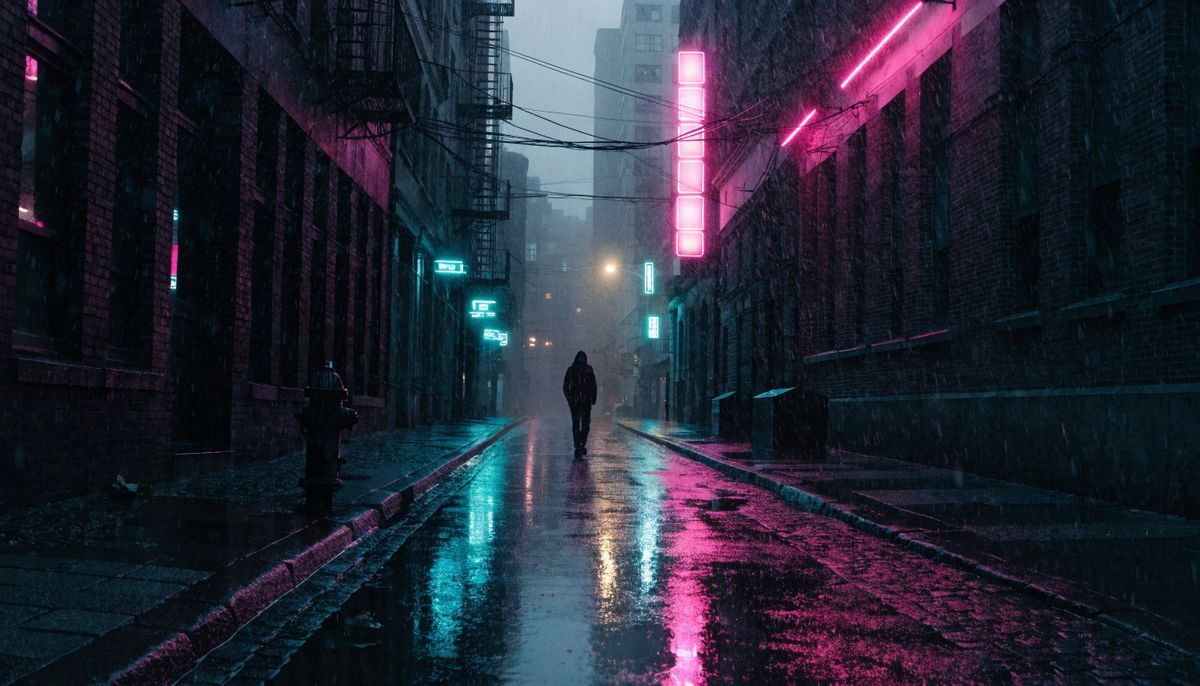
A narrow city street at night during a light rain, neon signs in pink and teal reflecting on the wet asphalt, a single hooded figure walking away from camera in the middle distance, soft puddles between the cobblestones, hanging electrical cables overhead. Cinematic street photography, photorealistic, moody late-night atmosphere.

The camera holds. The figure walks at a slow even pace. Everything else (the rain, the neon, the reflections, the mist) is atmospheric motion the model infers from what's already in the image. Wet pavement implies droplets. Neon implies flicker. Naming each one explicitly makes the model commit rather than guess.
Atmospheric motion is often the cheapest "alive" effect in image-to-video. A locked camera and a still subject can still produce a five-second clip that feels cinematic when the atmosphere is doing real work.
When the prompt fights the image
The model can only animate motion that has visual evidence in the source. Ask for something the image can't support and the model either ignores the instruction or produces a degraded result.
The three most common contradictions:
- Asking for body motion that needs off-frame parts. A head-and-shoulders portrait can't show the subject standing up and walking away. Nothing below the shoulders is in the source for the model to animate.
- Adding elements that aren't in the frame. "A bird flies past the camera" works if the source shows sky and open space. It won't work if the source is a tight interior shot with no visible window.
- Asking for actions that contradict the image's state. A car parked on a hill won't believably roll uphill. The model's prior is anchored to physical plausibility.
The musician portrait below is paired with a prompt that asks for full-body motion. The first frame can't support the request:
The saxophonist abruptly stands up from his seat, lowers his saxophone to his side, and walks out of frame to the right. The empty stage remains in shot.
- Reference image
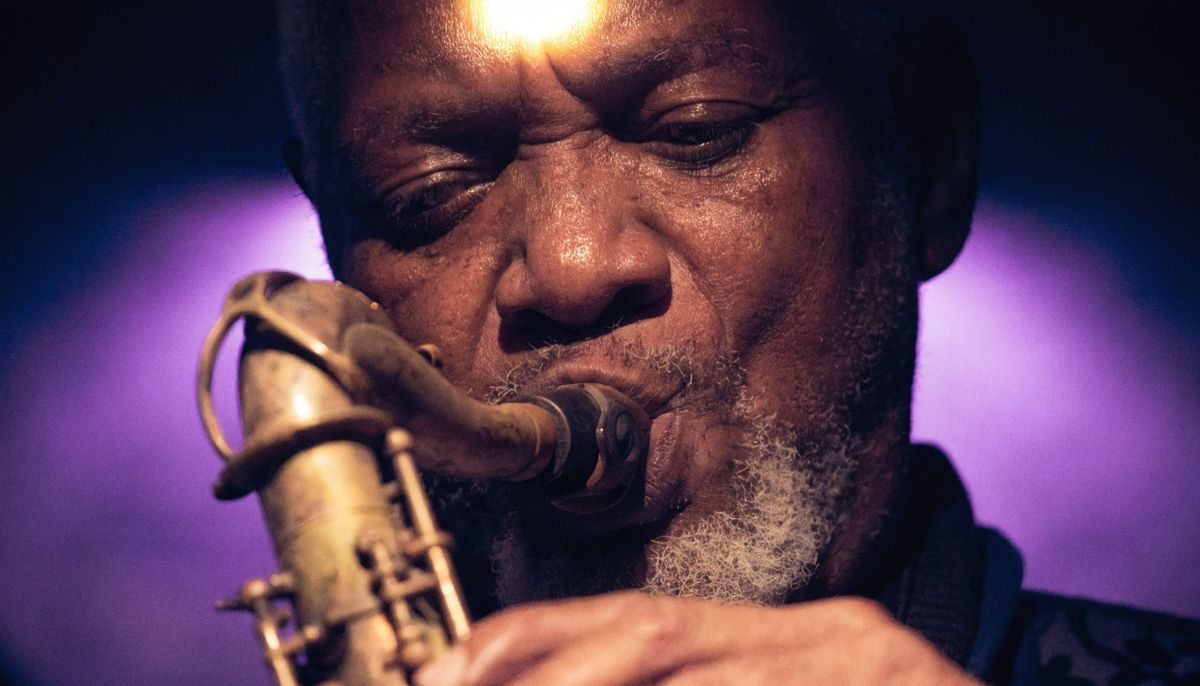
A close editorial portrait of an elderly Black jazz saxophonist with weathered features and a trimmed white beard, eyes half-closed in concentration, holding a tarnished brass tenor saxophone to his lips, a deep purple stage backlight and a single warm key light from above.
The saxophonist holds his head and shoulders position. No body or floor exists in the source for the model to animate, so the "stands up and walks out" instruction effectively drops. The output is closer to a static loop than the directed motion.
When you need motion that requires off-frame elements, generate or shoot a wider source image first. The motion you can direct is bounded by what's visible in the first frame.
Tips
-
Describe what moves, not what's there. The image already shows the scene. The prompt's only useful content is the temporal evolution.
-
Name camera moves explicitly. "Slow push-in," "pan right," "orbit around the subject." Cinematic vocabulary is more reliable than abstract direction.
-
Separate the subject channel from the camera channel. When you want one to hold still while the other moves, state it: "the camera holds completely still," "the subject remains motionless." Without an explicit hold, the model often animates both.
-
Pace your motion. "Slow," "gradual," "steady," "rapid," "subtle," "dramatic." A push-in without a pace defaults to something average. Specifying gives you the cinematic register you want.
-
Match motion to the image. Don't direct motion that fights what's in the frame. A locked door won't open believably. A static stone wall won't sway. The model performs best when the prompted motion has visual evidence in the source.
-
Layer atmosphere on top of the main motion. Even a static composition feels alive with a couple of atmospheric details: mist drifting, neon flickering. They cost nothing in the prompt and a lot in perceived production value.