P-Video-Animate

P-Video-Animate is a motion-transfer video model that animates a single reference image using a source video as the motion driver. It preserves the original acting, timing, camera movement, and scene structure from the driving clip while restyling the output around the supplied image. It is well suited to UGC ad variations, meme remixes, character or avatar recasting, and other high-volume creative workflows that need fast, repeatable image-to-video animation with strong motion fidelity.
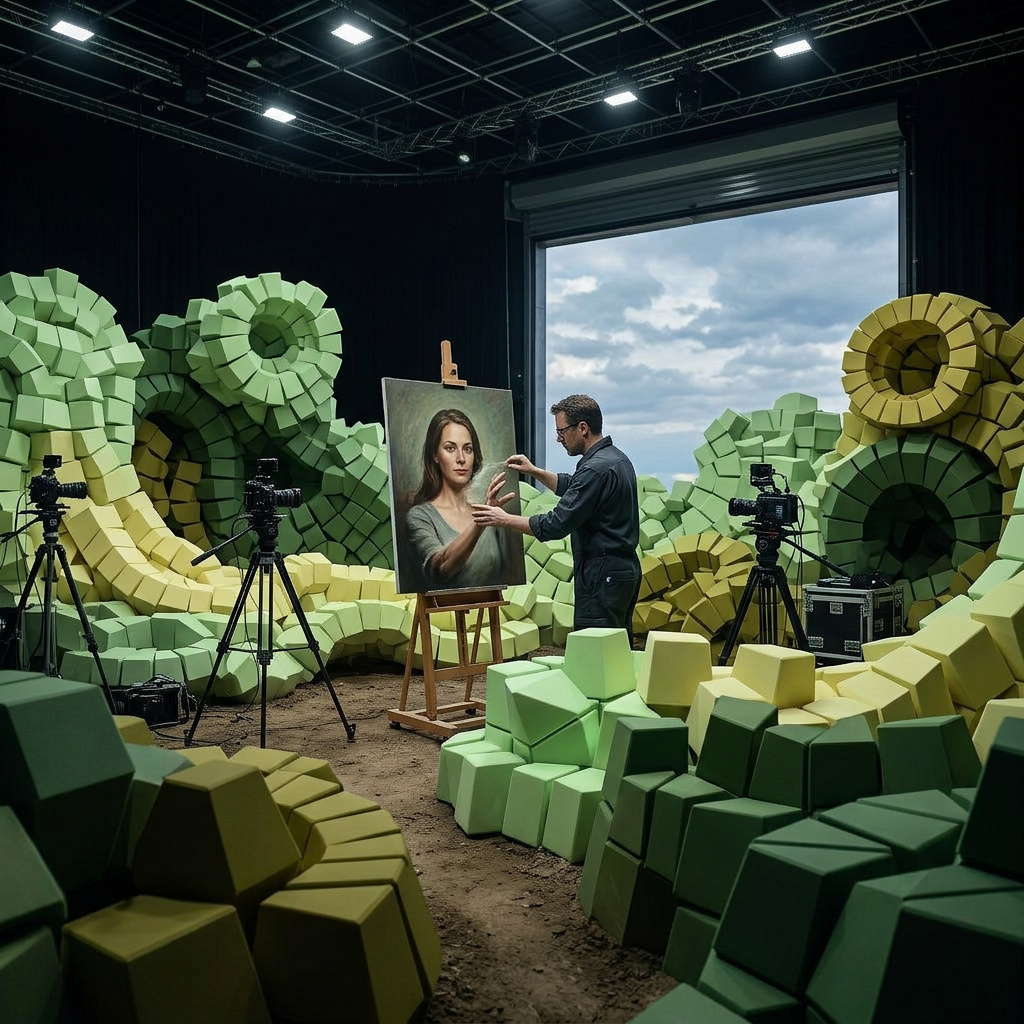
Animating images with a source video
How to use Pruna P-Video-Animate to bring a still reference image to life by inheriting the motion, timing, and camera move from a source video.
Introduction
Reusing the same motion across different visuals is awkward in most video pipelines. You can describe what you want in a text prompt and hope the model generates something close, but the timing, hand position, and expression come back different every time. General-purpose video editors can rework one clip, but they can't take a video's motion and apply it to a static image of a different subject.
P-Video-Animate makes that workflow direct. You pass one reference image and one reference video. The image controls who is on screen, and the video controls what happens. The model returns a new video that animates the image's character using the video's exact motion, timing, camera movement, and scene structure.
Animate the content creator in the reference image using the source video. He speaks with confident creator energy directly to the camera, brief warm smile, slight head nod, keeping the same casual posture and the vibrant neon-lit creator studio glowing behind him.
This guide covers the request shape, how to pair an image and video so the model has what it needs, when to add an optional prompt to refine specifics, and four concrete patterns to start from.
Request shape
A P-Video-Animate request takes one reference image, one reference video, and a small set of optional parameters:
import { createClient } from '@runware/sdk'

const client = await createClient({ apiKey: process.env.RUNWARE_API_KEY })
await client.connect()

const [result] = await client.run({
  model: 'prunaai:p-video@animate',
  inputs: {
    referenceImages: [
      'https://example.com/portrait.jpg'
    ],
    referenceVideos: [
      'https://example.com/source-motion.mp4'
    ]
  },
  resolution: '720p',
  settings: {
    preserveAudio: true
  }
})
import asyncio
import os
from runware import Runware
async def main():
async with Runware(api_key=os.environ["RUNWARE_API_KEY"]) as client:
results = await client.run({
"model": "prunaai:p-video@animate",
"inputs": {
"referenceImages": [
"https://example.com/portrait.jpg"
],
"referenceVideos": [
"https://example.com/source-motion.mp4"
]
},
"resolution": "720p",
"settings": {
"preserveAudio": True
}
})
asyncio.run(main())curl https://api.runware.ai/v1 \
-H "Authorization: Bearer $RUNWARE_API_KEY" \
-H "Content-Type: application/json" \
-d '[
{
  "taskType": "videoInference",
  "taskUUID": "a1b2c3d4-e5f6-7890-abcd-ef1234567890",
  "model": "prunaai:p-video@animate",
  "inputs": {
    "referenceImages": [
      "https://example.com/portrait.jpg"
    ],
    "referenceVideos": [
      "https://example.com/source-motion.mp4"
    ]
  },
  "resolution": "720p",
  "settings": {
    "preserveAudio": true
  }
}
]'runware run prunaai:p-video@animate \
inputs.referenceImages.0=https://example.com/portrait.jpg \
inputs.referenceVideos.0=https://example.com/source-motion.mp4 \
resolution=720p \
settings.preserveAudio=true{
"taskType": "videoInference",
"taskUUID": "a1b2c3d4-e5f6-7890-abcd-ef1234567890",
"model": "prunaai:p-video@animate",
"inputs": {
"referenceImages": [
"https://example.com/portrait.jpg"
],
"referenceVideos": [
"https://example.com/source-motion.mp4"
]
},
"resolution": "720p",
"settings": {
"preserveAudio": true
}
}Response
{
  "data": [
    {
      "taskType": "videoInference",
      "taskUUID": "a1b2c3d4-e5f6-7890-abcd-ef1234567890",
      "videoUUID": "f1e2d3c4-b5a6-7890-1234-567890abcdef",
      "videoURL": "https://vm.runware.ai/video/os/a14d18/ws/2/vi/f1e2d3c4-b5a6-7890-1234-567890abcdef.mp4"
    }
  ]
}
Two required fields, the rest optional:
inputs.referenceImagestakes exactly one image. Accepts a public URL, base64 string, data URI, or a UUID from a previous generation or the Media Storage API. The image's character is what gets animated.inputs.referenceVideostakes exactly one video. Accepts a public URL or a UUID from a previous generation. The video supplies the motion.positivePromptis optional. Use it to override or refine specifics from the source motion. See Steering with a prompt below.resolutionis"720p"(default) or"1080p". The output aspect ratio is inferred from the source video.fpsis24or48. Omit to preserve the source video's frame rate. Higher values render smoother motion at a higher cost.seedis an integer for reproducibility.settings.preserveAudiokeeps the source video's audio track in the output. Defaults totrue. Set tofalsefor muted output.
Pairing the image and video
The single largest factor in result quality is how well the reference image matches the first frame of the source video. The model can absorb small differences, but a large mismatch in framing or subject visibility produces visible distortion.
For each pair, ask three questions:
- Framing. Does the image show the same body region as the video (head-and-shoulders, medium shot, or full body)?
- Pose. Is the subject in roughly the same position (facing the camera, arms in roughly the same place)?
- Subject visibility. Is the subject's body visible in the same way, without occlusions or cropping that the video doesn't have?
When all three line up, the model has a clean starting point and the motion transfers without artifacts.
- Reference image
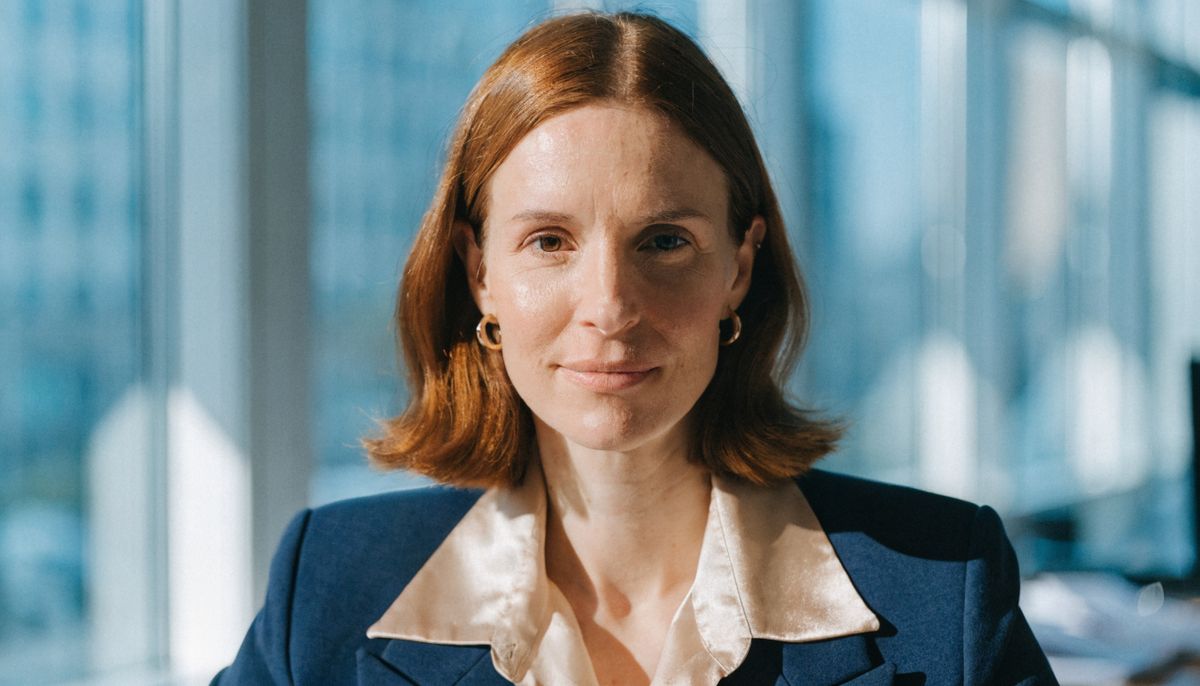
A confident businesswoman in her late thirties with shoulder-length auburn hair, wearing a navy blazer over a cream silk blouse, facing the camera directly with a composed expression. Head and shoulders framing, centered composition, bright modern corporate office defocused behind her.
- Reference video
A young woman in a beige sweater sits in a bright home office and speaks calmly to the camera with subtle facial expressions, a brief smile, and a slight head tilt. Head and shoulders framing, natural window light.

Both the image and the first frame of the video show a centered head-and-shoulders portrait facing the camera. The model transfers the talking-head motion onto the businesswoman without warping the framing.
When the reference image and reference video share a clean subject and matching framing, the model also picks up secondary motion the source contains but doesn't strictly describe: subtle camera drift, hair movement, soft shadows shifting with the body. Mismatched pairs lose all of that.
When the pair doesn't match
Pairing a head-and-shoulders image with a full-body source video gives the model no body to map the choreography onto. Rather than distorting the subject or hallucinating limbs, the model falls back to barely animating what it has, and most of the source motion is lost.
- Reference image
A confident businesswoman in her late thirties with shoulder-length auburn hair, wearing a navy blazer over a cream silk blouse, facing the camera directly. Head and shoulders framing, centered composition.
- Reference video
A person in athletic wear performs a fluid energetic dance in a bright white studio, swaying side to side, raising both arms overhead, turning in place, and stepping forward. Full body visible head to feet.
Same image, but the source video is now a full-body dance shot. The image has nothing below the shoulders for the model to map the choreography onto. The subject still looks at the camera and the head drifts subtly, but the dance itself doesn't transfer. If the motion you want needs a full body, generate a full-body reference image to match.
When you already have a reference image you like but the framing or pose doesn't quite line up with the source video, you can edit the image to match using P-Image-Edit before passing it here. Reposition the subject, adjust the framing, or change the pose, then animate the edited image with this model.
Steering with a prompt
positivePrompt is optional. Without one, the model transfers the source video's motion as-is. With one, you can override or refine specific behaviors: an expression, a hand position, a moment of emphasis, the words being lip-synced.
Reach for a prompt when:
- The source motion is mostly right but one detail needs to change (raise an eyebrow, hold a smile longer, keep both hands up)
- You want lip-sync to specific words rather than a generic mouth shape
- A small action needs to be added or removed (a nod at the end, a head turn, a wave)
Leave it blank when the source video already does exactly what you want.
Animate the woman in the reference image using the source video motion. At the very end of the clip, just after her last gesture, she gives a clear thumbs-up directly toward the camera. Keep the source motion otherwise.
Both outputs use the same image and video. The prompted version added a thumbs-up gesture at the end of the clip that the source video doesn't contain. The rest of the body motion still comes from the source.
What to write
Describe the specific behavior you want to override. The character and setting are already locked by the image. Write what the subject does, when, and how.
Useful (used for the video above):
"At the very end of the clip, just after her last gesture, she gives a clear thumbs-up directly toward the camera. Keep the source motion otherwise."
Less useful:
"A confident woman in a charcoal blazer speaks to the camera in a modern office."
The second prompt repeats what the image already shows. The first prompt adds one specific action on top of the source motion, which is what the prompt actually controls.
Patterns
The model is style-agnostic: as long as the pairing rule holds, the visual style of the reference image carries directly into the output. The same model handles photorealistic portraits, 2D cartoons, stylized 3D characters, and brand mascots without changing approach.

A confident professional chef in his forties with neatly slicked-back dark hair and a trimmed beard, wearing a crisp white double-breasted chef's jacket. Head and shoulders framing, bright modern restaurant kitchen with stainless steel surfaces softly defocused behind him.

A cartoon character portrait: a young woman with bright purple wavy hair, large expressive green eyes, wearing a mustard yellow turtleneck. Hand-drawn style with clean line work and flat colors. Head and shoulders, soft pastel pink background.

A 3D rendered male character with stylized Pixar-like proportions, wearing a casual black hoodie. Friendly facial features, neat short hair, hands relaxed at his sides. Medium shot, plain pale grey studio background, soft three-point lighting.

A cheerful brand mascot: a plump orange fox-like creature standing upright on two legs. Big round eyes, friendly closed-mouth smile, short fluffy fur. Full body visible, mint-green seamless background, 3D rendered with soft cinematic lighting.
Tips
-
Match the first frame. Pose, framing, and subject visibility in the reference image should line up with the first frame of the source video.
-
Pick source videos with clear, readable motion. Sharp, well-lit motion transfers cleanly. Blurry, fast-cut, or low-contrast source clips produce blurry, less coherent results.
-
Use the prompt for behavior, not framing. The image already controls who is on screen. The prompt should describe what the character does, when, and how. Repeating the image description doesn't add anything.
-
Plan around generation time. The model produces output at roughly five seconds of compute per one second of video. For longer clips, split the source video and animate the segments separately.
-
Use a dedicated tool when motion transfer isn't the goal. Object removal, background replacement, scene rewriting, and frame-exact edits aren't what this model does. Pair it with the right tool for those workflows rather than trying to force it.