Meshy-6

Meshy-6 is a 3D generation model for text-to-3D and image-to-3D workflows. It is built for cleaner geometry, sharper hard-surface detail, low-poly generation, configurable quad or triangle topology, polycount and symmetry control, A/T pose support, and textured outputs with optional PBR materials. It fits game asset creation, 3D printing, and production-oriented 3D pipelines.
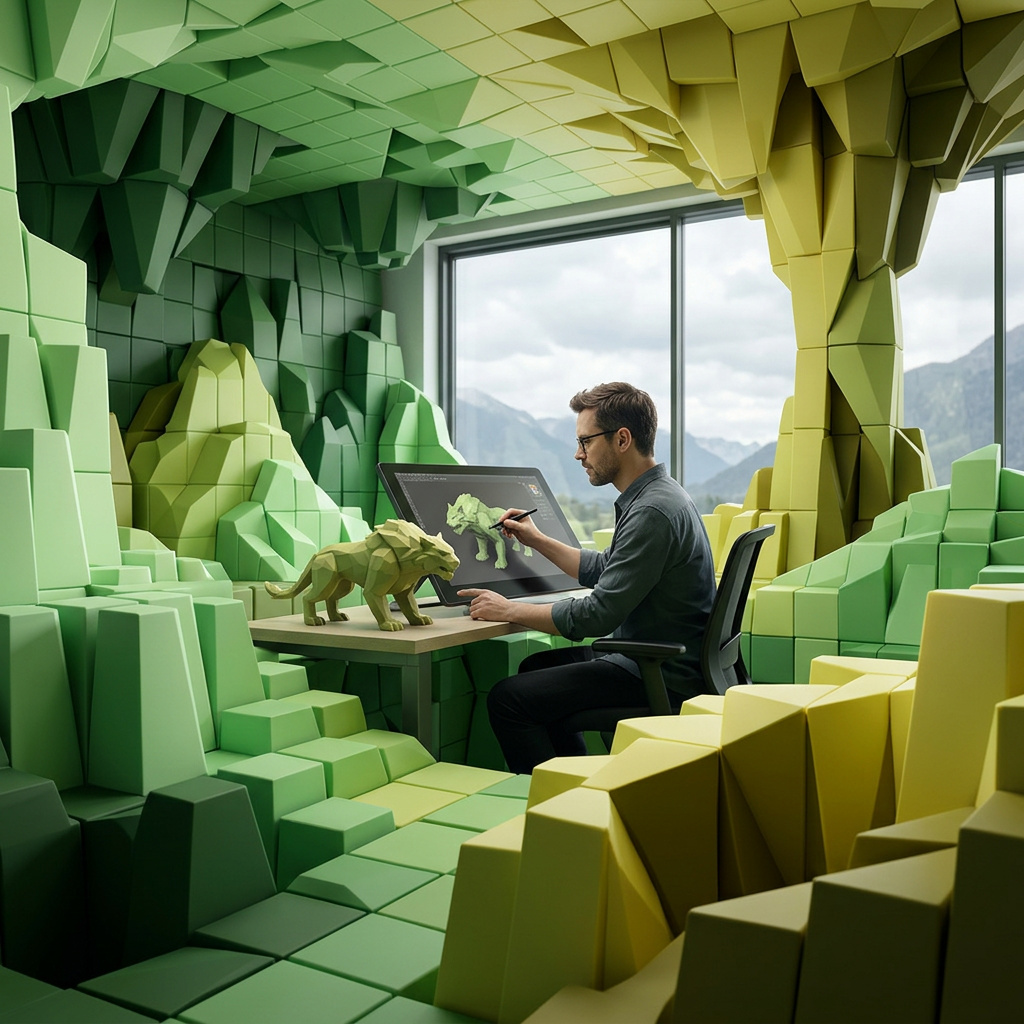
Generating 3D models from prompts and photos
How to generate 3D models with Meshy-6 from a prompt or photos: choosing text vs image input, framing a clean reference, using multiple views, and prompting for 3D form.
Introduction
Meshy-6 builds a 3D model from one of two starting points: a written description, or photos of a real object. The output is the same either way, a single GLB file holding the mesh and its PBR materials, sized to drop into a game engine or a 3D-printing slicer.
Which path you take comes down to what you already have. Photos give the model something concrete to copy, so the mesh stays close to your reference. A prompt leaves the shape open, which is the mode for an object that so far only exists as an idea.
A stylized fantasy treasure crown, an ornate golden circlet with tall pointed peaks, inlaid red and blue gemstones, fine engraved filigree, polished gold with subtle wear, crisp clean silhouette, readable hard-surface detail, single isolated object, premium game-ready collectible asset
The crown above started as one line of text. Every viewer on this page is interactive and loads the actual GLB Meshy returned, so spin it around and look at the back.
The two paths meet at the same kind of output. Below, the potion was rebuilt from a reference image and the power gem came from a prompt alone, but the finished meshes give away nothing about which route made them.
A stylized fantasy power gem, a large faceted teal crystal set into an ornate rune-etched stone pedestal with golden inlays and a soft inner glow, fantasy game collectible, crisp clean silhouette, readable detail, single isolated object, game-ready asset
Lean on image-to-3D whenever a reference exists, since it keeps the result anchored and predictable. Save text-to-3D for shapes you can picture but can't photograph.
Working from photos
What makes a good reference
In image-to-3D the model can only rebuild what the photo shows, so the input sets the ceiling on the result. Give it one object, evenly lit, on a plain background. A cluttered scene or a second item in frame splits the model's attention, and the mesh comes back soft.
- Input photo
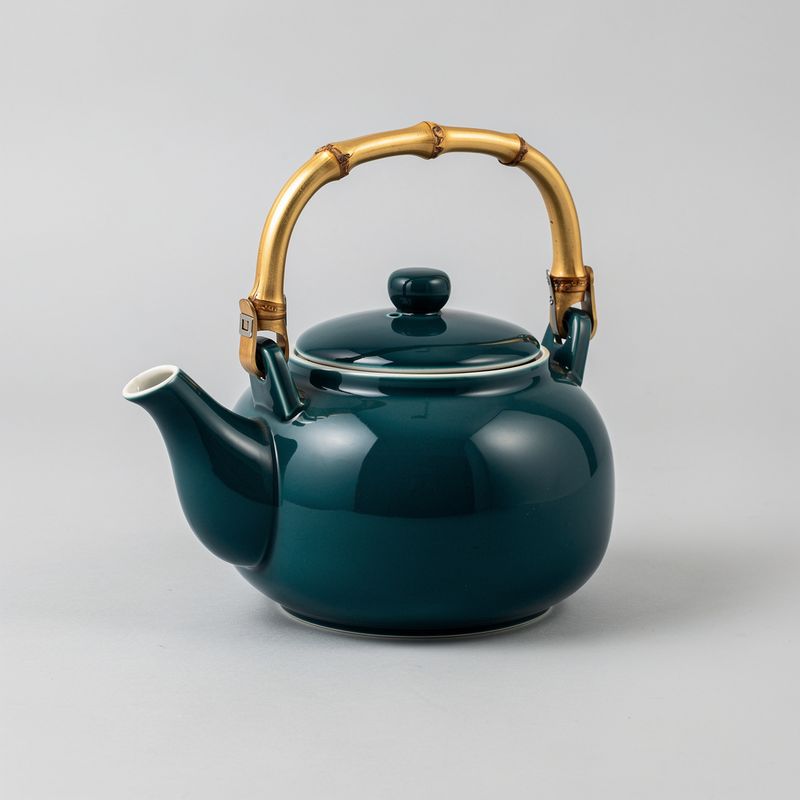
A glossy ceramic teapot in deep teal with a curved spout, a rounded lid with a small knob and a polished bamboo handle, centered product photograph on a plain light gray seamless studio background, three-quarter angle, soft even studio lighting, the entire teapot fully visible with margin around it, sharp focus, photorealistic, no text

This teapot came from a single catalog-style shot. Flat light and an empty backdrop let the model read the curves and the glaze without inventing anything, and that read is the difference between a crisp mesh and a melted one.
import { createClient } from '@runware/sdk'

const client = await createClient({ apiKey: process.env.RUNWARE_API_KEY })
await client.connect()

const [result] = await client.run({
  model: 'meshy:meshy@6',
  inputs: {
    images: [
      'https://example.com/teapot.jpg'
    ]
  }
})
import asyncio
import os
from runware import Runware
async def main():
async with Runware(api_key=os.environ["RUNWARE_API_KEY"]) as client:
results = await client.run({
"model": "meshy:meshy@6",
"inputs": {
"images": [
"https://example.com/teapot.jpg"
]
}
})
asyncio.run(main())curl https://api.runware.ai/v1 \
-H "Authorization: Bearer $RUNWARE_API_KEY" \
-H "Content-Type: application/json" \
-d '[
{
  "taskType": "3dInference",
  "taskUUID": "f47ac10b-58cc-4372-a567-0e02b2c3d479",
  "model": "meshy:meshy@6",
  "inputs": {
    "images": [
      "https://example.com/teapot.jpg"
    ]
  }
}
]'runware run meshy:meshy@6 inputs.images.0=https://example.com/teapot.jpg{
"taskType": "3dInference",
"taskUUID": "f47ac10b-58cc-4372-a567-0e02b2c3d479",
"model": "meshy:meshy@6",
"inputs": {
"images": [
"https://example.com/teapot.jpg"
]
}
}Response
{
  "data": [
    {
      "taskType": "3dInference",
      "taskUUID": "f47ac10b-58cc-4372-a567-0e02b2c3d479",
      "outputs": {
        "files": [
          {
            "uuid": "a1b2c3d4-e5f6-7890-abcd-ef1234567890",
            "url": "https://im.runware.ai/image/os/a14d18/ws/2/ii/a1b2c3d4-e5f6-7890-abcd-ef1234567890.glb"
          }
        ]
      }
    }
  ]
}
inputs.images takes a URL, a base64 string, a data URI, or a UUID from an earlier task or the Media Storage API. The finished GLB arrives at outputs.files[].url.
Turning enhancement off
Before it reconstructs, Meshy runs a cleanup pass on your photo. On a casual phone shot that usually helps. On a render or a stylized asset you've already polished, the pass can repaint detail you meant to keep. Set settings.imageEnhancement to false and the model works from your image untouched.

A hand-painted tabletop miniature of an elderly wizard in flowing blue robes holding a gnarled wooden staff topped with a glowing crystal, a long white beard and a pointed hat, standing on a circular rocky base, centered product photograph on a plain light gray seamless studio background, three-quarter angle, soft even studio lighting, the entire miniature fully visible with margin around it, sharp focus, photorealistic, no text
"settings": {
  "imageEnhancement": false
}
The setting does nothing in text-to-3D, where there's no photo to clean up.
Adding more angles
A single photo is enough, but Meshy accepts up to four images of the same object, and every extra angle is one less surface the model has to invent. Shoot them as a turnaround, the same subject from different sides.

A stylized collectible astronaut character, front view, white and orange space suit with a large round tinted helmet visor, a chunky life-support backpack, ribbed joints at the elbows and knees, sturdy boots, standing upright in a neutral relaxed pose, plain white background, even studio lighting, full body centered with margin around it, clean game-ready collectible style

Show the exact same astronaut character from a direct side profile view. Keep the identical suit design, colors, proportions, and lighting. Plain white background, full body centered with margin around it.

Show the exact same astronaut character from a direct rear view, revealing the life-support backpack. Keep the identical suit design, colors, proportions, and lighting. Plain white background, full body centered with margin around it.
For this set I generated the front directly, then made the side and back from it with an image editor, a handy shortcut when no real turnaround exists.
From the front alone, the model has to imagine the life-support pack it never saw, and the guess shows. Hand it the sides and back too, and the rear hardware is built from evidence.
[
  {
    "taskType": "3dInference",
    "taskUUID": "9b1deb4d-3b7d-4bad-9bdd-2b0d7b3dcb6d",
    "model": "meshy:meshy@6",
    "inputs": {
      "images": [
        "https://example.com/front.jpg",
        "https://example.com/side.jpg",
        "https://example.com/back.jpg"
      ]
    }
  }
]
Working from a prompt
Describe the object
A text prompt for 3D reads differently from one for an image. There's no camera to place and no light to set, because you frame and light the mesh yourself afterward. What earns a place in the prompt is the object itself: its shape and what it's made of.
The recipe holds across very different objects. A soft creature, a hard-surface vehicle, and a potted plant all come back clean from prompts built the same way, each leading with the object before its shape and materials.
A small stylized red panda cub figurine sitting upright and holding a bamboo leaf, rounded fluffy proportions, a ringed tail curled around its side, big dark eyes and tufted ears, perched on a mossy log base, crisp clean silhouette, single isolated object, game-ready collectible asset
A retro Italian motor scooter, rounded vintage body in pastel mint green with chrome mirrors, a round headlight, a leather seat and whitewall tires, classic 1960s styling, crisp clean silhouette, readable hard-surface detail, single isolated object, game-ready collectible asset
A miniature bonsai tree in a shallow rectangular ceramic dish, gnarled trunk, layered foliage pads, exposed roots over a small mossy rock, balanced asymmetric composition, crisp clean silhouette, single isolated object, decorative collectible asset
The more you say, the less it guesses
Whatever you leave out, the model settles on its own. Ask for "a backpack" and you get a capable but plain one. Spell out the fabric and the hardware, and you get the pack you had in mind.
a backpack
A rugged tactical hiking backpack in dark olive ripstop fabric with molle webbing straps, several zippered compartments, a rolled sleeping bag lashed to the top, side water-bottle pockets and padded shoulder straps, crisp clean silhouette, single isolated object, game-ready collectible asset
Both are text-only. The longer prompt nails down the silhouette and the loadout. The short one hands every call to the model. Spend words in proportion to how much the asset matters, a positivePrompt has room for up to 600 characters.
[
  {
    "taskType": "3dInference",
    "taskUUID": "c4278a91-6c18-494d-a0d9-a4359dcbd783",
    "model": "meshy:meshy@6",
    "positivePrompt": "A rugged tactical hiking backpack in dark olive ripstop fabric with molle webbing, several zippered compartments, a rolled sleeping bag lashed to the top, side water-bottle pockets and padded shoulder straps"
  }
]
What comes back
Every run returns one GLB file with the geometry and PBR materials packed together, ready to load as-is in most engines and viewers, including every embed on this page. By default the mesh is textured and quad-dominant, which fits most pipelines without tuning.
From there Meshy-6 opens up its production controls: topology and polygon budget, low-poly output, symmetry, pose, and the texturing stage. The model reference lists each setting and its default.
A request runs in one mode at a time, carrying either inputs.images or a positivePrompt. To push a reconstruction toward a particular finish, reach for the texturing settings rather than a scene description.
Tips
-
Reach for a photo first. When a reference exists, image-to-3D stays closer to your intent than describing the same object from nothing. Keep text-to-3D for ideas you can't photograph.
-
Hand the model a clean subject. A single object under flat, even light with nothing else in frame reconstructs best. Crop tight to it before sending.
-
Shoot one object from several sides. Extra angles only help when they show the same subject. A front, side, and back of one item beats four unrelated shots.
-
Switch off enhancement for polished inputs. If the photo is already a clean render,
imageEnhancement: falsekeeps the reconstruction faithful to it. -
Name the object and its materials. In text mode, lead with what the thing is and what it's built from. Leave out camera and lighting direction, since none of it shapes a mesh.