P-Image-Try-On

P-Image-Try-On is an image editing model from Pruna AI for virtual try-on workflows. It takes a source image of a person together with one or more garment reference images and generates a new image in which the person is realistically dressed in the provided garments. The model is built to preserve identity, pose, body shape, and the overall structure of the original image, making it useful for fashion previews, e-commerce visualization, styling exploration, and other garment-transfer workflows.
Dressing a person in a full outfit
How to dress a person in a full outfit with Pruna P-Image-Try-On, passing each garment as its own reference and matching a target pose.
Introduction
P-Image-Try-On dresses a person in a complete outfit from separate garment photos. You pass the person's image plus one reference per garment, each tagged with its role, and the model returns a single image of the person wearing all of them, with their identity and body kept intact.


The look above came from six separate garment images, a hat, sunglasses, an overshirt, trousers, loafers, and a bag, plus one photo of the person. There's no composite to prepare, and you never say which item is a hat or a shoe: the model sorts each garment to the right part of the body on its own. One request takes up to 11 garments.
This guide covers the request shape, dressing a full outfit, working with many garments, matching a target pose, restyling individual pieces, and the turbo setting.
Request shape
Every input is an entry in inputs.referenceImages, and each entry carries a role. Use exactly one person, one to eleven garment entries, and an optional pose. The model reads the roles, so the order of the array doesn't matter and you don't tag which garment covers which region.
import { createClient } from '@runware/sdk'

const client = await createClient({ apiKey: process.env.RUNWARE_API_KEY })
await client.connect()

const [result] = await client.run({
  model: 'prunaai:p-image@try-on',
  inputs: {
    referenceImages: [
      {
        image: 'https://example.com/person.jpg',
        role: 'person'
      },
      {
        image: 'https://example.com/overshirt.jpg',
        role: 'garment'
      },
      {
        image: 'https://example.com/trousers.jpg',
        role: 'garment'
      }
    ]
  }
})
import asyncio
import os
from runware import Runware
async def main():
async with Runware(api_key=os.environ["RUNWARE_API_KEY"]) as client:
results = await client.run({
"model": "prunaai:p-image@try-on",
"inputs": {
"referenceImages": [
{
"image": "https://example.com/person.jpg",
"role": "person"
},
{
"image": "https://example.com/overshirt.jpg",
"role": "garment"
},
{
"image": "https://example.com/trousers.jpg",
"role": "garment"
}
]
}
})
asyncio.run(main())curl https://api.runware.ai/v1 \
-H "Authorization: Bearer $RUNWARE_API_KEY" \
-H "Content-Type: application/json" \
-d '[
{
  "taskType": "imageInference",
  "taskUUID": "a1b2c3d4-e5f6-7890-abcd-ef1234567890",
  "model": "prunaai:p-image@try-on",
  "inputs": {
    "referenceImages": [
      {
        "image": "https://example.com/person.jpg",
        "role": "person"
      },
      {
        "image": "https://example.com/overshirt.jpg",
        "role": "garment"
      },
      {
        "image": "https://example.com/trousers.jpg",
        "role": "garment"
      }
    ]
  }
}
]'runware run prunaai:p-image@try-on \
inputs.referenceImages.0.image=https://example.com/person.jpg \
inputs.referenceImages.0.role=person \
inputs.referenceImages.1.image=https://example.com/overshirt.jpg \
inputs.referenceImages.1.role=garment \
inputs.referenceImages.2.image=https://example.com/trousers.jpg \
inputs.referenceImages.2.role=garment{
"taskType": "imageInference",
"taskUUID": "a1b2c3d4-e5f6-7890-abcd-ef1234567890",
"model": "prunaai:p-image@try-on",
"inputs": {
"referenceImages": [
{
"image": "https://example.com/person.jpg",
"role": "person"
},
{
"image": "https://example.com/overshirt.jpg",
"role": "garment"
},
{
"image": "https://example.com/trousers.jpg",
"role": "garment"
}
]
}
}Response
{
  "data": [
    {
      "taskType": "imageInference",
      "taskUUID": "a1b2c3d4-e5f6-7890-abcd-ef1234567890",
      "imageUUID": "f1e2d3c4-b5a6-7890-1234-567890abcdef",
      "imageURL": "https://im.runware.ai/image/os/a14d18/ws/2/ii/f1e2d3c4-b5a6-7890-1234-567890abcdef.jpg"
    }
  ]
}inputs.referenceImagesis an array of{ image, role }entries.imageaccepts a URL, a UUID from a previous generation or the Media Storage API, a data URI, or a base64 string.roleisperson(exactly one),garment(one to eleven), orpose(at most one).positivePromptis optional. You only need it to disambiguate when a garment reference isn't a clean flat-lay, for example naming which item to use from a photo that shows several.settings.turboandsettings.preserveInputSizetune speed and output size, covered below.
Dressing a full outfit
To assemble the look from the top of the page, each piece goes in as its own garment entry next to the person. These are the six references behind it:
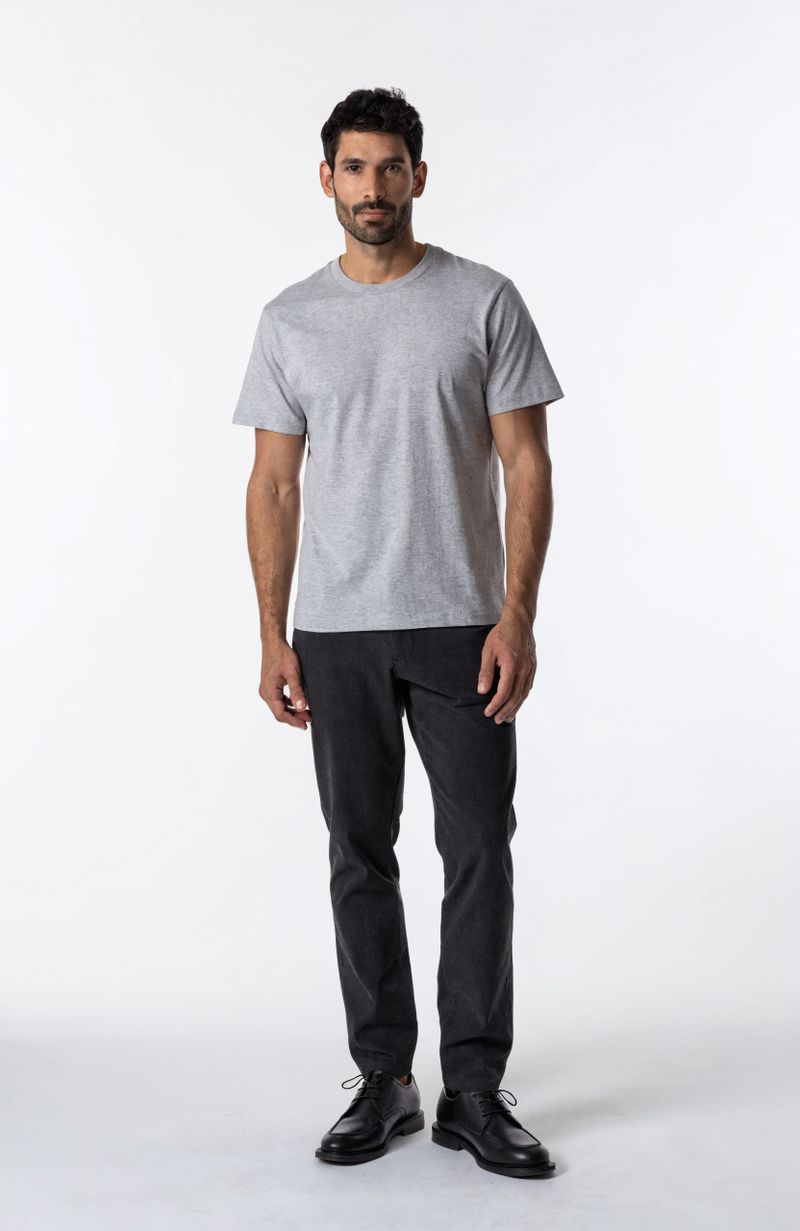
A full-body studio photograph of a man in his early thirties with short dark hair and a trimmed beard, standing and facing the camera in a relaxed neutral pose with arms at his sides, wearing a plain light-grey crew-neck t-shirt and plain dark trousers, full body visible from head to feet, even soft studio lighting on a seamless white background, sharp focus, e-commerce model reference, no text.

A flat-lay product photograph of a brown felt fedora hat with a black grosgrain band, photographed from directly above on a clean white surface, soft even studio lighting, e-commerce packshot, no model, no text.

A flat-lay product photograph of round tortoiseshell sunglasses with thin gold metal arms, photographed from directly above on a clean white surface, soft even studio lighting, e-commerce packshot, no model, no text.

A flat-lay product photograph of a rust-orange corduroy overshirt with a chest pocket and buttons, laid flat on a clean white surface with the sleeves arranged neatly, soft even studio lighting, e-commerce packshot, no model, no text.

A flat-lay product photograph of pleated grey wool trousers laid flat on a clean white surface with the legs straight, soft even studio lighting, e-commerce packshot, no model, no text.

A flat-lay product photograph of a pair of brown leather penny loafers placed side by side and seen from directly above on a clean white surface, soft even studio lighting, e-commerce packshot, no model, no text.

A flat-lay product photograph of a cognac-brown leather crossbody bag with a thin shoulder strap and a brass buckle, photographed from directly above on a clean white surface, soft even studio lighting, e-commerce packshot, no model, no text.
Seven references go in, one image comes out. The garments here span six different regions, head, eyes, torso, legs, feet, and shoulder, and the model resolves each one without instruction. Mixing categories in a single call is the point: you don't run six passes or merge anything first.
[
  {
    "taskType": "imageInference",
    "taskUUID": "b2c3d4e5-f6a7-8901-bcde-f23456789012",
    "model": "prunaai:p-image@try-on",
    "inputs": {
      "referenceImages": [
        { "image": "https://example.com/person.jpg", "role": "person" },
        { "image": "https://example.com/fedora.jpg", "role": "garment" },
        { "image": "https://example.com/sunglasses.jpg", "role": "garment" },
        { "image": "https://example.com/overshirt.jpg", "role": "garment" },
        { "image": "https://example.com/trousers.jpg", "role": "garment" },
        { "image": "https://example.com/loafers.jpg", "role": "garment" },
        { "image": "https://example.com/bag.jpg", "role": "garment" }
      ]
    }
  }
]
Working with many garments
P-Image-Try-On is built for big, mixed outfits. Below, ten deliberately clashing pieces, a bucket hat, heart-shaped sunglasses, a striped scarf, an open leopard shirt, a graphic tee, a watch, plaid shorts, pixel-art socks, high-tops, and a messenger bag, go in as ten separate garment entries on one person.

A flat-lay product photograph of a bright yellow canvas bucket hat, photographed from directly above on a clean white surface, soft even studio lighting, e-commerce packshot, no model, no text.

A flat-lay product photograph of pink heart-shaped sunglasses with red tinted lenses, photographed from directly above on a clean white surface, soft even studio lighting, e-commerce packshot, no model, no text.

A flat-lay product photograph of a chunky knit scarf with bold orange and purple horizontal stripes, laid out straight on a clean white surface, soft even studio lighting, e-commerce packshot, no model, no text.

A flat-lay product photograph of a leopard-print short-sleeve shirt laid flat fully unbuttoned and open on a clean white surface, soft even studio lighting, e-commerce packshot, no model, no text.

A flat-lay product photograph of a lime-green cotton t-shirt with a bold abstract geometric graphic printed on the chest, laid flat on a clean white surface, soft even studio lighting, e-commerce packshot, no model, no text.

A flat-lay product photograph of a large gold wristwatch with a chunky link bracelet, photographed from directly above on a clean white surface, soft even studio lighting, e-commerce packshot, no model, no text.

A flat-lay product photograph of red and green tartan plaid shorts, laid flat on a clean white surface, soft even studio lighting, e-commerce packshot, no model, no text.

A flat-lay product photograph of a pair of tall knee-high socks with a blocky green pixel-art pattern in a Minecraft video-game style, each sock printed with a pixelated creeper-style face, laid flat side by side on a clean white surface, soft even studio lighting, e-commerce packshot, no model, no text.

A flat-lay product photograph of a pair of red high-top canvas sneakers, placed side by side and seen from directly above on a clean white surface, soft even studio lighting, e-commerce packshot, no model, no text.

A flat-lay product photograph of a navy-blue canvas crossbody messenger bag with tan leather trim and a buckled front flap, photographed from directly above on a clean white surface, soft even studio lighting, e-commerce packshot, no model, no text.
The model placed nine of the ten in a single pass, far more than one composite reference could carry. Sending the same wardrobe in smaller cuts shows where it turns selective:


Two things are worth planning around, and neither makes the model less capable:
About seven or eight garments is the reliable zone, which matches the provider's recommendation. Below it, everything lands. Above it the model usually still delivers, as it did here, but the last piece or two aren't guaranteed.
When two garments want the same spot, expect just one. Socks and shoes both go on the feet, so in every outfit above that sent both, the socks dropped and the shoes sometimes defaulted to plain sneakers. Send the socks without shoes and they land cleanly, it's a tie the model has to break, not a refusal.
So for a dependable result, keep an outfit to roughly seven or eight pieces and one item per body spot. Past that, treat the extra garments as a bonus the model will often, but not always, place.
Matching a pose
A pose reference is a second person image whose body position the result adopts, while the identity stays the one from the person reference. It lets you restage the same person and outfit without finding a new source photo in the pose you want.

- Person
- Pose reference
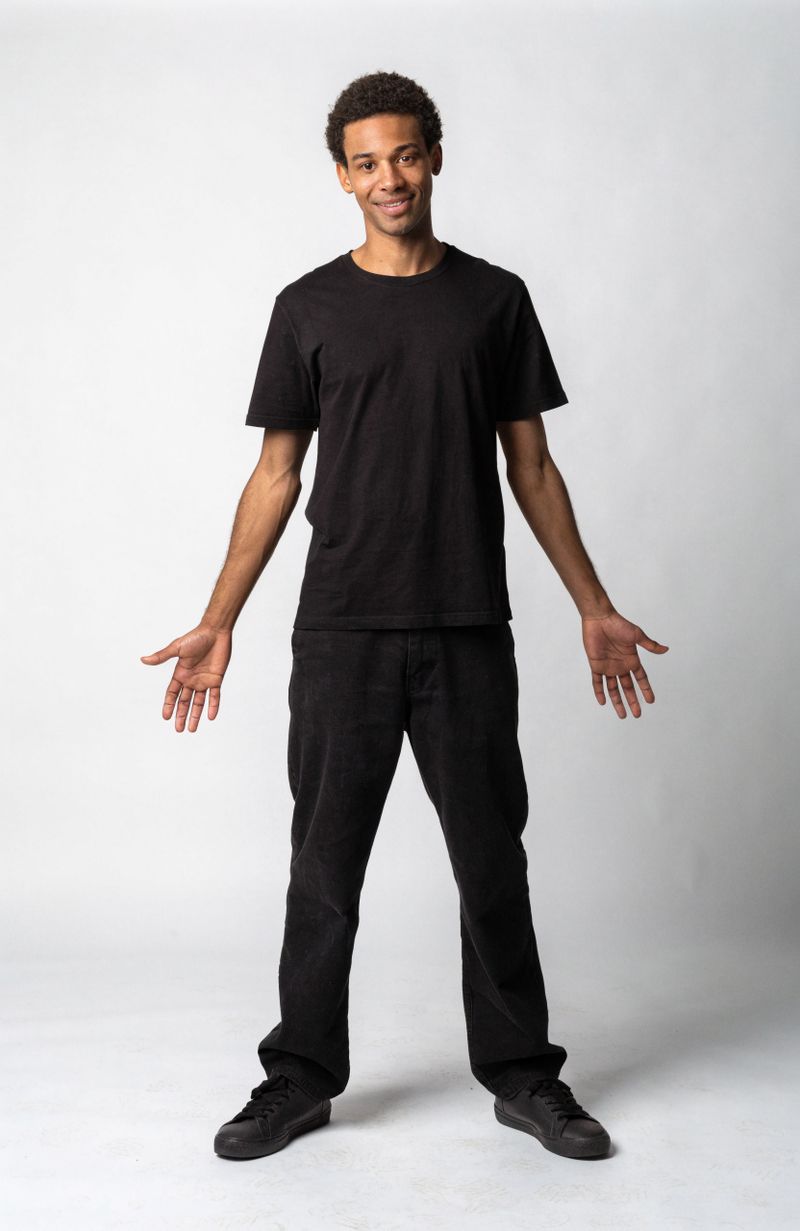
A full-body studio photograph of a man facing the camera directly and looking into the lens with an easy, friendly expression, standing in a relaxed open posture with his weight evenly balanced, feet a comfortable width apart, and both arms loose and a little away from his sides with open relaxed hands, shoulders back and chest open, plain neutral clothing, full body visible from head to feet, seamless light-grey background, even lighting, sharp focus, pose reference, no text.

The result keeps the person's face from the first reference and the garments from the garment entries, but takes the stance from the pose image. Add it as one more entry with role: "pose":
"referenceImages": [
  { "image": "https://example.com/person.jpg", "role": "person" },
  { "image": "https://example.com/overshirt.jpg", "role": "garment" },
  { "image": "https://example.com/trousers.jpg", "role": "garment" },
  { "image": "https://example.com/pose.jpg", "role": "pose" }
]
Restyling with different pieces
The person and the pieces you keep act as a fixed base. Swap one garment reference and rerun to see the same person in a different top, each result independent.


The trousers, loafers, person, and framing hold steady across every result. Only the top changes, which is what makes this practical for showing one model in a range of products, or one product on a range of models by swapping the person reference instead.
Turbo mode
settings.turbo applies all the garment edits in a single larger pass, which runs faster than the default at the same price. The same four-piece outfit, generated both ways:


Side by side, the turbo pass tracks the normal one while finishing faster, at the same price. It takes the same garment range as the default, with around four garments the recommended sweet spot for turbo.
[
  {
    "taskType": "imageInference",
    "taskUUID": "c3d4e5f6-a7b8-9012-cdef-345678901234",
    "model": "prunaai:p-image@try-on",
    "inputs": {
      "referenceImages": [
        { "image": "https://example.com/person.jpg", "role": "person" },
        { "image": "https://example.com/overshirt.jpg", "role": "garment" },
        { "image": "https://example.com/trousers.jpg", "role": "garment" }
      ]
    },
    "settings": { "turbo": true }
  }
]
Reach for turbo when you're generating at volume, ideally on small outfits of around four pieces.
Input guidelines
The output quality tracks the input quality, and the person image matters most.
By default (settings.preserveInputSize: true) the result comes back at the person image's resolution. The model works at its own internal resolution and resizes, so the dimensions you send for the person set the dimensions you get back.
- Person image: a full-body or three-quarter shot works best. The model needs to see the whole body to place garments, and tightly cropped or partial photos can leave artifacts.
- Garment images: flat-lay packshots on a plain background read most reliably. Worn or on-model photos also work, and if one image shows several garments, name the target in
positivePrompt. - Declined items: handheld accessories (umbrellas, phones, wallets) and small extras like gloves or pocket squares aren't supported as garments, so leave them out of the reference list. A request built around them comes back as an error rather than a result.
With the inputs in good shape, the model takes care of fit and placement on its own, including how separate pieces layer.
Tips
-
Tag roles instead of writing a prompt. With clean flat-lay garments, the roles carry everything the model needs. Save
positivePromptfor the case where a reference shows more than one garment and you have to name the target. -
One item per body spot. Two garments competing for the same place, like socks and shoes on the feet, usually leave you with just one. For big outfits, also keep to about seven or eight pieces, beyond that the model often delivers but doesn't promise.
-
Add a pose reference to restage. When you have the right person and outfit but the wrong stance, a
poseentry borrows the body position without changing the identity. -
Use turbo for volume. It runs faster than the default at the same price and takes the same garment range, with around four pieces the recommended sweet spot.