FLUX Erase

FLUX Erase is a dedicated image editing model from Black Forest Labs for removing unwanted objects, text, or distractions from an image while reconstructing the surrounding content naturally. It is tuned for erase-style workflows where the goal is not to replace an element with something new, but to leave a clean, coherent result that matches nearby structure, lighting, texture, and scene context.
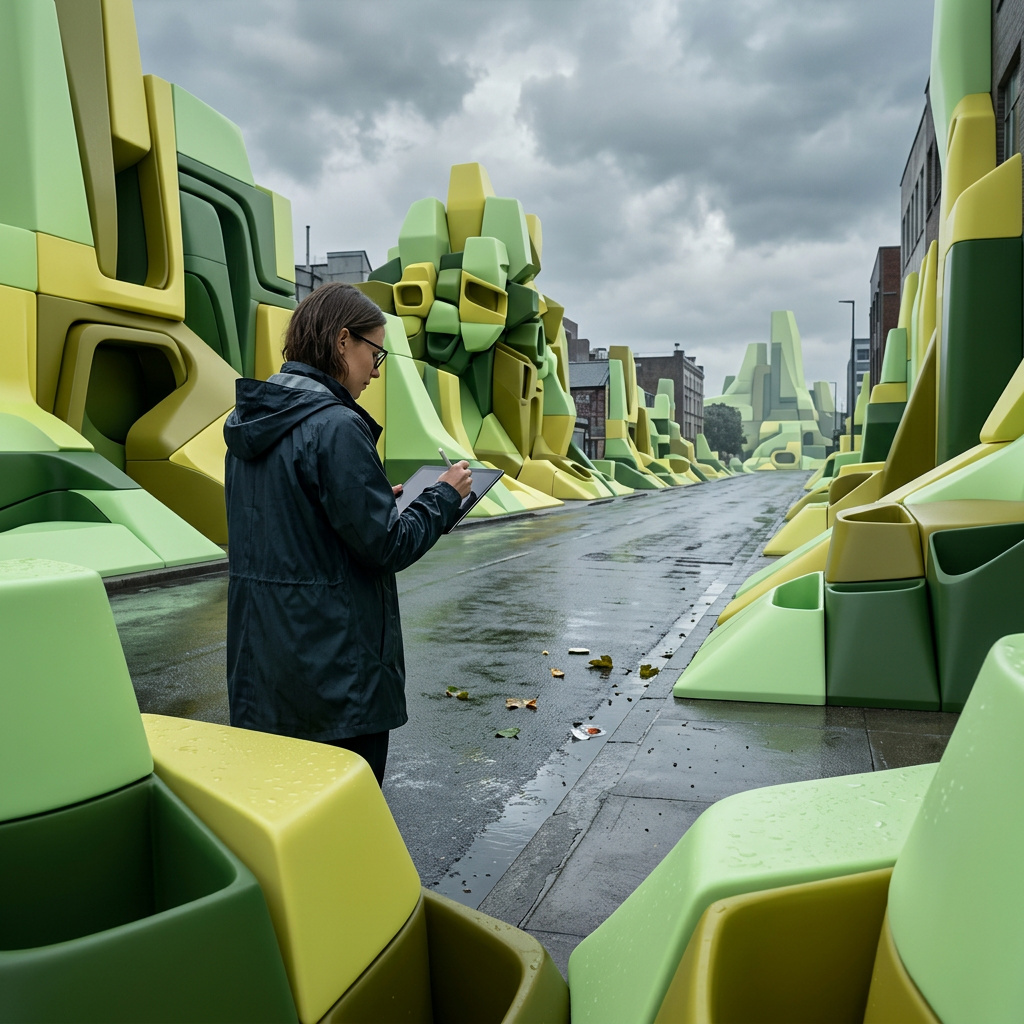
Removing objects
How to remove objects from images with FLUX Erase, Black Forest Labs's prompt-less mask-driven removal model. What you paint is what disappears.
Introduction
Most object-removal workflows are built on top of inpainting: you mask a region, write a prompt describing what should replace it, and the model fills in the gap. That works when you want to replace content, but when you just want something gone, the prompt becomes a liability. You're asking the model to imagine background that was never there, and the result often looks like it was imagined.
FLUX Erase takes a different approach. It's a dedicated removal model from Black Forest Labs, built on FLUX.2 Klein 9B and trained specifically for erasure, not fill. You pass an image, a binary mask, and the model reconstructs what was behind the masked object. No prompt, no strength knob, no scheduler. The only tunable parameter is settings.dilatePixels, which controls how far the mask expands before the model processes it.


The model handles more than raw pixel replacement. It picks up on shadows and reflections that the mask doesn't fully cover, and removes those too. A person standing on wet pavement leaves a reflection. A signpost casts a shadow. FLUX Erase catches both even if your mask only covers the object itself.
This guide covers the request shape, how to think about masks and dilation, and four practical removal patterns.
Request shape
A FLUX Erase request is small. You pass the source image, a mask, and optionally a dilation value:
import { createClient } from '@runware/sdk'

const client = await createClient({ apiKey: process.env.RUNWARE_API_KEY })
await client.connect()

const [result] = await client.run({
  model: 'bfl:flux@erase',
  inputs: {
    image: 'https://example.com/photo.jpg',
    mask: 'https://example.com/mask.png'
  },
  settings: {
    dilatePixels: 10
  }
})
import asyncio
import os
from runware import Runware
async def main():
async with Runware(api_key=os.environ["RUNWARE_API_KEY"]) as client:
results = await client.run({
"model": "bfl:flux@erase",
"inputs": {
"image": "https://example.com/photo.jpg",
"mask": "https://example.com/mask.png"
},
"settings": {
"dilatePixels": 10
}
})
asyncio.run(main())curl https://api.runware.ai/v1 \
-H "Authorization: Bearer $RUNWARE_API_KEY" \
-H "Content-Type: application/json" \
-d '[
{
  "taskType": "imageInference",
  "taskUUID": "b7c3d4e5-f6a7-8901-bcde-f23456789012",
  "model": "bfl:flux@erase",
  "inputs": {
    "image": "https://example.com/photo.jpg",
    "mask": "https://example.com/mask.png"
  },
  "settings": {
    "dilatePixels": 10
  }
}
]'runware run bfl:flux@erase \
inputs.image=https://example.com/photo.jpg \
inputs.mask=https://example.com/mask.png \
settings.dilatePixels=10{
"taskType": "imageInference",
"taskUUID": "b7c3d4e5-f6a7-8901-bcde-f23456789012",
"model": "bfl:flux@erase",
"inputs": {
"image": "https://example.com/photo.jpg",
"mask": "https://example.com/mask.png"
},
"settings": {
"dilatePixels": 10
}
}Response
{
  "data": [
    {
      "taskType": "imageInference",
      "taskUUID": "b7c3d4e5-f6a7-8901-bcde-f23456789012",
      "imageUUID": "a1b2c3d4-e5f6-7890-abcd-ef1234567890",
      "imageURL": "https://im.runware.ai/image/os/a14d18/ws/2/ii/a1b2c3d4-e5f6-7890-abcd-ef1234567890.jpg"
    }
  ]
}
Two required fields, one optional:
inputs.imageis the source photo. Accepts a URL, base64 string, data URI, or UUID from a previous generation or the Media Storage API.inputs.maskis a binary mask at the same resolution as the source. White pixels (255) mark what to remove. Black pixels (0) mark what to keep. Same input formats as the image.settings.dilatePixelsexpands the mask boundary by this many pixels before erasure. Defaults to10. Range is 0 to 50.
The model decides how to fill based entirely on the surrounding visual context.
Masks
The mask is a black-and-white image at the same pixel dimensions as the source. White (255) marks what to remove, black (0) marks what to keep.
You can create masks in a few ways:
- Manual masking in Photoshop, GIMP, or any raster editor. Paint white over the objects you want removed, export as PNG.
- Segment Anything (SAM) or similar segmentation tools that output binary masks from point or box prompts.
- Runware Image Masking API for automated detection. Use
runware:35@4for full-body person segmentation,runware:35@2for face detection, or choose from specialized models for hands, eyes, lips, and other features.
The mask doesn't need to be pixel-perfect. FLUX Erase is tolerant of rough edges, and settings.dilatePixels exists precisely to compensate for masks that don't fully cover the object boundary.
You can use the tool below to paint a mask directly in the browser. Drop your source image, paint over the areas you want removed, then download the mask as a PNG.
Drop an image here or browse
The mask must match the source image dimensions exactly. A 1280 × 896 source needs a 1280 × 896 mask. Mismatched dimensions return a validation error.
Dilation
settings.dilatePixels expands the mask outward by the specified number of pixels before the model processes it. The default value of 10 works well for masks generated by SAM or similar tools, which tend to follow object edges tightly but miss thin details like hair strands or shadow edges.
When to increase it:
- Soft-edged subjects (hair, fur, smoke, transparent fabric): 15 to 20.
- Objects that cast visible shadows or reflections: 12 to 18. The shadow often extends beyond the object boundary, and the dilation gives the model room to clean it up.
- Rough hand-drawn masks: 10 to 15, depending on how far off the edges are.
When to decrease it:
- Tight removals near important content: if the object you're removing is close to something you want to keep (a person standing next to a wall edge, an item touching another item), lower
dilatePixelsto avoid eroding the neighboring content.
Setting it to 0 disables dilation entirely and uses the mask as-is. This is only useful when the mask already includes the exact boundary you want.
Removal patterns
People removal
Clearing people from architectural shots, street photography, or interiors. This is where the auto-masking pipeline shines: use the Runware Image Masking API with a full-person detection model to generate the mask, then pipe it into FLUX Erase.

A wide-angle photograph of a modern museum gallery interior with polished concrete floors, white walls, and track lighting. Four visitors are walking through the space.


The mask above was generated automatically using the Image Masking API. The full pipeline is two requests: first detect all people, then pass the mask to FLUX Erase:
[
  {
    "taskType": "imageMasking",
    "taskUUID": "a1b2c3d4-0001-0001-0001-000000000001",
    "model": "runware:35@4",
    "inputs": {
      "image": "https://example.com/photo.jpg"
    },
    "settings": {
      "confidence": 0.5,
      "maxDetections": 10,
      "maskPadding": 10,
      "maskBlur": 5
    }
  }
][
{
"taskType": "imageInference",
"taskUUID": "a1b2c3d4-0002-0002-0002-000000000002",
"model": "bfl:flux@erase",
"inputs": {
"image": "https://example.com/photo.jpg",
"mask": "<maskImageURL from step 1>"
},
"settings": {
"dilatePixels": 18
}
}
]Model runware:35@4 detects full-body person silhouettes and returns a combined binary mask covering all detected subjects. The maskPadding setting expands each detection slightly to catch edges that the detector might clip, and maskBlur softens the mask boundary for smoother blending.
People cast shadows and reflections on floors, and their silhouettes partially occlude whatever's behind them. FLUX Erase reconstructs both the occluded background and the floor surface without explicit instructions. Increase dilatePixels to 15 or higher for subjects with loose clothing or hair.
Text and signage
Removing painted signs, watermarks, graffiti, or baked-in text from surfaces. The mask should cover the entire text region generously. For painted text on textured surfaces like brick or wood, the model reconstructs the underlying texture pattern, not just a flat fill.

A close-up photograph of a weathered brick wall with a large faded hand-painted advertisement sign reading ACME HARDWARE SUPPLIES in white and yellow paint. Ivy growing on the edges, dappled afternoon sunlight.


A lower dilatePixels (5 to 8) works well here. Text sits flat on surfaces and doesn't cast meaningful shadows, so the mask can be tight. If paint has bled into the mortar lines, bump it up slightly.
Cables and wires
Removing power lines, electrical cables, clotheslines, or overhead wires from landscape and travel photography. These are thin, elongated objects that cross large portions of the frame. The mask is typically a set of thin horizontal strips.

A photograph of a Mediterranean hillside village at sunset, pastel-colored houses with terracotta roofs cascading down toward a turquoise harbor, multiple overhead power lines crossing the sky.


Set dilatePixels to 15 to 20 for cables. They're thin enough that SAM masks often miss the edges, and a few extra pixels of dilation makes the difference between a clean sky and a faint ghost line.
Product cleanup
Removing stray items and clutter from product photography flat-lays. The goal is a clean surface around the hero product without re-shooting. The mask covers only the unwanted objects, not the product.

A top-down product photography flat-lay: a matte white ceramic skincare jar with a brushed-aluminum lid sits centered on a polished marble surface. To its right, a small crumpled receipt and a stray ballpoint pen.


Keep dilatePixels moderate (8 to 12) when the clutter is close to the product. Too much dilation can erode the product's edge.
FLUX Erase vs inpainting
Both FLUX Erase and inpainting take a source image and a mask. The difference is what happens next.
Inpainting is replacement. You provide a text prompt describing what should appear in the masked region. The model generates new content guided by the prompt and blends it into the surrounding image. Use inpainting when you want to swap an object for something specific: replace a sofa with a different sofa, change a sky from day to night, add a painting to a wall.
FLUX Erase is removal. There's no prompt. The model reconstructs the scene as if the masked object was never there. Use it when you want something gone and the scene behind it restored: remove a pedestrian from a street shot, clean a watermark from a stock photo, strip cables from a skyline.
The practical test: if you can describe what you want in one sentence ("remove the person"), use FLUX Erase. If you need to describe what should replace it ("replace the person with a park bench"), use inpainting.
FLUX Erase also handles trace removal (shadows, reflections, soft edges) that the mask doesn't fully cover. Inpainting models treat the mask boundary as absolute and only modify the white region. If you're removing objects that leave traces on surrounding surfaces, FLUX Erase produces cleaner results without mask engineering.
Tips
-
Cover the full object, not just the center. Masks that cut off the edges of an object leave visible remnants. Extend the mask 10 to 20 pixels past the object boundary, or use
settings.dilatePixelsto do it automatically. -
Use auto-masking for people. The Runware Image Masking API with model
runware:35@4generates full-body person masks that work well with FLUX Erase out of the box. For faces only, userunware:35@2. For multiple detections, the API returns a combined mask covering all detected subjects. -
Stay near 1 megapixel. The model was trained at approximately 1 MP across 9 aspect ratios from 1:2 to 2:1. Inputs close to these resolutions produce the best results. For higher-resolution sources, consider downscaling before erasure and upscaling the result afterward.
-
Increase dilation for soft edges. Hair, fur, smoke, and translucent materials are the hardest edges for masks to capture. Bump
dilatePixelsto 15 or 20 for these subjects. The cost is minimal and the quality difference is visible. -
Lower dilation near important content. When the object you're removing is touching or overlapping something you want to keep, reduce
dilatePixelsto avoid eroding the neighboring content. In tight cases, set it to 0 and make a precise mask manually. -
Remove one object at a time for complex scenes. If you're removing multiple objects that are far apart, consider running separate erase passes with focused masks. The model produces cleaner results when each mask covers a single coherent region rather than scattered islands across the frame.