HeyGen Avatar V

HeyGen Avatar V is an avatar video generation model for talking digital twins and other eligible registered avatar looks. It improves identity preservation, lip sync accuracy, facial expressiveness, and motion coherence across angle changes, scene changes, and long-form videos, making it well suited to presenter, training, and localization workflows where avatar stability matters.
Backgrounds, framing, and aspect ratios
How to compose what surrounds the avatar in Avatar V output: the background, fit mode, aspect ratio for the target platform, and burned-in captions.
Introduction
Most of what makes an avatar video feel polished happens around the avatar, not in it. The background, the framing, the aspect ratio, the captions. Those decisions are what separate a placeholder render from production-ready output. Avatar V exposes each of them as an independent parameter, which means you can render the same script and voice into a 9:16 social cut and a 16:9 training video from the same starting point.
Let me show you a few different ways this presenter can appear, with one API call deciding the look.
{
  "taskType": "videoInference",
  "taskUUID": "a1b2c3d4-e5f6-7890-abcd-ef1234567890",
  "model": "heygen:avatar@5",
  "inputs": {
    "avatar": "Caroline_Business_Standing_Front_public",
    "background": "office-background.jpg"
  },
  "speech": {
    "text": "Let me show you a few different ways this presenter can appear, with one API call deciding the look.",
    "voice": "jenny_female_english"
  },
  "width": 1920,
  "height": 1080,
  "settings": {
    "removeBackground": true
  }
}
This guide covers four levers: background control (remove, color, or image), canvas sizing, fit modes when the avatar's natural framing doesn't match the canvas, and burned-in captions for accessibility and silent-autoplay contexts.
Background control
Without any background settings, the avatar comes through with its registered look intact, including whatever environment the avatar was originally captured in:
Let me show you a few different ways this presenter can appear, with one API call deciding the look.
{
  "taskType": "videoInference",
  "taskUUID": "b2c3d4e5-f6a7-8901-bcde-f23456789012",
  "model": "heygen:avatar@5",
  "inputs": {
    "avatar": "Brandon_Office_Standing_Front_public"
  },
  "speech": {
    "text": "Let me show you a few different ways this presenter can appear, with one API call deciding the look.",
    "voice": "chill_brian_male_english"
  },
  "width": 1280,
  "height": 720
}
To replace that environment, you first need to remove the original background, then optionally place something behind the cutout. The two parameters that handle this are settings.removeBackground and either settings.backgroundColor (a hex string) or inputs.background (an image).
settings.removeBackground only works for avatars whose source was trained with matting enabled. If you toggle it on for an avatar that wasn't, the parameter has no effect. The avatar's catalog entry tells you whether matting is supported. When in doubt, request the avatar both ways and compare.
Solid-color backgrounds
The simplest replacement is a flat color. Use settings.backgroundColor with a hex code. The avatar gets matted onto the color you specified:
"settings": {
  "removeBackground": true,
  "backgroundColor": "#0a0e27"
}Let me show you a few different ways this presenter can appear, with one API call deciding the look.
{
  "taskType": "videoInference",
  "taskUUID": "c3d4e5f6-a7b8-9012-cdef-345678901234",
  "model": "heygen:avatar@5",
  "inputs": {
    "avatar": "Brandon_Office_Standing_Front_public"
  },
  "speech": {
    "text": "Let me show you a few different ways this presenter can appear, with one API call deciding the look.",
    "voice": "chill_brian_male_english"
  },
  "width": 1280,
  "height": 720,
  "settings": {
    "removeBackground": true,
    "backgroundColor": "#0a0e27"
  }
}Let me show you a few different ways this presenter can appear, with one API call deciding the look.
{
  "taskType": "videoInference",
  "taskUUID": "d4e5f6a7-b8c9-0123-def0-456789012345",
  "model": "heygen:avatar@5",
  "inputs": {
    "avatar": "Brandon_Office_Standing_Front_public"
  },
  "speech": {
    "text": "Let me show you a few different ways this presenter can appear, with one API call deciding the look.",
    "voice": "chill_brian_male_english"
  },
  "width": 1280,
  "height": 720,
  "settings": {
    "removeBackground": true,
    "backgroundColor": "#f5f0e6"
  }
}
Solid colors are the right call when the avatar will be composited downstream (chroma-key style) or when the brand identity already owns a specific background color. They also work well for lower-third treatments with a fixed background plate.
Image backgrounds
For richer scenes, pass an image to inputs.background. Same matting step (removeBackground: true), but the cutout lands in front of your image instead of a flat color:
"inputs": {
  "avatar": "man_casual_young_adult",
  "background": "office-background.jpg"
},
"settings": {
  "removeBackground": true
}
The background images below were generated separately, then their URLs passed straight into the Avatar V request:
Let me show you a few different ways this presenter can appear, with one API call deciding the look.
{
  "taskType": "videoInference",
  "taskUUID": "e5f6a7b8-c9d0-1234-ef01-567890123456",
  "model": "heygen:avatar@5",
  "inputs": {
    "avatar": "Brandon_Office_Standing_Front_public",
    "background": "office-background.jpg"
  },
  "speech": {
    "text": "Let me show you a few different ways this presenter can appear, with one API call deciding the look.",
    "voice": "chill_brian_male_english"
  },
  "width": 1280,
  "height": 720,
  "settings": {
    "removeBackground": true
  }
}- Source background
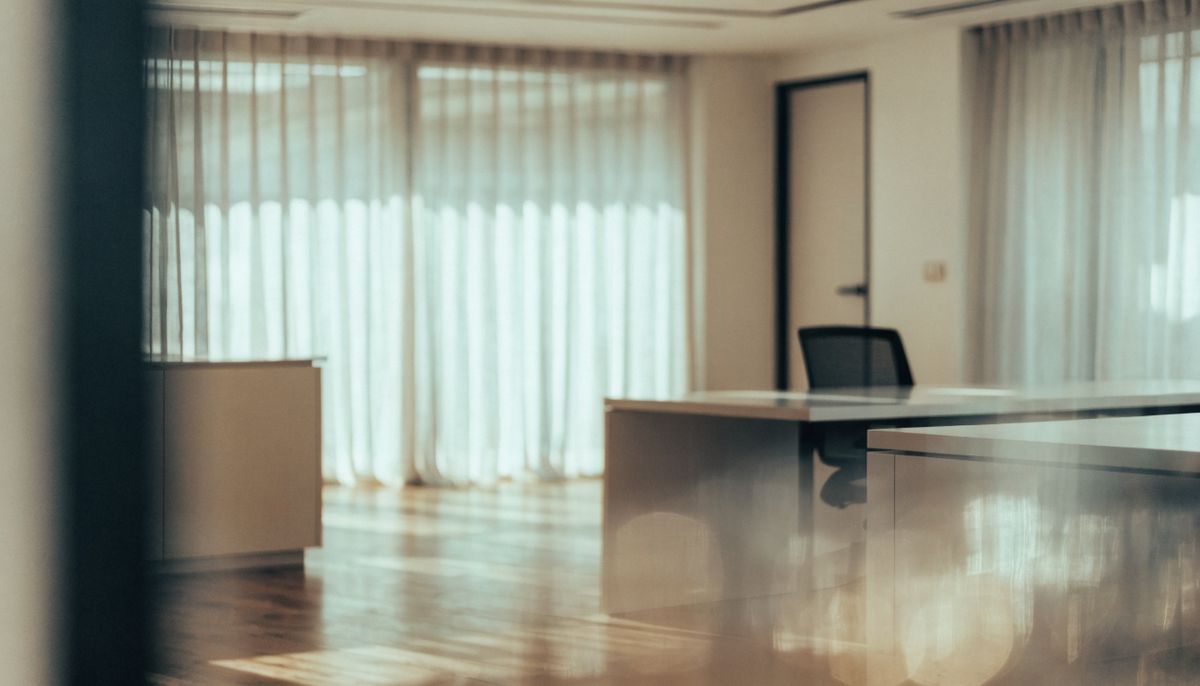
A modern minimalist office interior with floor-to-ceiling windows, soft natural light through sheer curtains, neutral cream and warm wood tones, empty space in the foreground, blurred shallow depth of field, professional setting, photorealistic

Let me show you a few different ways this presenter can appear, with one API call deciding the look.
{
  "taskType": "videoInference",
  "taskUUID": "f6a7b8c9-d0e1-2345-f012-678901234567",
  "model": "heygen:avatar@5",
  "inputs": {
    "avatar": "Brandon_Office_Standing_Front_public",
    "background": "outdoor-terrace.jpg"
  },
  "speech": {
    "text": "Let me show you a few different ways this presenter can appear, with one API call deciding the look.",
    "voice": "chill_brian_male_english"
  },
  "width": 1280,
  "height": 720,
  "settings": {
    "removeBackground": true
  }
}- Source background
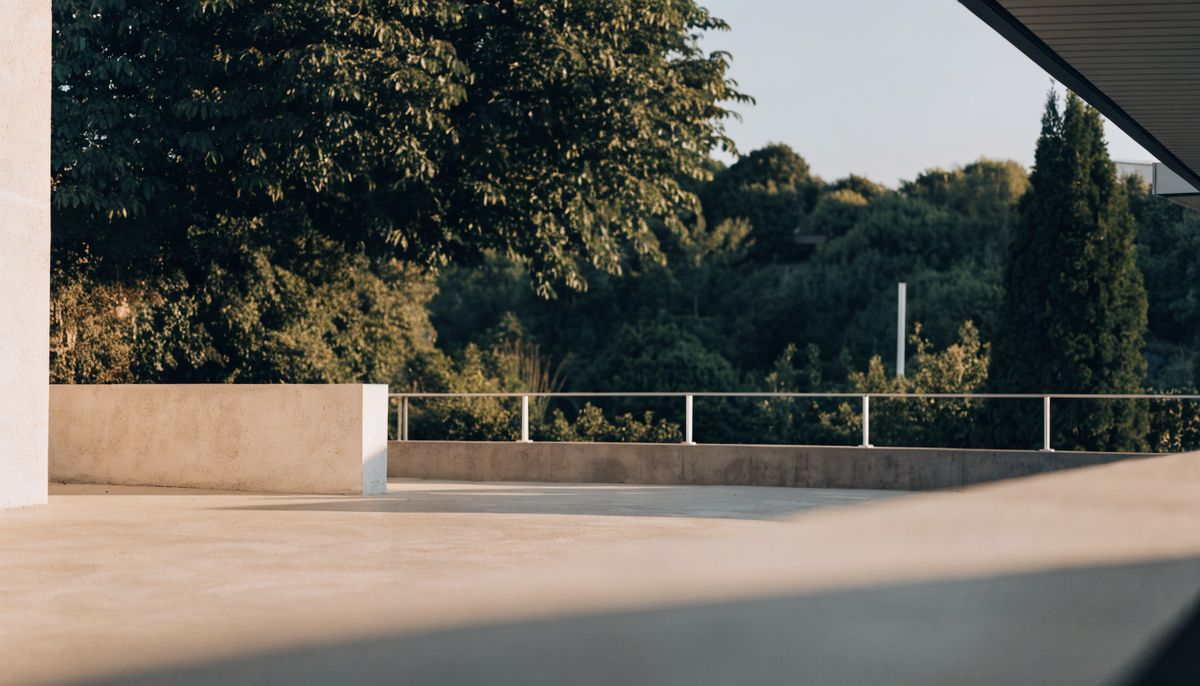
A bright outdoor terrace with lush greenery in the background, soft afternoon sunlight, neutral architectural elements, blurred bokeh, empty space in the foreground, contemporary residential aesthetic, photorealistic

Match the background image's aspect ratio to your output width and height. If they differ, the model scales the background to fit, which can crop important content or leave borders. For a 1280 × 720 render, a 1344 × 768 or other 16:9 source works cleanly.
Comparing all four treatments
Same avatar, same script, same voice, four different background settings:
Let me show you a few different ways this presenter can appear, with one API call deciding the look.
Let me show you a few different ways this presenter can appear, with one API call deciding the look.
Let me show you a few different ways this presenter can appear, with one API call deciding the look.
Let me show you a few different ways this presenter can appear, with one API call deciding the look.
The avatar's pose, expression, and delivery are identical across all four. Only the composite changes.
Sizing the canvas
Avatar V outputs to a fixed set of resolutions in 16:9 or 9:16:
| Resolution | Landscape (16:9) | Portrait (9:16) |
|---|---|---|
| 720p | 1280 × 720 | 720 × 1280 |
| 1080p | 1920 × 1080 | 1080 × 1920 |
| 4K | 3840 × 2160 | 2160 × 3840 |
Pick the orientation first based on where the video plays, then the resolution based on quality and bandwidth constraints.
Aspect ratios for the target platform
Landscape (16:9) suits YouTube, training platforms, embedded web players, and any context that defaults to a horizontal layout. Portrait (9:16) is mandatory for TikTok, Instagram Reels, YouTube Shorts, and most mobile-first content:
Let me show you a few different ways this presenter can appear, with one API call deciding the look.
{
  "taskType": "videoInference",
  "taskUUID": "a7b8c9d0-e1f2-3456-0123-789012345678",
  "model": "heygen:avatar@5",
  "inputs": {
    "avatar": "Brandon_Office_Standing_Front_public"
  },
  "speech": {
    "text": "Let me show you a few different ways this presenter can appear, with one API call deciding the look.",
    "voice": "chill_brian_male_english"
  },
  "width": 1280,
  "height": 720
}Let me show you a few different ways this presenter can appear, with one API call deciding the look.
{
  "taskType": "videoInference",
  "taskUUID": "b8c9d0e1-f2a3-4567-1234-890123456789",
  "model": "heygen:avatar@5",
  "inputs": {
    "avatar": "Brandon_Office_Standing_Front_public"
  },
  "speech": {
    "text": "Let me show you a few different ways this presenter can appear, with one API call deciding the look.",
    "voice": "chill_brian_male_english"
  },
  "width": 720,
  "height": 1280,
  "settings": {
    "fit": "cover"
  }
}
Both videos use the same avatar, voice, and script. Only width and height differ. The model adjusts framing automatically when you switch orientation, but the avatar's natural pose is what it is, so re-test your prompt copy and pacing when you switch.
1080p is the right default for most production use. 720p is faster and cheaper, useful for iteration and previews. 4K is overkill for talking-head content unless you're cutting to a large display or zooming in heavily in post.
Fit modes for source mismatches
When your output canvas has a different aspect ratio than the avatar's source footage, the model has to choose between two strategies. settings.fit controls that choice:
coverscales the avatar to fill the canvas entirely, cropping the edges that don't fit.containscales the avatar to fit fully inside the canvas, leaving background visible above and below (or on the sides).- Omitting
fitlets the server pick based on the source and canvas orientations.
Let me show you a few different ways this presenter can appear, with one API call deciding the look.
{
  "taskType": "videoInference",
  "taskUUID": "c9d0e1f2-a3b4-5678-2345-901234567890",
  "model": "heygen:avatar@5",
  "inputs": {
    "avatar": "Brandon_Office_Standing_Front_public"
  },
  "speech": {
    "text": "Let me show you a few different ways this presenter can appear, with one API call deciding the look.",
    "voice": "chill_brian_male_english"
  },
  "width": 720,
  "height": 1280,
  "settings": {
    "fit": "cover"
  }
}Let me show you a few different ways this presenter can appear, with one API call deciding the look.
{
  "taskType": "videoInference",
  "taskUUID": "d0e1f2a3-b4c5-6789-3456-012345678901",
  "model": "heygen:avatar@5",
  "inputs": {
    "avatar": "Brandon_Office_Standing_Front_public"
  },
  "speech": {
    "text": "Let me show you a few different ways this presenter can appear, with one API call deciding the look.",
    "voice": "chill_brian_male_english"
  },
  "width": 720,
  "height": 1280,
  "settings": {
    "fit": "contain"
  }
}
Both videos render the same avatar at 720 × 1280 (9:16 portrait). cover crops the avatar's natural framing to fill the frame, while contain preserves the full original frame and fills the remaining space with the background color (white by default).
The key factor is aspect ratio mismatch. Avatar footage is natively landscape (16:9). When your output canvas matches that ratio, fit has no effect. The more the output diverges from the source ratio, the more dramatic the difference:
coverin portrait crops the sides to fill the 9:16 frame. You lose the avatar's outstretched arms and background edges, but the composition stays tight and clean.containin portrait letterboxes the entire landscape frame into the tall canvas, producing large empty bars above and below. This rarely looks production-ready for portrait content.
If you're using a custom inputs.background, the same logic applies: a landscape background forced into a portrait canvas with contain will be letterboxed. Match your background's aspect ratio to your output dimensions to avoid compounding the mismatch.
For portrait output, cover is almost always the right choice. Reserve contain for cases where the output canvas is close to the avatar's native 16:9 ratio and you need to preserve the full body framing.
Captions and subtitles
Setting settings.caption to true burns subtitles directly into the rendered video:
Let me show you a few different ways this presenter can appear, with one API call deciding the look.
{
  "taskType": "videoInference",
  "taskUUID": "e1f2a3b4-c5d6-7890-4567-123456789012",
  "model": "heygen:avatar@5",
  "inputs": {
    "avatar": "Brandon_Office_Standing_Front_public"
  },
  "speech": {
    "text": "Let me show you a few different ways this presenter can appear, with one API call deciding the look.",
    "voice": "chill_brian_male_english"
  },
  "width": 1280,
  "height": 720,
  "settings": {
    "caption": true
  }
}
Burned-in captions are permanent and non-removable. Use them when you need captions guaranteed for every viewer: silent autoplay on social feeds, accessibility compliance, or any context where you can't rely on a player's native caption support.
The burned-in caption style (font, size, position) is fixed by the model. If you need custom typography, branding, or positioning, render without captions and overlay your own subtitles in post-production.
Tips
-
Always run
removeBackgroundwith either a color or an image, not alone. Without a replacement, the background falls back to whatever the avatar's source environment was. The matting step is only useful when you're putting something else behind the cutout. -
Match the background image's aspect ratio to the output canvas. A 16:9 background on a 9:16 canvas will be cropped or letterboxed in ways you didn't intend. Generate or pick backgrounds at the same aspect as your final video.
-
Pick the orientation before the avatar. A wide-framed avatar in a portrait canvas almost always needs
fit: coverand still looks awkward. If the platform is mobile-first, choose an avatar that frames well vertically and avoid the fit dance entirely. -
Treat 1080p as the production default. 720p is iteration-only because the loss of detail in faces is visible at typical viewing sizes. 4K is rarely worth the file size for talking-head content.
-
Burn captions only when you can't control the player. Silent autoplay on Reels, TikTok, and embedded social cards demands burned-in text. For YouTube, training platforms, or your own site, skip burned-in captions and use the platform's native subtitle support so viewers can toggle them.