Your stack, your choice: Runware via MCP, CLI, or Skills
Runware now offers an MCP server for AI agents, a CLI for the terminal, and Skills that package up Runware know-how for whichever one you're using. All three reach the same catalog across image, video, audio, 3D, and LLMs.

Runware now offers an MCP server for AI agents, a CLI for the terminal, and a set of Skills that package up Runware know-how for whichever one you're using. All three reach the same catalog across image, video, audio, 3D, and LLMs.
TL;DR
Runware provides three ways into the Runware environment now: an MCP server for AI agents, a CLI for the terminal, and Skills, packaged recipes an agent can load to get good results without knowing the model catalog. All three reach the same catalog: every major model provider plus thousands of community models, across image, video, audio, 3D, and LLMs, accessible through one interface. Skills aren't a fourth way to call Runware. They sit on top of MCP, CLI, or the SDKs, and tell an agent how to use whichever one it already has.
The MCP server: Runware inside your agent
MCP (Model Context Protocol) is an open standard that lets AI agents talk to external services through a defined set of tools. If you're using Claude, Cursor, Codex, VS Code, or any other MCP-compatible client, connecting Runware means your agent can generate media, search the model catalog, and check pricing without you leaving the session, or writing any integration code.
There are two ways to connect:
Hosted: point your client at https://mcp.runware.ai, paste your Runware API key when prompted, and you're connected. The key is stored server-side, encrypted inside the OAuth session, so your client only ever holds a token, never the key itself.
Local: for agents that can't reach external MCP servers, or restricted and air-gapped networks, you can run the MCP server on a local machine instead:
npx @runware/mcpSet RUNWARE_API_KEY in your environment and point your client at the local server. The toolset is identical to the hosted version; it just runs on your machine and connects differently.
Either way, your agent gains a set of tools it can call directly.
The MCP toolbox
Once connected, the agent gains access to a set of tools that cover the main things you'd want to do with Runware:
The run tool is the core one. It handles image generation, video generation, audio, upscaling, background removal, and everything the Runware API supports, through your agent interface. You don't need to tell the agent which task type to use or look up model parameter schemas. You describe what you want, and if you know you want a specific model you can name it; otherwise the agent figures out a good fit using the catalog tools.
Those catalog tools (list_models, model_details, model_pricing, model_examples) are what give the agent the ability to search and reason about the available models before committing to a generation. This is genuinely useful in various ways; you could ask something like "what does each Veo model cost for an 8-second 1080p clip?" and the agent will use the list_models and model_pricing tools to look up the options and compile a comparison, displayed directly in your agent application.
On pricing: there's no MCP surcharge. If a generation costs $0.05, you pay $0.05. The browsing and inspection tools are free.
A practical example
You're building a product page in a Claude Code session and you need a hero image in a specific aspect ratio. Normally you'd stop, open a separate generation tool, come up with a prompt, iterate on it, download the result, and bring it back. With the Runware MCP integrated into Claude, you can simply ask to generate it: "I need a 16:9 banner image for our product page. Use Runware, generate two examples for me, one with Nano Banana 2, one with GPT Images 2.0."
This example highlights a number of core capabilities:
- One of the requested model names wasn't found in the Runware model catalogue, so the MCP model search tool was employed by the agent to locate it.
- One of the generation requests returned an error and was automatically retried.
- The agent used the
ToolSearchcapability to look up the correct schema for the model, identifying acceptable dimensions to solve the issue.
With two sample images generated, Claude Code then offers to wire one into the project, adding it to the repository, all from within the coding agent app, with no context-switching required.
If you'd installed the relevant Runware Skill alongside the MCP server, the agent wouldn't need to feel its way through model selection and retries on its own. The skill would have already told it which model to default to, what schema fields matter, and how to phrase the prompt for that model family. More on that below.
The CLI: Runware from your terminal
The CLI is a separate tool, a native runware binary that you install on your machine. It's built for working directly without an agent in the loop: generating from the terminal, scripting, testing models, and dropping generation into automated pipelines. The CLI is fully open source and released under the MIT License, so you can inspect the source, build it yourself, and review exactly what you're installing. The source code is available on the Runware GitHub.
The core command is runware run:
runware run runware:101@1 positivePrompt="a chess match in the park" width=1024 height=1024Results download automatically to an ./outputs folder.
The same run command works for video, audio, 3D, and text inference. Just swap the model identifier. The CLI fetches the model's schema automatically and validates your parameters before the job runs, so you find out about mistakes before any spend.
Beyond generation, the CLI can search the model catalog, check pricing, inspect a model's full parameter schema, and manage presets for configurations you run often. Output supports --format json for piping into other tools or scripts, making it practical for automation.
# Search models
runware model search -q "flux"

# Check a model's parameters before running
runware model schema runware:101@1

# Save a preset for something you run often
runware preset save my-flux --model runware:101@1 --width 1024 --height 1024

# Check your account and usage
runware account details
Like the MCP server, browsing and inspection calls via the CLI are free. There's no additional fee to access Runware's services via CLI.
Runware Skills: recipes for your agent
The MCP server and the CLI are both ways to reach Runware. Skills are different: they're a way to teach an agent how to use Runware's services, without you having to spell out the model, the parameters, or the prompting style every time.
A Skill is a small folder of Markdown that an agent loads on demand. You ask for an outcome in plain language, the matching skill picks up the request and chooses the right model, and the agent runs it through the MCP server, the CLI, or one of the SDKs to produce the result. There's nothing to host and no new endpoint to learn. The skill is instructions for an agent that's already connected to Runware one way or another.
The point of a skill is the routing. You ask for "a product video" or "the same character in a new scene" the same way today and a year from now. The skill decides which model fits that request right now, and that choice updates as better models ship. The skill is the stable part. The model underneath is free to change.
Here's the shape of it:
- You ask: "Make a launch video from this product photo."
- A skill named
product-ad-videopicks up the intent. It's named by the outcome, not the model. - It routes to the best model currently available for that job, something like Seedance 2.0, a Veo model, or Kling Video. That part is swappable. When a better model ships, the skill's routing updates and every user gets the upgrade without changing a thing.
- It runs and returns a finished video URL.
How skills are organized
Skills load on demand, so installing a lot of them is cheap. Until a request matches, only a skill's name and description sit in the agent's context. Once something matches, the body loads, and deeper material like worked examples loads only if the task actually needs it. You can install the whole catalog and pay almost nothing in context until one applies.
The catalog has two layers:
- Foundation skills carry the shared machinery: how to call the API, how to pick a live model, how to prompt it correctly. There are three:
runware-run(the execution contract),runware-models(model selection that stays current as the catalog changes), andrunware-prompting(per-model prompt craft). - Outcome skills are the customer-facing recipes. Each one composes the foundation skills and adds the craft specific to its job. There are outcome skills across image (
product-photography,character-consistency,text-in-image,edit-image,restore-and-upscale, and more), video (product-ad-video,ugc-ad,animate-image,talking-avatar,multi-shot-video, and more), and 3D, audio, and text (image-to-3d-asset,voiceover,dialogue-audio,voice-cloning,music,llm-agent,vision-understanding), plus two for custom models (train-style-model,bring-your-own-model).
A skill never hardcodes a single model as the only answer. It names a sensible default, then has the agent confirm that model is still live and check its current schema before running. That's what keeps a skill correct as the catalog moves underneath it.
What an agent does with one
Give an agent the skills and a single sentence:
"Restore this old family photo and make it print-ready."
The agent matches the request to restore-and-upscale, reads it, picks an upscaler that's live, runs the task, and hands back the result. The skill also keeps the agent honest about limits; there's no dedicated face-restoration model yet, so it sets that expectation rather than overpromising.
"Make a launch video from this product shot, vertical, with a voiceover."
Two skills compose here. product-ad-video animates the product and voiceover generates the narration. The agent runs the video asynchronously, polls for the result, and hands back the clip. You didn't name a model or a parameter at any point.
Adding skills to your agent
Skills follow the open Agent Skills standard, so most agents that support skills pick them up the same way: drop the folders where the agent looks for skills, and it reads each one by its name and description.
Claude Code: register the marketplace and install the plugin, and you'll stay current as new commits land.
/plugin marketplace add runware/runware-skills
/plugin install skills@runware
To cherry-pick instead, clone the repo and copy individual folders into .claude/skills/ (or ~/.claude/skills/ for every project):
git clone https://github.com/runware/runware-skills.git
mkdir -p .claude/skills
cp -r runware-skills/skills/product-ad-video .claude/skills/
Claude.ai: on a plan with Skills, go to Customize → Skills and upload the folders you want. Each becomes available in chat and activates when your request matches its description.
Cursor: clone the repo and copy the skills into .cursor/skills/ (or ~/.cursor/skills/ globally). Ask in plain language, or type / and pick one by name.
OpenClaw: install straight from the repo with openclaw skills install git:runware/runware-skills. Add --global to install for every workspace instead of just one.
Any other agent: clone the repo and drop the folders wherever that agent looks for skills, commonly .agents/skills/ or ~/.agents/skills/.
Whichever client you use, a skill still needs a way to actually run the work it describes. Pair it with the MCP server or the CLI, both covered above, and you're set.
MCP, CLI, or Skills: which one do you need?
These aren't three competing options. MCP and the CLI are both ways to connect to Runware. Skills are a layer of know-how that makes either connection smarter.
The MCP server is the right baseline when you're already working inside an agent. You describe what you want, the agent handles the tool calls, and generation happens inside the conversation. Without a skill installed, the agent is figuring out model selection and prompting on its own, using the catalog tools to feel its way to a good result. That works, and it's what the practical example above shows.
Skills, layered on top of the MCP server (or CLI, or SDKs), remove that guesswork. Instead of the agent discovering a good model and prompt structure through trial and error, the skill hands it a sensible default, the schema fields that actually matter, and prompting craft specific to that model family. You get more consistent results, and the agent burns fewer calls getting there. If you're doing the same kind of generation repeatedly, like product videos or character-consistent shots, installing the matching skill is worth it.
The CLI is the right choice when you want to work directly, without an agent in the loop at all. Unlike the MCP, it isn't conversational; you need to know which command to run and what parameters to pass, rather than describing what you want in plain language. That's a reasonable tradeoff when the task is well-defined: scripting a batch job, running generations in CI/CD, or just generating something quickly from a terminal window. Skills don't apply here in the same direct way, since there's no agent reading them, but the model choices and parameter guidance a skill encodes are still useful reference if you're writing the CLI commands yourself.
In short: MCP or CLI gets you connected. Skills make the agent good at using that connection without you doing the model research yourself.
Getting started
Hosted MCP (Claude, Cursor, VS Code, and most other clients)
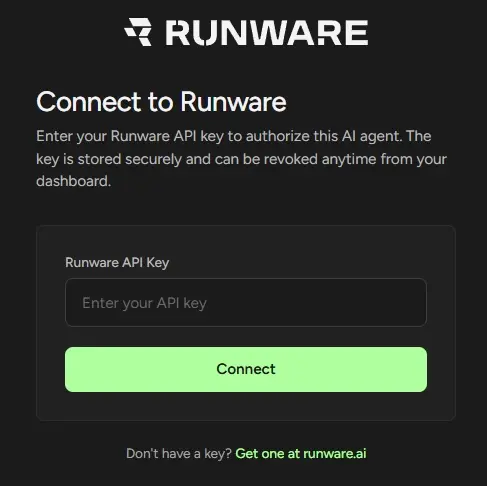
Add https://mcp.runware.ai as a custom MCP server in your client's settings and complete the OAuth flow when prompted. You'll paste your Runware API key into a Runware-branded page. That's the only time it's ever visible.
Local MCP server
npx @runware/mcpSet RUNWARE_API_KEY in your environment and point your client at the local server.
Command Line Interface
brew install --cask runware/tap/runwareThen authenticate on any platform with your API key:
runware auth loginOnce authenticated, run runware ping to confirm connectivity, and you're ready. Full CLI reference at github.com/Runware/runware-cli.
Skills
git clone https://github.com/runware/runware-skills.gitDrop the skill folders into wherever your agent reads skills from (.claude/skills/, .cursor/skills/, ~/.openclaw/skills, or your agent's equivalent), and pair them with the MCP server or CLI you set up above.
The full landing page with per-client MCP setup guides is at /mcp.